Keeping a website consistent means carrying the same brand voice, design choices, and layout conventions into each new task. Repeating those instructions in every AI prompt adds work, especially when you are building several pages for the same client.
Divi AI Agents let you save that guidance as Rules in the Divi 5 Visual Builder. You can define standards the agent should follow, choose when they apply, and reference other Rules or site content. Here is how to set them up and keep them useful as your site develops.
From Individual AI Tasks To Connected Workflows
When Divi AI launched in August 2023, it brought text and image generation into the Visual Builder. Code generation followed, expanding what you could create without leaving the page.
Those tools later expanded to generate layouts and full websites. Instead of starting every section manually, you could use AI to create a starting point and continue editing it in Divi.
The introduction of Divi AI Agents brings these workflows into a conversational interface. You describe a task, and the agent can inspect the page and use Divi-specific tools to make changes across multiple elements.
For example, you can ask it to refine a hero section, standardize typography, replace repeated color values with Design Variables, or adjust responsive spacing. It can also create pages, manage menus, schedule posts, and work with Theme Builder templates.
Rules give these requests a shared set of instructions. Alongside the immediate task, the agent has guidance about how you want the site designed, written, and organized.
How Rules Help Maintain Consistency
The agent can inspect your existing page, but its content and settings do not explain every design decision. A particular color might be intentional, a temporary placeholder, or a value you want replaced with a Design Variable. Rules let you make those preferences explicit.
You might save instructions about brand voice, which presets to reuse, how to name elements, or which color variables to apply. This guidance remains available beyond an individual conversation, reducing the need to repeat it in each prompt.
Rules guide the agent’s work; they do not enforce settings like a preset or automatically update existing elements when you save them. Continue reviewing the result, particularly when a task involves exceptions to your usual standards.
Rules vs Commands
Rules describe how the agent should approach its work. Commands are reusable prompts you choose to run for recurring tasks.
| Rules | Commands | |
|---|---|---|
| Nature | Passive. Loaded automatically before every session. | Active. Saved prompts you trigger from the chat when you need them. |
| Purpose | Governs how the Agent behaves across all conversations. | Runs a saved multi-step task on demand. |
| Good for | Brand voice, design variables, layout conventions, naming standards. | Accessibility audits, responsive cleanup, content reviews, design system sweeps. |
| Setup | Write once. Always on from that point forward. | Write once. Trigger from the chat whenever you need it. |
For example, a Rule could tell the agent to use existing color variables when styling elements. A Command could ask it to review a page for hardcoded colors and replace them with suitable variables. The Rule supplies the convention; the Command starts the task.
Brand standards and naming conventions generally belong in Rules. Repeatable jobs, such as accessibility reviews or responsive cleanup, make useful Commands. You can use both in the same workflow.
Creating Rules For Divi AI Agents
Start with one instruction you regularly repeat. Give it a clear title, describe what the agent should do, and choose whether it applies broadly or only to certain tasks.
1. Open The Rule Editor
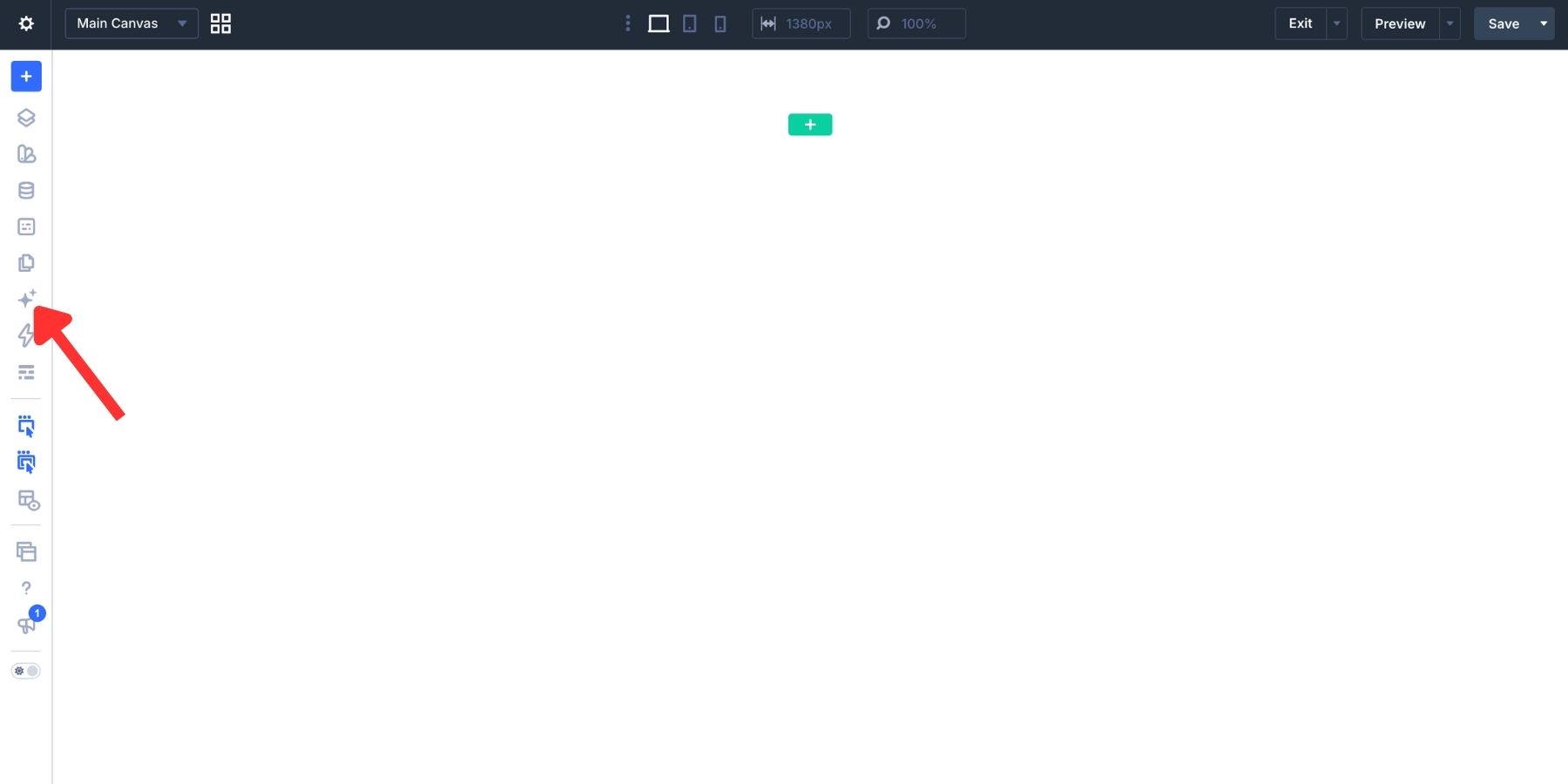
Open Divi AI Agents from the AI Agent icon in the Visual Builder toolbar.
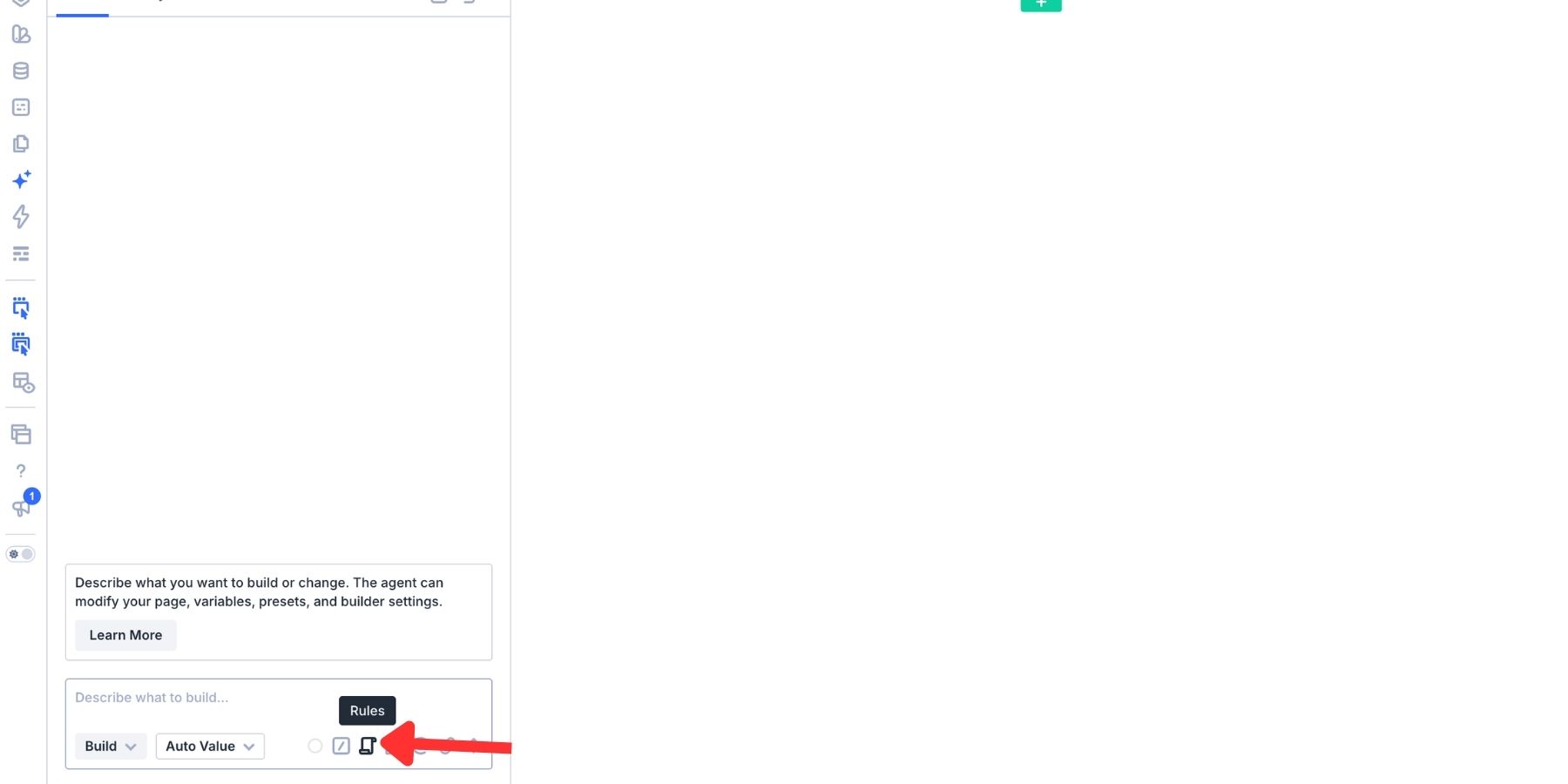
In the chat’s composer toolbar, click Rules. This opens the Rules panel, where you can browse saved instructions or add a new one. The toolbar also provides access to Commands, Tools, Context, and file attachments.
Click Add New Rule. The editor lets you enter a title and instruction, then control when the Rule should apply.
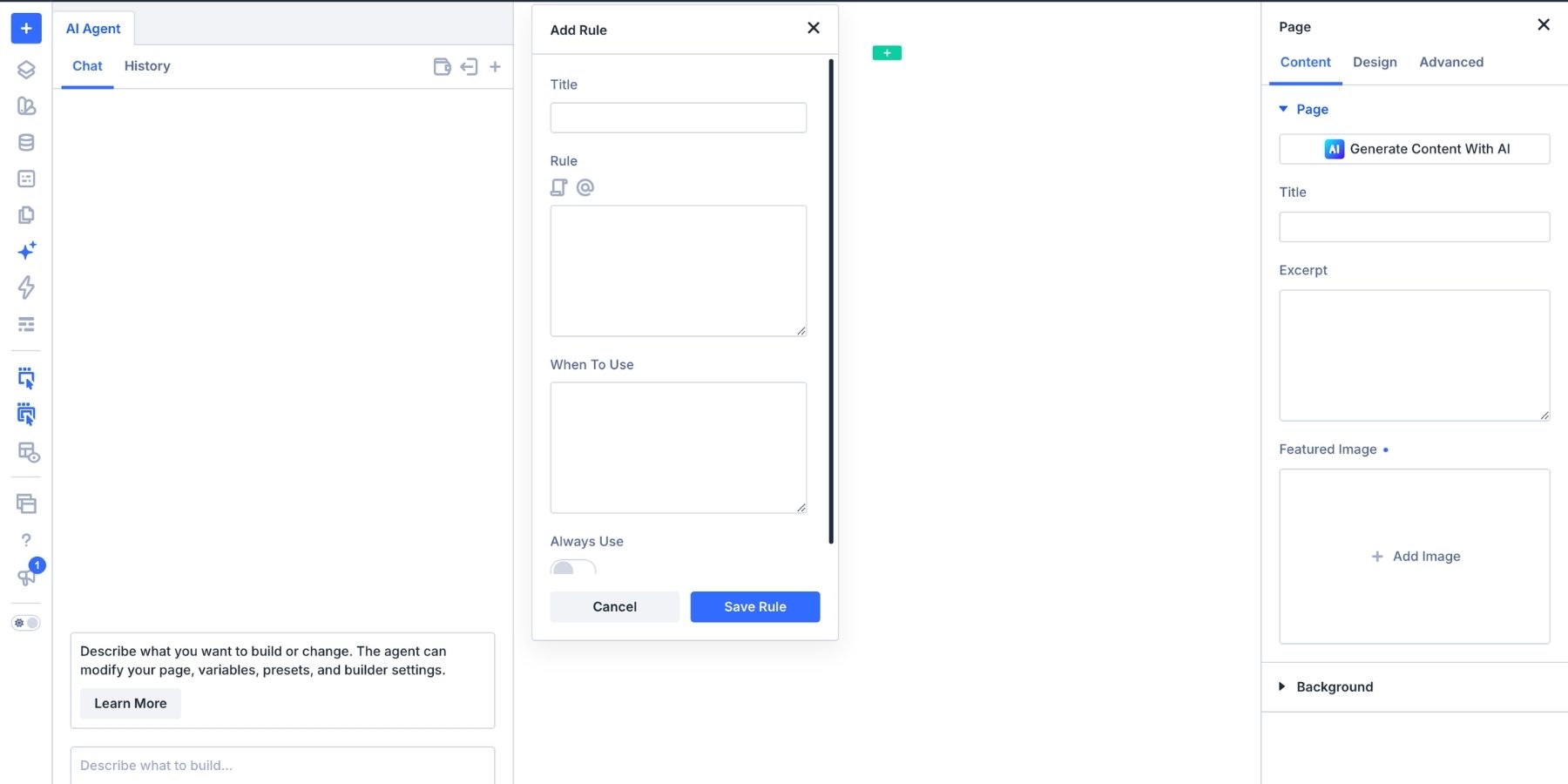
2. Give It A Title And Write The Instruction
Enter a short, recognizable name in the Title field. In this example, we use Brand Voice because the Rule defines how the agent should write copy for the site.
In the Rule field, describe the writing style you want. Be specific about tone, sentence length, word choices, and calls to action rather than simply asking the agent to “write on brand.”
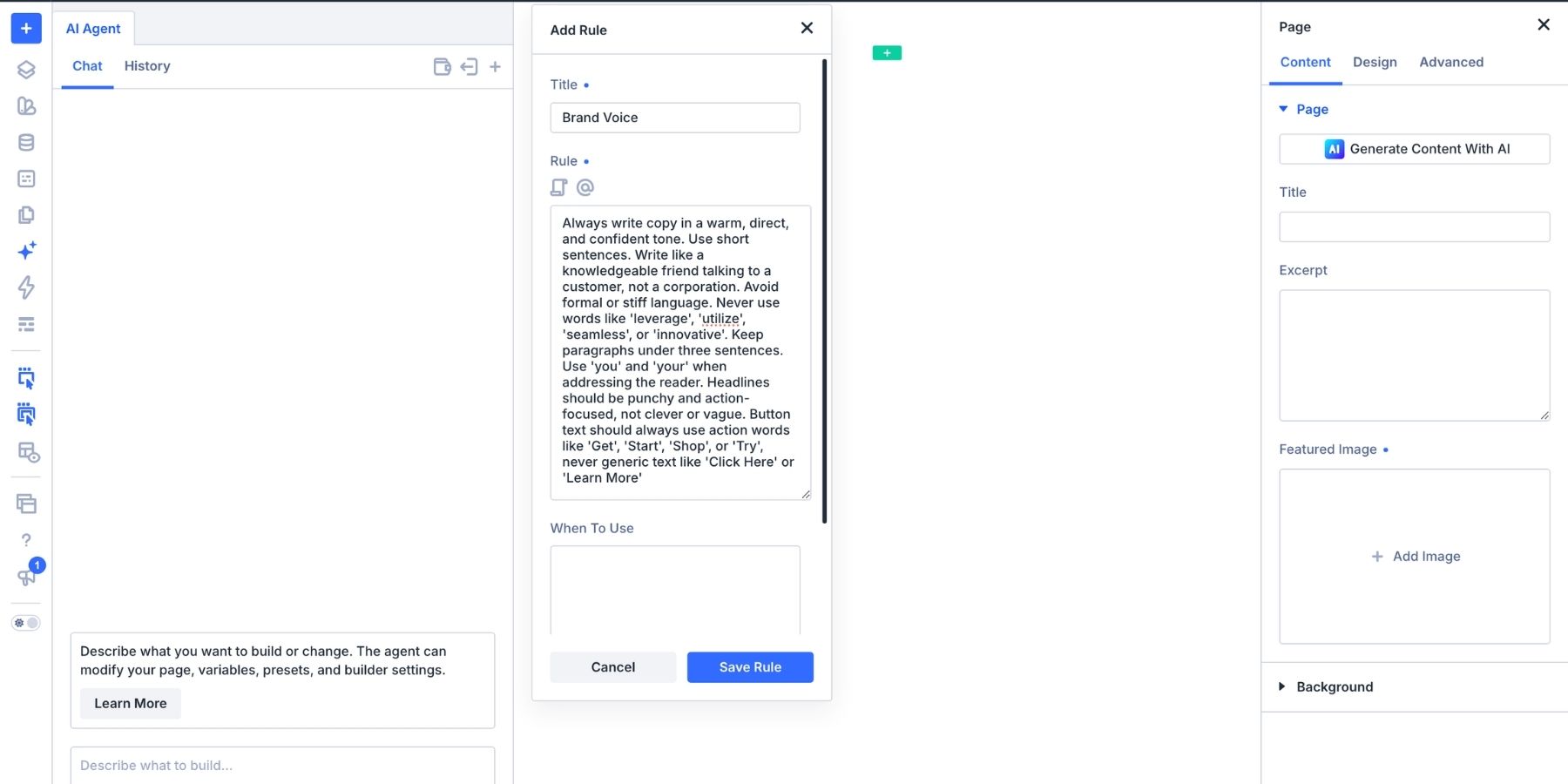
The example above asks for a warm, direct, and confident tone, with short sentences and paragraphs under three sentences. It also specifies words to avoid, asks the agent to address readers as “you,” and favors clear, action-focused headlines and button labels.
These details turn a broad preference into guidance the agent can apply when writing or editing content. Adapt them to your own brand rather than treating the example as a universal writing standard. Keep each Rule focused on one topic. Save typography or button styling instructions separately so you can find, update, and combine them more easily later.
3. Choose When The Rule Applies And Save
Use When To Use to describe the situations in which the Rule is relevant. For example, enter “when building or editing landing pages” or “when styling primary CTA buttons.” This gives the agent context for deciding when to use the instruction.
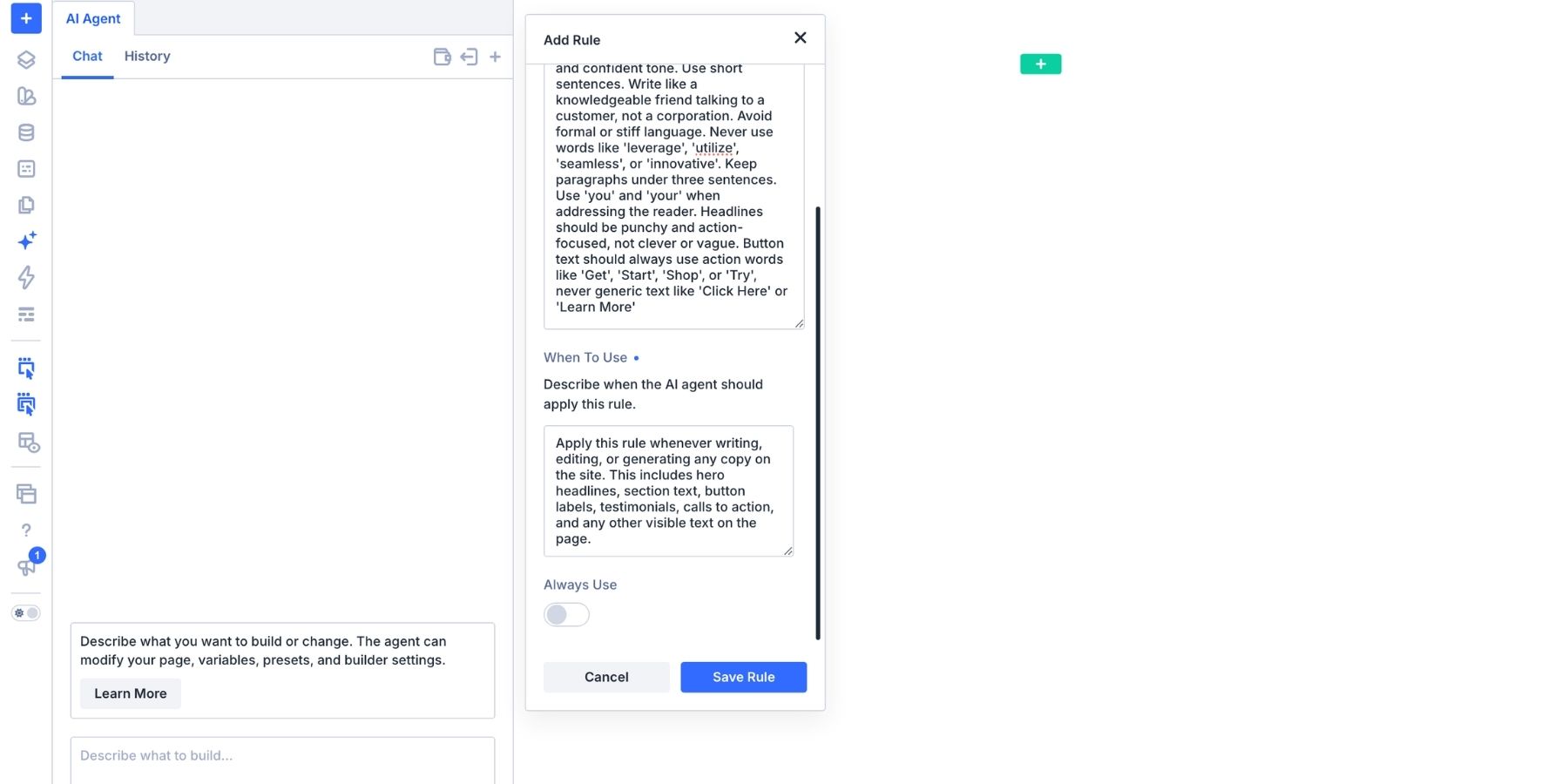
Turn on Always Use for guidance that should apply throughout your work on the site. General brand or naming conventions may fit here. Instructions specific to a page type or component are better suited to a clear When To Use description.
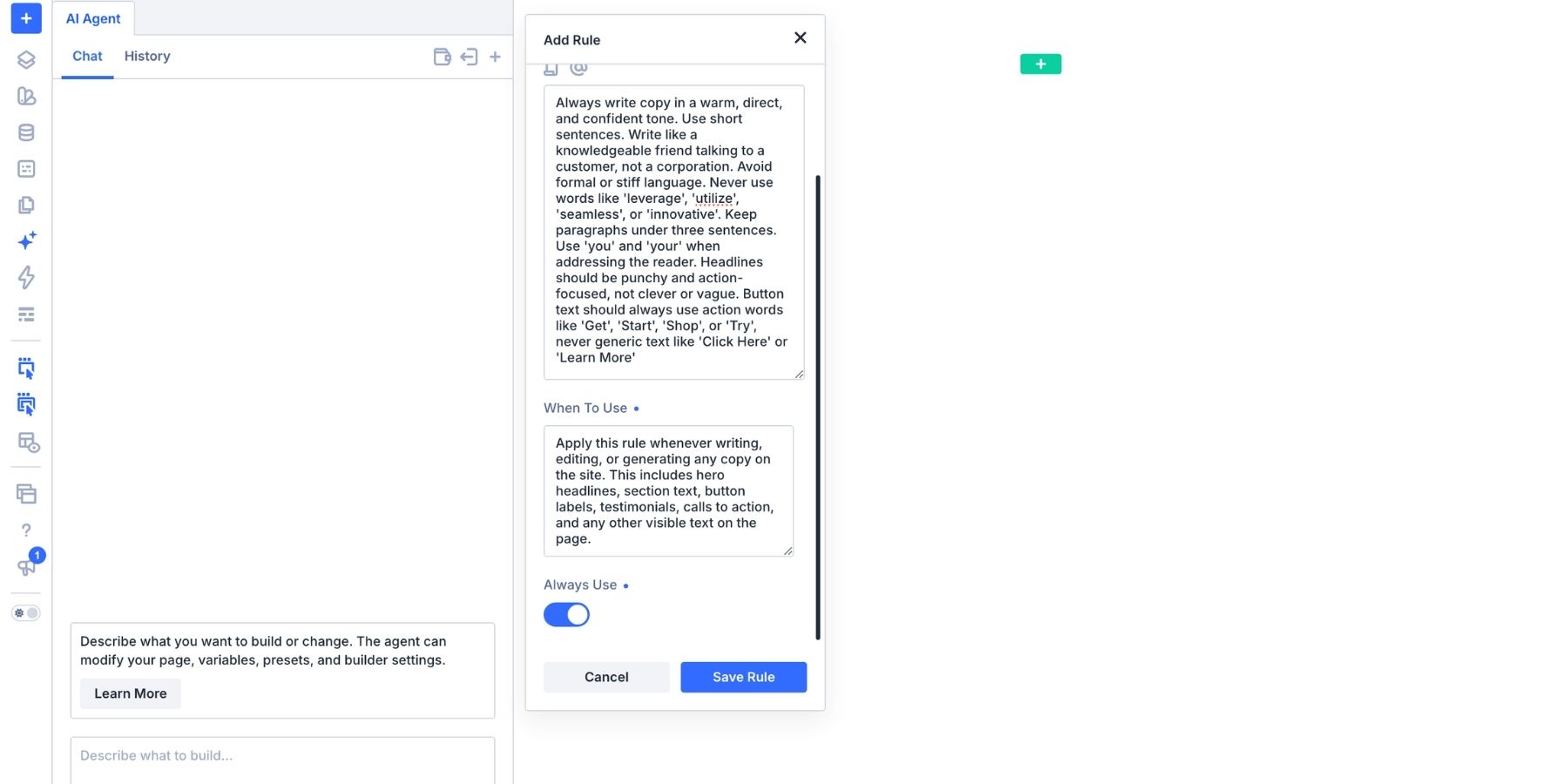
Click Save Rule. The saved instruction appears in the Rules panel, ready for the agent to use according to its applicability settings.
Try a small task covered by the Rule, such as styling one primary button. Review the result against the instruction and refine any wording that leaves room for an unintended interpretation.
Managing And Combining Rules
As your site develops, you may need to update standards, combine related instructions, or point the agent to an existing design. You can do this from the Rules panel without rewriting every Rule from scratch.
Nesting Rules
A page-specific Rule may need guidance from several other Rules. For example, a product page instruction could reference your brand voice, typography, and button conventions alongside its own layout requirements.
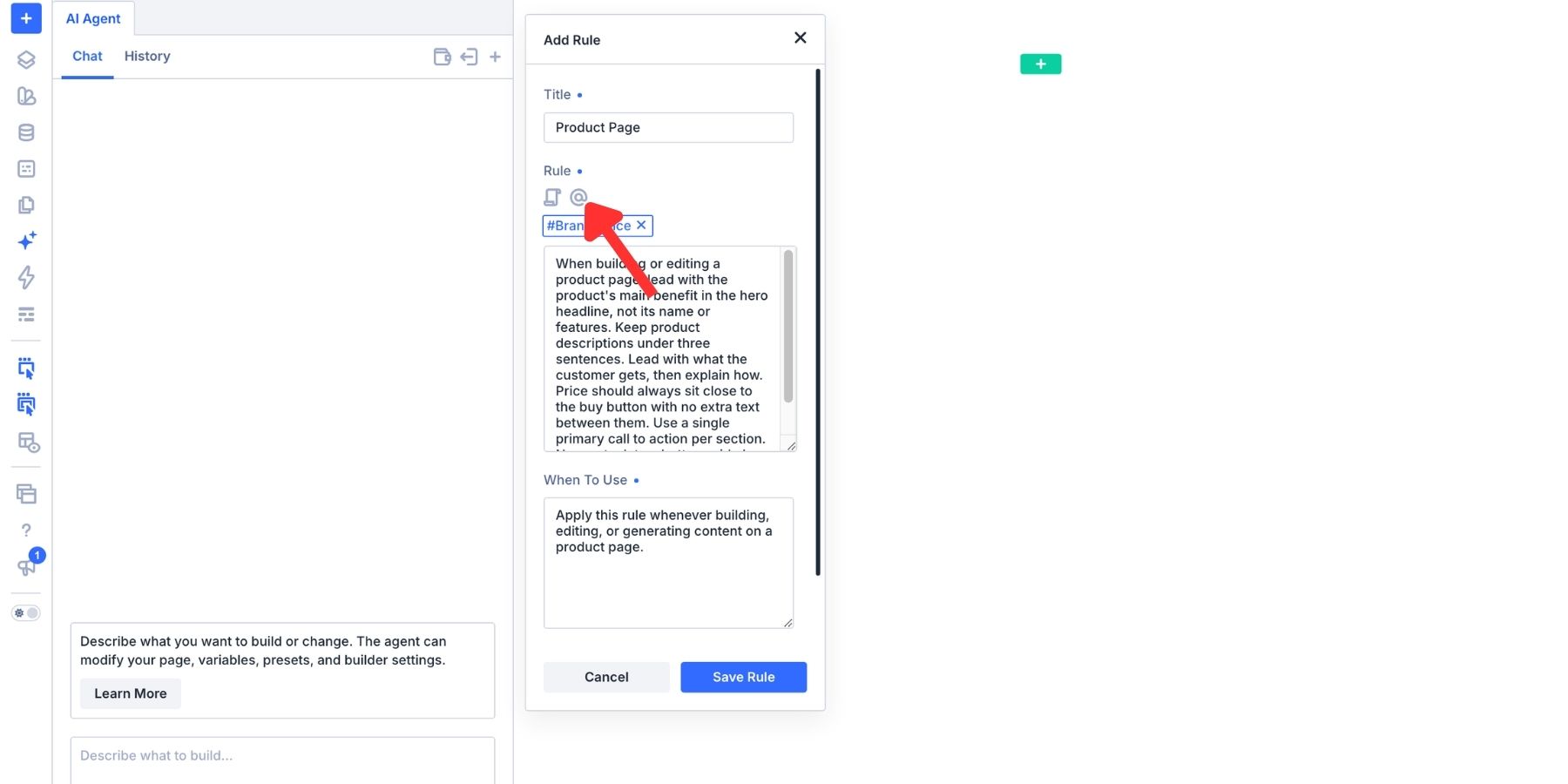
Use the Rules icon inside the Rule editor to open the picker and select a saved Rule.
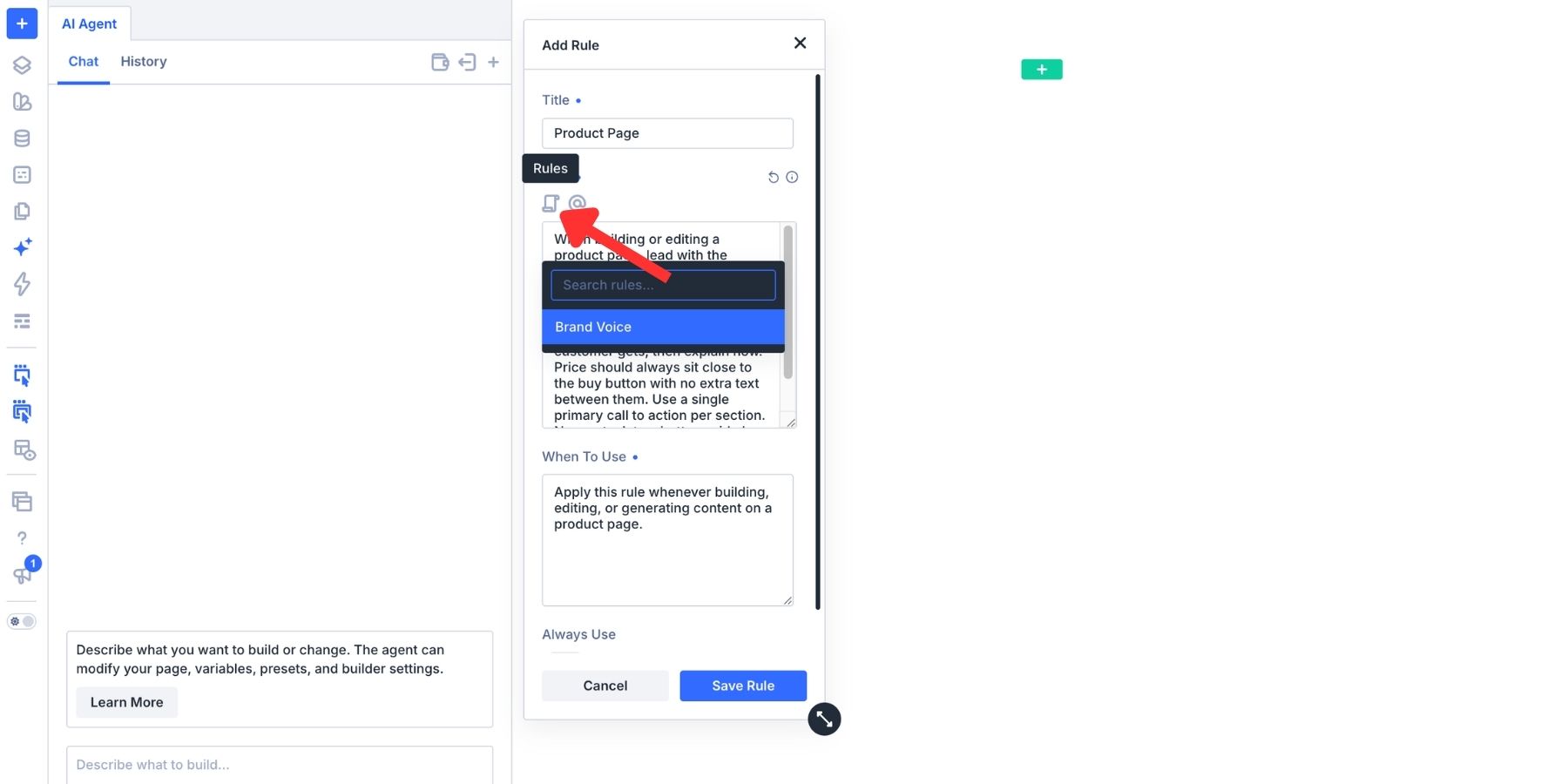
The selected Rule appears as a reference tag, such as #Brand Voice or #Button Styles, above the instruction field.
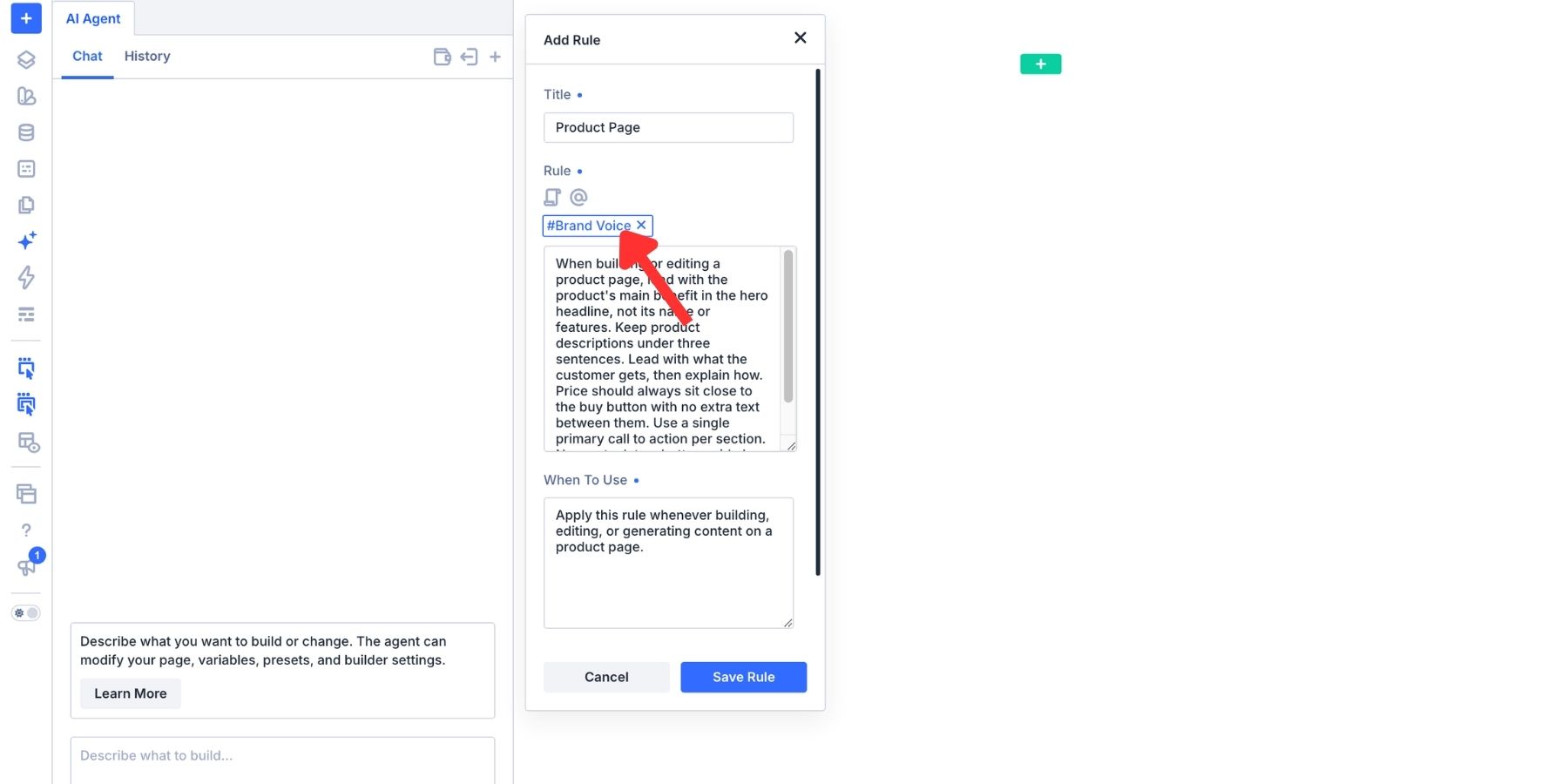
This lets you combine focused instructions without copying their text into several places. Update the referenced Rule when a shared convention changes, rather than maintaining separate versions of the same guidance.
Keep the combined instructions compatible. If a product page needs a different button treatment, explain that exception clearly instead of leaving two conflicting instructions for the agent to interpret.
Adding Context To A Rule
The @ icon in the Rule editor opens the Context picker. Use it to reference relevant site content alongside your written instruction. The picker shown here includes elements, Design Variables, Canvases, and Tools.
Select the item you want the agent to refer to. It appears as a tag above the Rule field.
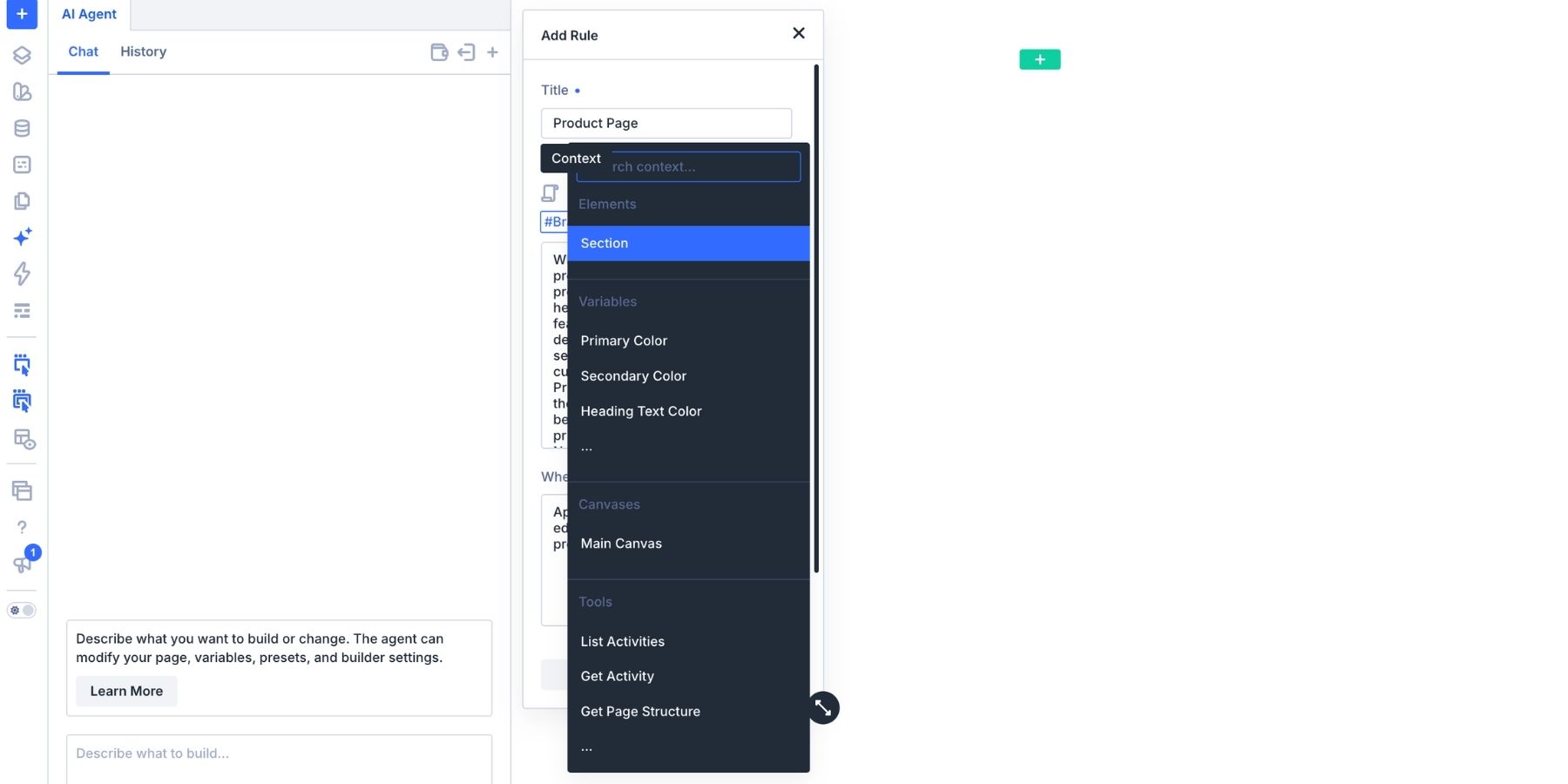
For example, “match the existing heading style” is more useful when you also reference the heading you mean. The instruction explains what to match, while the reference identifies the source the agent should inspect.
Be specific about the relationship. You might ask it to follow the reference heading’s typography while preserving each heading’s text and semantic level. This gives the agent a clearer task than a general request to copy the heading.
When reusing a Rule elsewhere, check that its attached Context is still relevant. A page-specific example may not be the right reference for every layout.
Editing, Duplicating, And Deleting Rules
Open the Rules panel from the composer toolbar. Use the search field to find an instruction, then hover over it to reveal the controls for editing, duplicating, and deleting it.
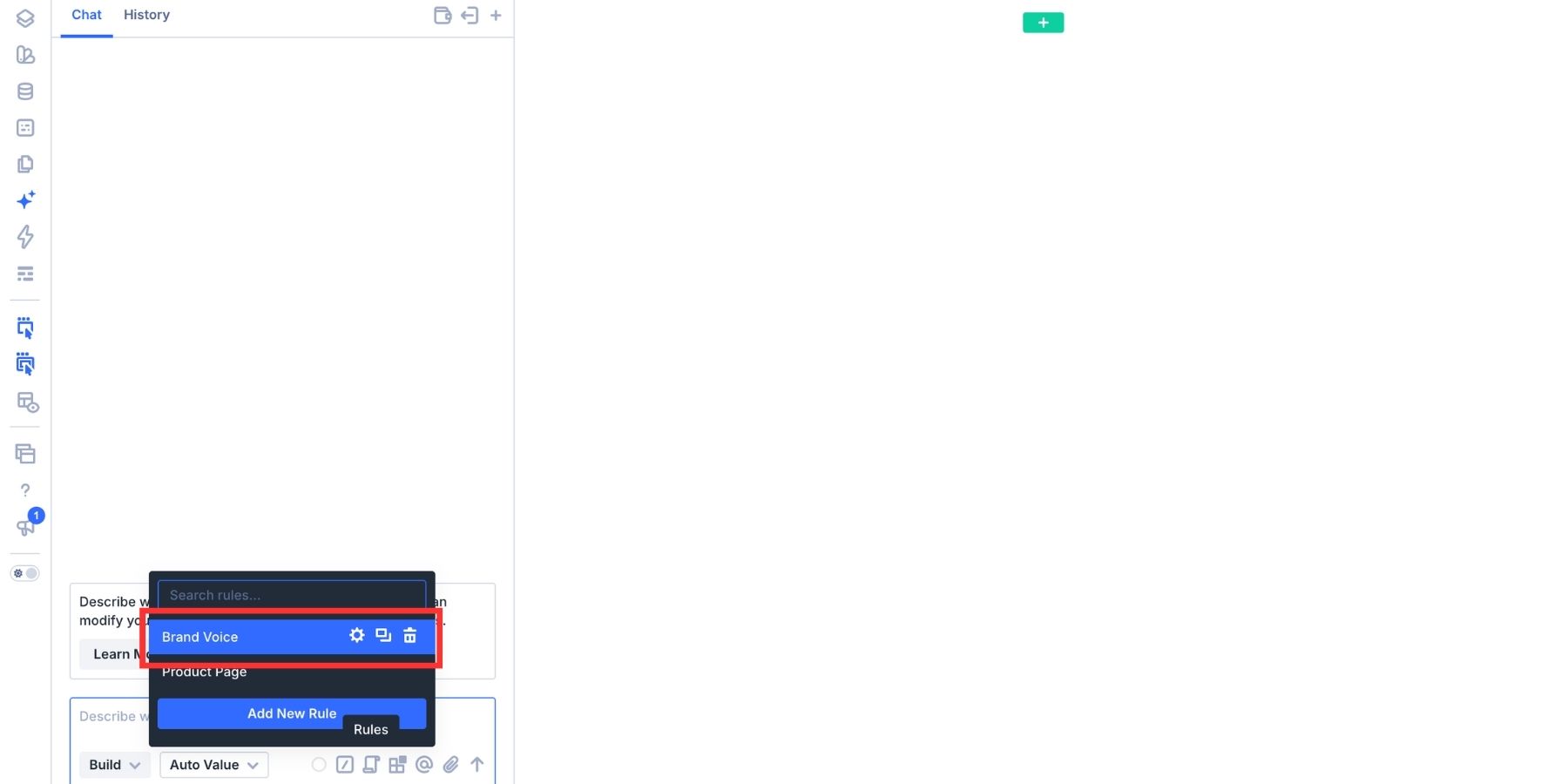
Use the gear icon to edit a Rule. Update the instruction when a client changes their brand voice, a variable is renamed, or a design convention evolves. Review its applicability settings and references at the same time.
Use the duplicate icon when a new Rule shares much of an existing instruction but needs its own variation. Give the copy a distinct title and adjust When To Use so its purpose is clear. If only a small exception is needed, referencing a shared Rule may be easier to maintain than copying it.
Use the trash icon to remove guidance you no longer need. Before deleting a shared Rule, review any Rules that reference it so those instructions remain complete.
Give Divi AI Agents A Consistent Starting Point
Rules in Divi AI Agents let you save the conventions behind your website, from brand voice to preset choices, so they are available when the agent works on relevant tasks. Start with the instructions you repeat most often, keep them focused, and add references where an existing design explains your intent better than text alone.
As you use them, refine the wording around real results. A small set of clear Rules can reduce repeated briefing and help Divi AI Agents work more closely with your design system.
The post How to Use Divi AI Agents Rules appeared first on Elegant Themes Blog.