Divi AI Agents can create custom SVG graphics from plain-language instructions. Describe an icon, divider, or badge, specify its style and colors, and ask the agent to add it to your layout as an editable SVG Module.
In this tutorial, we’ll create a decorative leaf, refine it in the same conversation, and cover the prompt details that help preserve your design as you make changes.
What An SVG Is And Why Icons Use It
SVG stands for Scalable Vector Graphics. A JPEG stores an image as a grid of colored pixels. Enlarge it enough, and those pixels become visible. An SVG describes shapes and paths with coordinates, allowing the browser to render vector artwork at different sizes without pixelation.
That makes SVG useful for logos, icons, dividers, and badges. Simple vector artwork can scale across screen sizes and use colors defined in the markup or through styling.
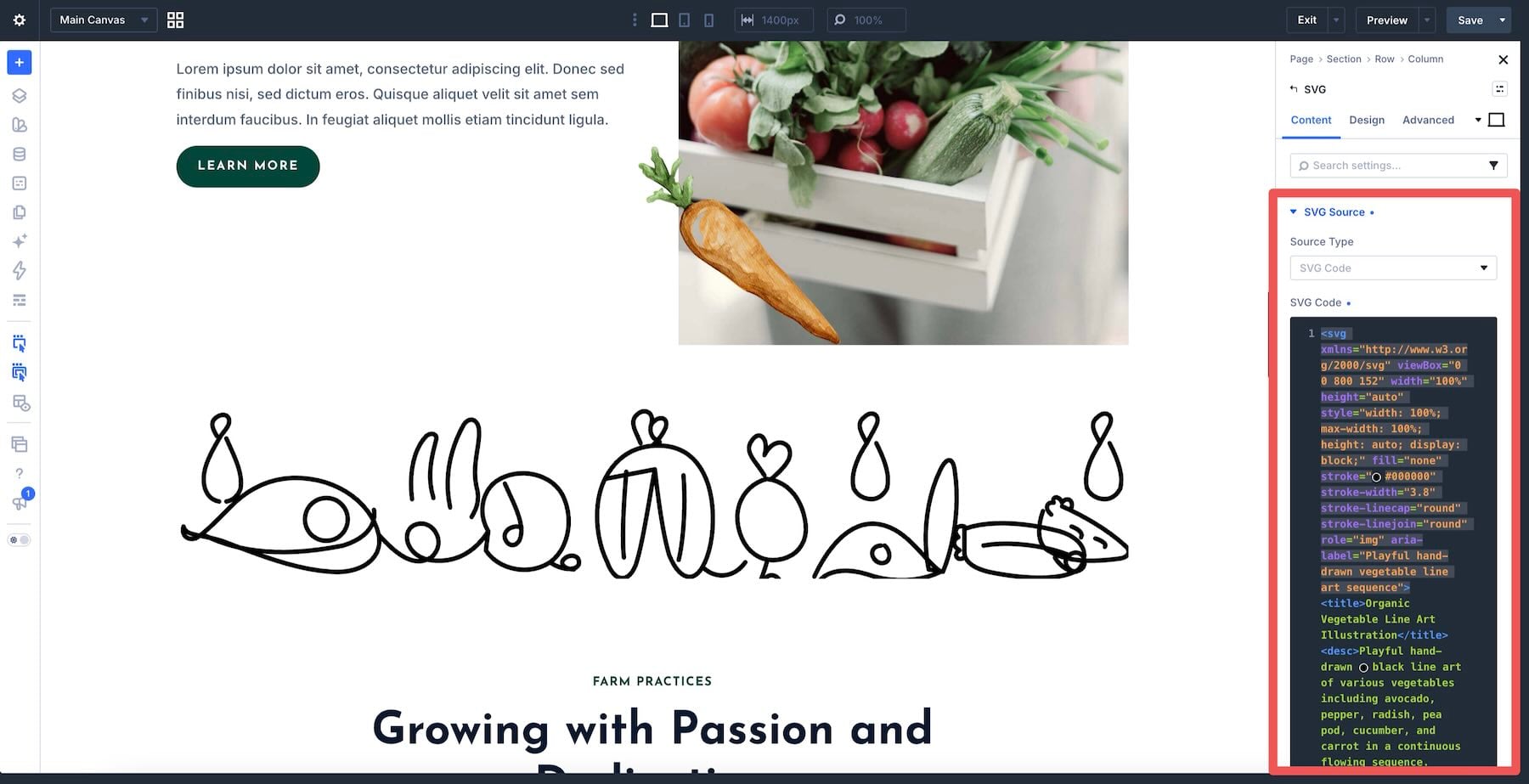
Divi 5’s SVG Module accepts pasted SVG code or an uploaded SVG file. Its Design tab includes Fill and Stroke controls for styling the graphic. Module-level styling can override corresponding values in the SVG markup, so check both when a color or stroke does not look as expected.
The Content tab also includes a Title field for graphics that convey meaning. Decorative graphics need different accessibility treatment, which we’ll cover later.
WordPress blocks SVG uploads by default. That restriction affects the uploaded-file workflow, but you do not need to enable uploads when using the module’s SVG Code source.
What Divi AI Agents Do On The Canvas
Divi AI Agents can inspect your layout and make changes directly in the Visual Builder. Describe what you want and identify the element the agent should work with.
While it works, the agent displays progress notes. Actions that require approval pause with Approve and Reject controls. The agent also requests approval before saving the page.
Review the result before saving. If you want to revert a change, open the Page Menu using the gear icon at the top left and choose Undo. The conversation also provides a restore control for returning the working layout to an earlier point. Restoring the layout does not save it automatically.
Divi AI Agents is included with Divi AI and Divi Pro. Agent requests use the AI Wallet, which currently includes $5 in monthly agent usage. This balance is separate from the subscription’s unlimited text, image, code, and layout generation outside the agent. For details, see our AI Wallet guide.
How To Create An SVG With Divi AI Agents
Start with a page that already contains the column and text you want to decorate. We’ll place a leaf above an existing Text Module, then refine its appearance without changing the surrounding content.
Open Divi AI Agents In Build Mode
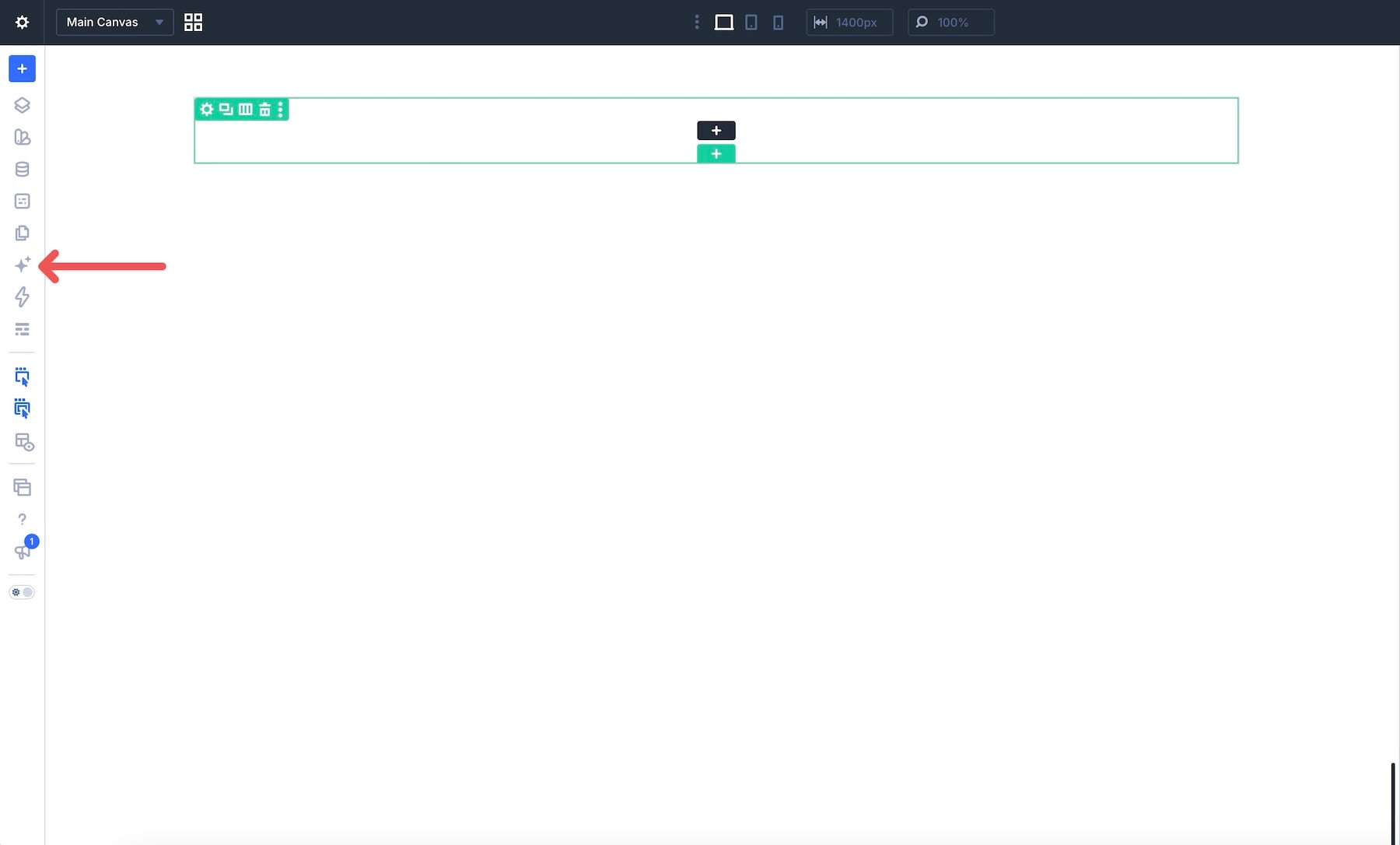
Open the page in the Divi 5 Visual Builder and click the AI Agent icon in the sidebar. Sign in to your Elegant Themes account if prompted.
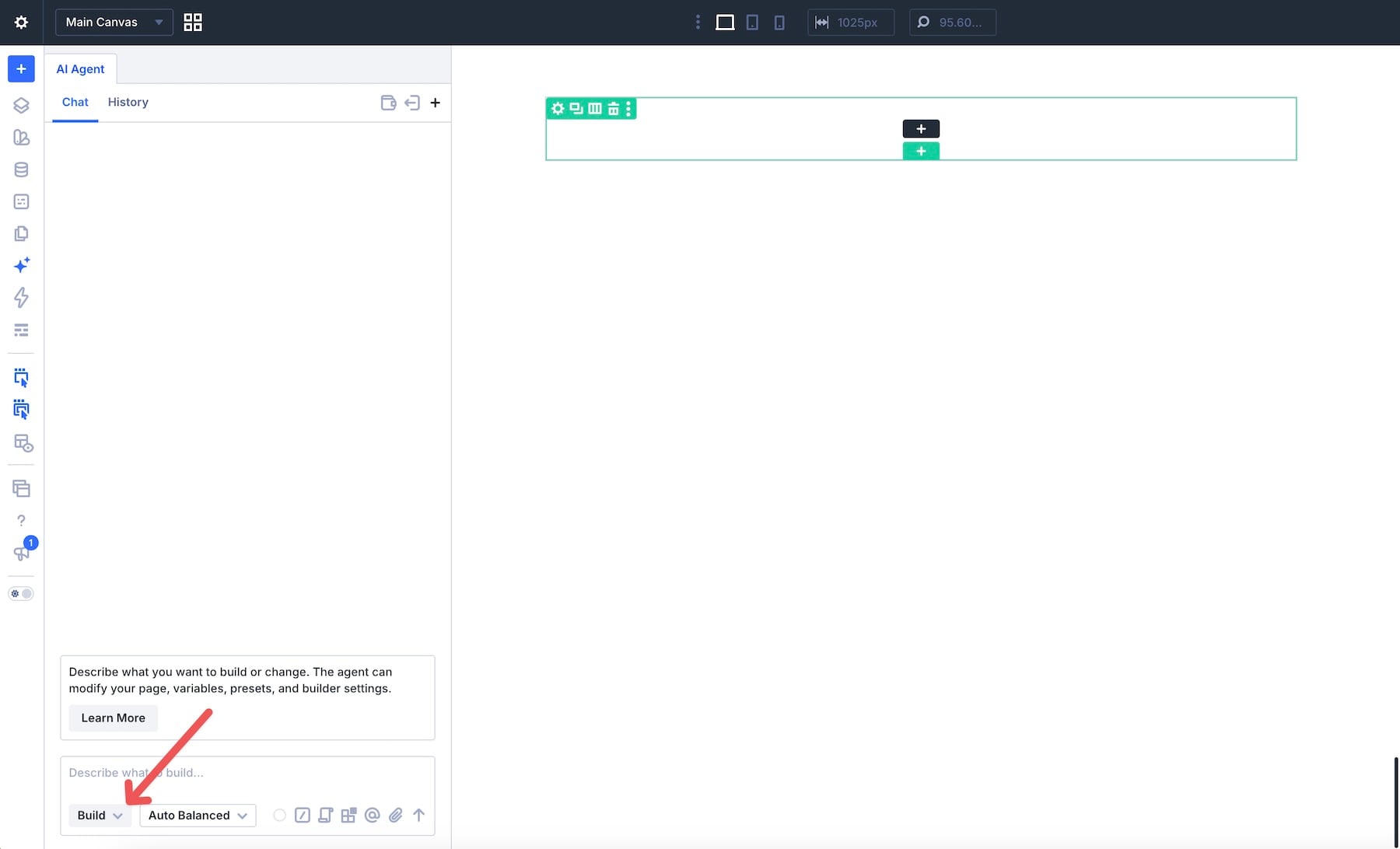
Check the mode control at the bottom of the chat panel. Ask is for questions and inspection; Build allows the agent to change the layout. Select Build for this tutorial.
Describe The Graphic
Your request needs to explain both what the SVG should look like and where it should go.
A request such as “add a decorative leaf” leaves its shape, colors, line weight, and level of detail open to interpretation. Specify the features that matter to your design, including anything the agent should avoid.
For this example, we want a simple outline graphic: tall, sweeping curves, visible gaps between strokes, and no filled areas, gradients, or shading.
Attach The Column As Context
Instead of relying on a description such as “the left column,” identify the target column through Context.
Select the column on the canvas and check that the agent’s selected context identifies the intended element. You can also click the Context icon in the chat composer, find the column under Elements, and attach it. Typing @ opens the same picker.
Confirm the attached element before sending your request. Context identifies the target; your prompt still needs to explain what the agent should add and where inside that target it belongs.
If you want to use a saved color variable, attach it through the Variables group as well. Our example uses a variable named Light. Substitute one of your site’s existing variables or provide a specific color if that variable does not exist.
Write The Prompt
With the column and color variable attached, send a request like this:
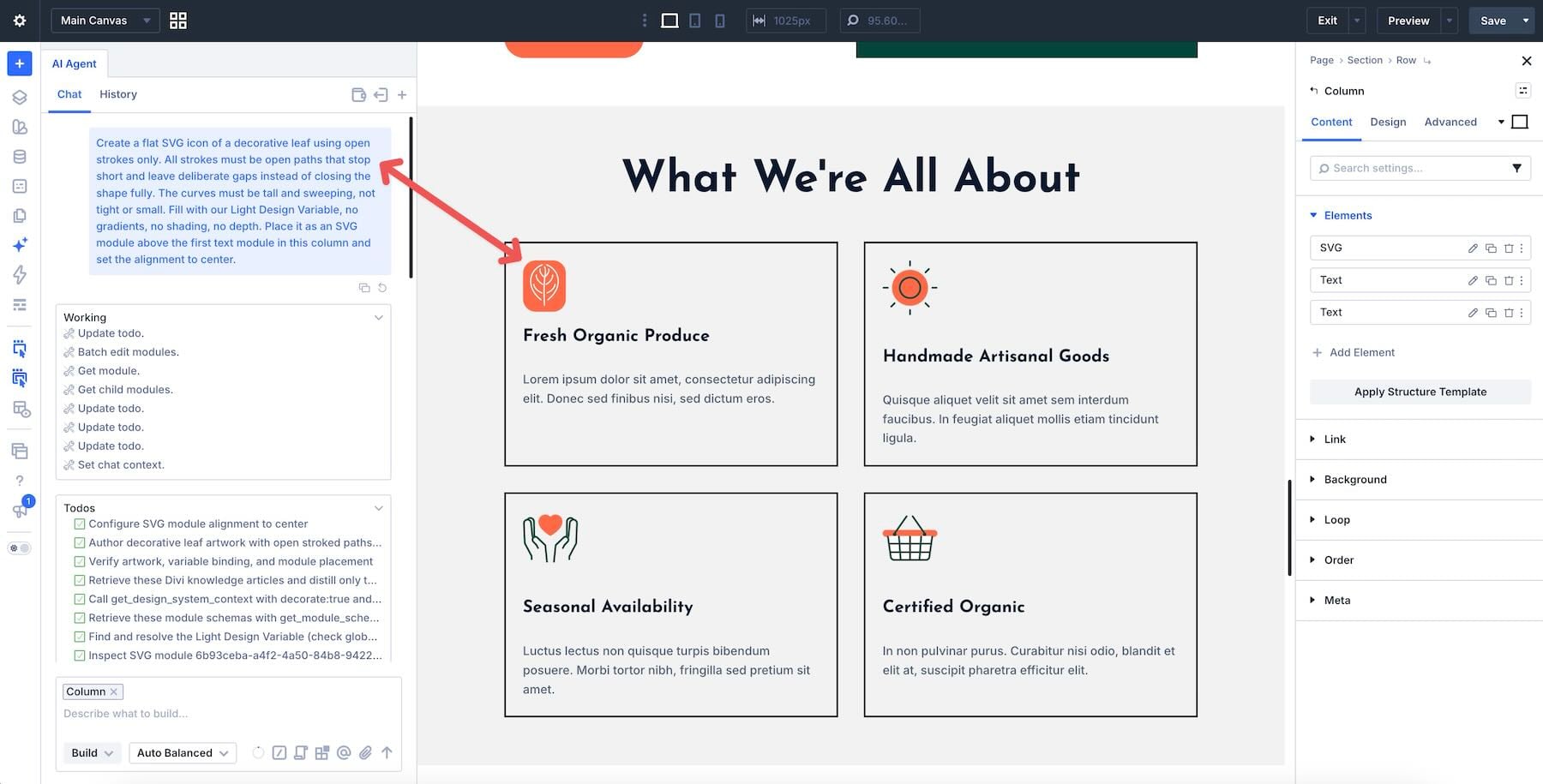
The prompt defines the shape, stroke treatment, color, size, and placement. It also tells the agent what to preserve.
For outline artwork, Stroke controls the visible lines. Fill colors the interior of a shape and can produce unwanted filled areas, even when a path is open. Asking for no fill keeps this example focused on line art.
The color variable gives the agent an existing design value to use. Check the result against its background to confirm that the strokes remain visible.
Once the graphic appears, open its SVG Module to confirm that it contains editable SVG code. You can refine it through the chat or use the module’s settings.
Refine The SVG In The Same Chat
Review the icon beside the text and at its intended display size. You may want to change its size, stroke thickness, or angle.
Continue in the same conversation, but name the changes and the properties that should remain unchanged. The conversation provides useful context; it does not remove the need to review each result.
For a single icon, select or attach its SVG Module. For a batch edit, select or attach the containing section and make sure an earlier Scope is not still limiting the request to one column or module.
A batch request could read:
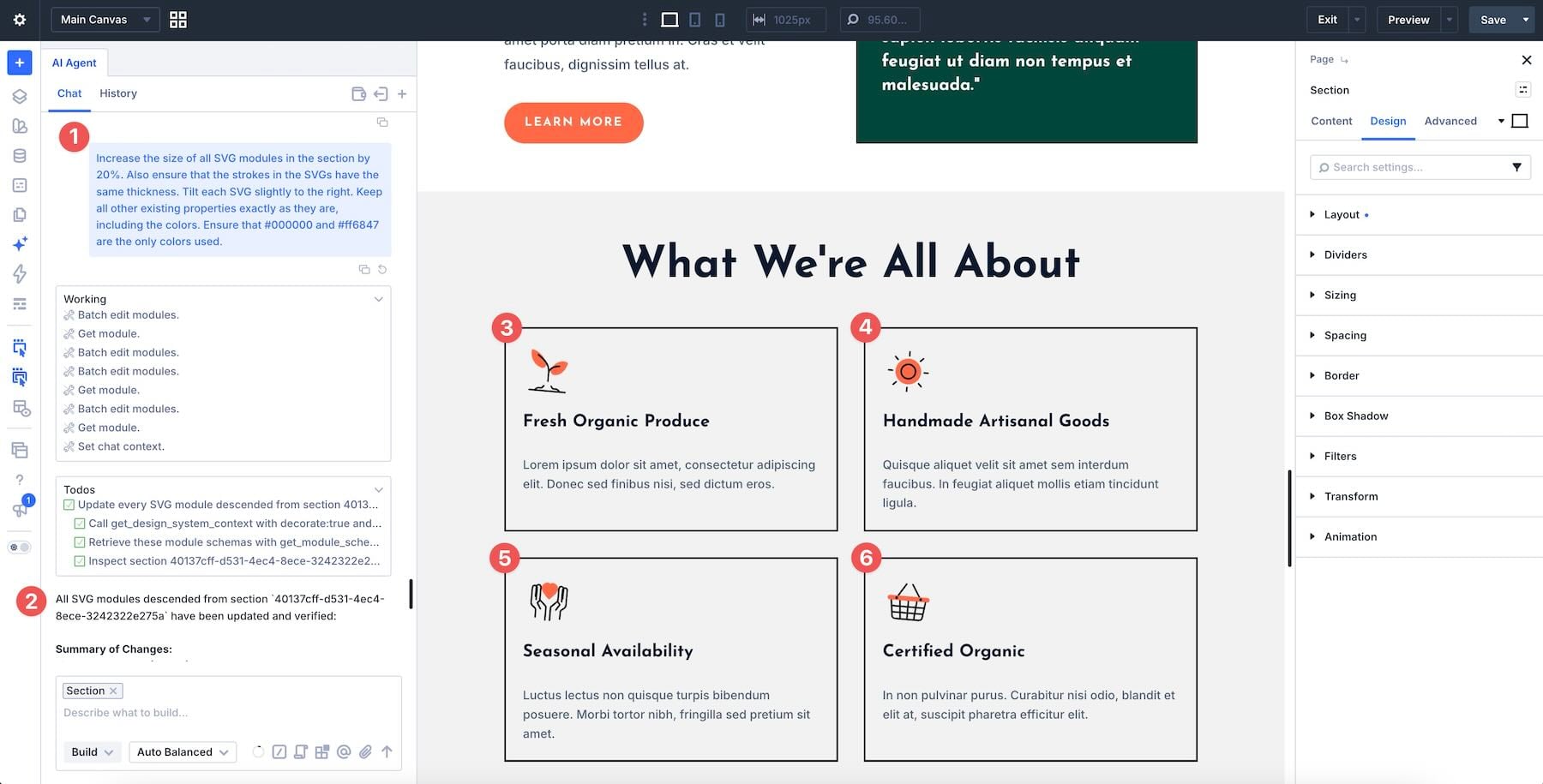
Check the rendered result rather than relying only on the agent’s summary. In our sandbox test, increasing Width from 120px to 144px initially left the icon at 120px because Max Width still capped it. Updating Max Width allowed the larger size to appear.
If an edit does not look right, check the module’s Design → Sizing settings. Also check its Stroke settings: the visible stroke may come from a module-level override rather than the value written inside the SVG.
Preview the result on smaller screens before saving, particularly if the icon sits beside text or inside a narrow card.
Mark Decorative SVGs For Screen Readers
Decide whether the SVG conveys information or simply decorates the page.
Our leaf is decorative: removing it would not change the meaning of the surrounding content. Screen readers should skip it. You can describe that goal to the agent without writing the attributes yourself:
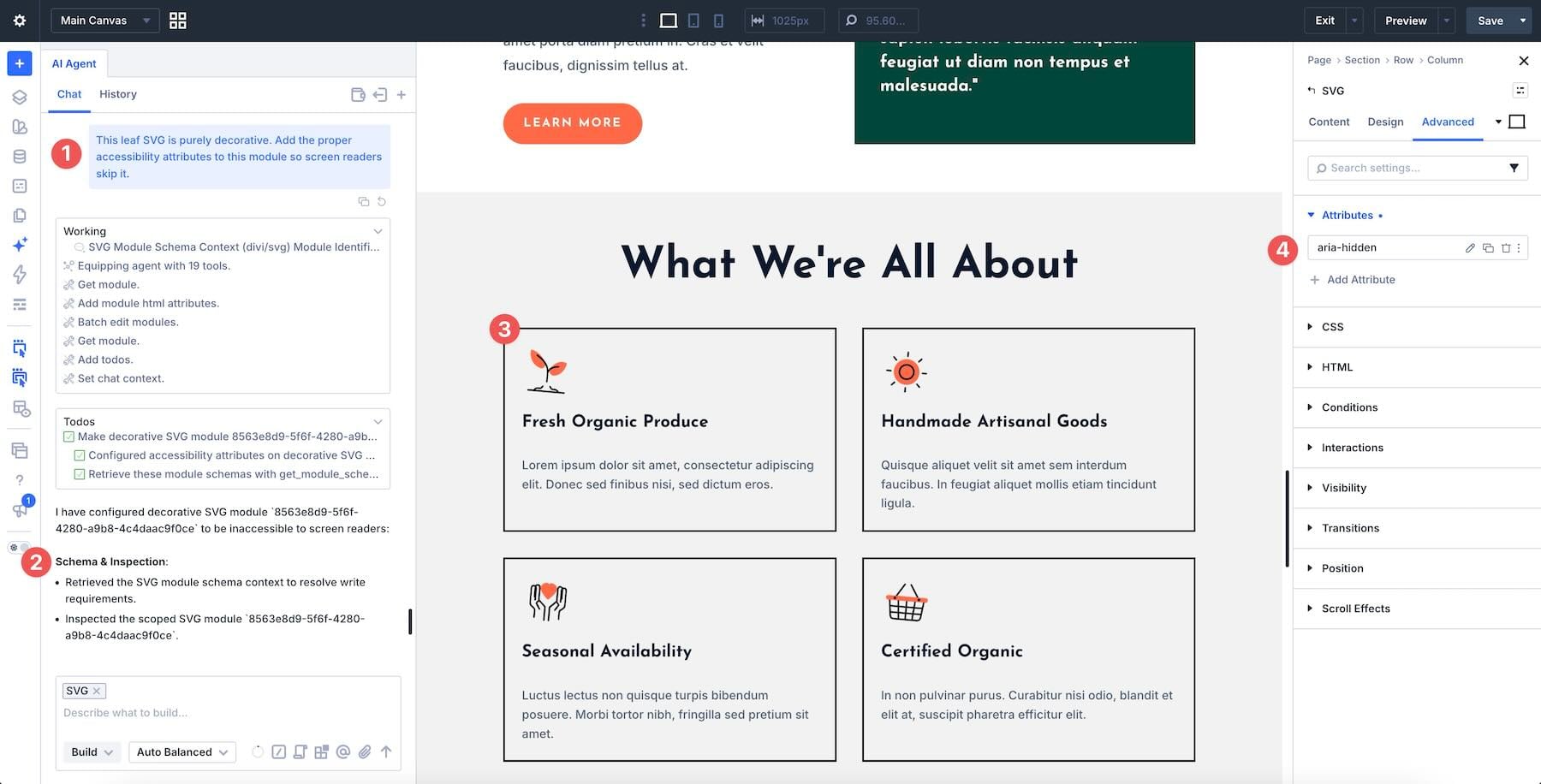
In our test, the resulting SVG retained aria-hidden=”true” and focusable=”false” after refinement.
A meaningful graphic needs different treatment. Give it an appropriate accessible name and verify the result. A linked logo or icon-only button also needs a clear name for its destination or action; do not hide the interactive element itself.
The SVG Module’s Content → Title field and Advanced → Attributes settings can help with manual adjustments. However, a title or hover tooltip alone is not a complete accessibility check. Review how the graphic is exposed to assistive technologies.
Edit SVGs You Already Have
Divi AI Agents can also help refine SVGs from an existing project. The most predictable requests make small, specific changes while preserving the original geometry.
Select or attach the SVG Module you want to edit. For the most direct code-editing workflow, use the module’s SVG Code source and paste the complete SVG markup. Use trusted SVG code; if you choose the uploaded-file workflow, use a process that sanitizes the file before upload.
For an existing line-art icon, try:
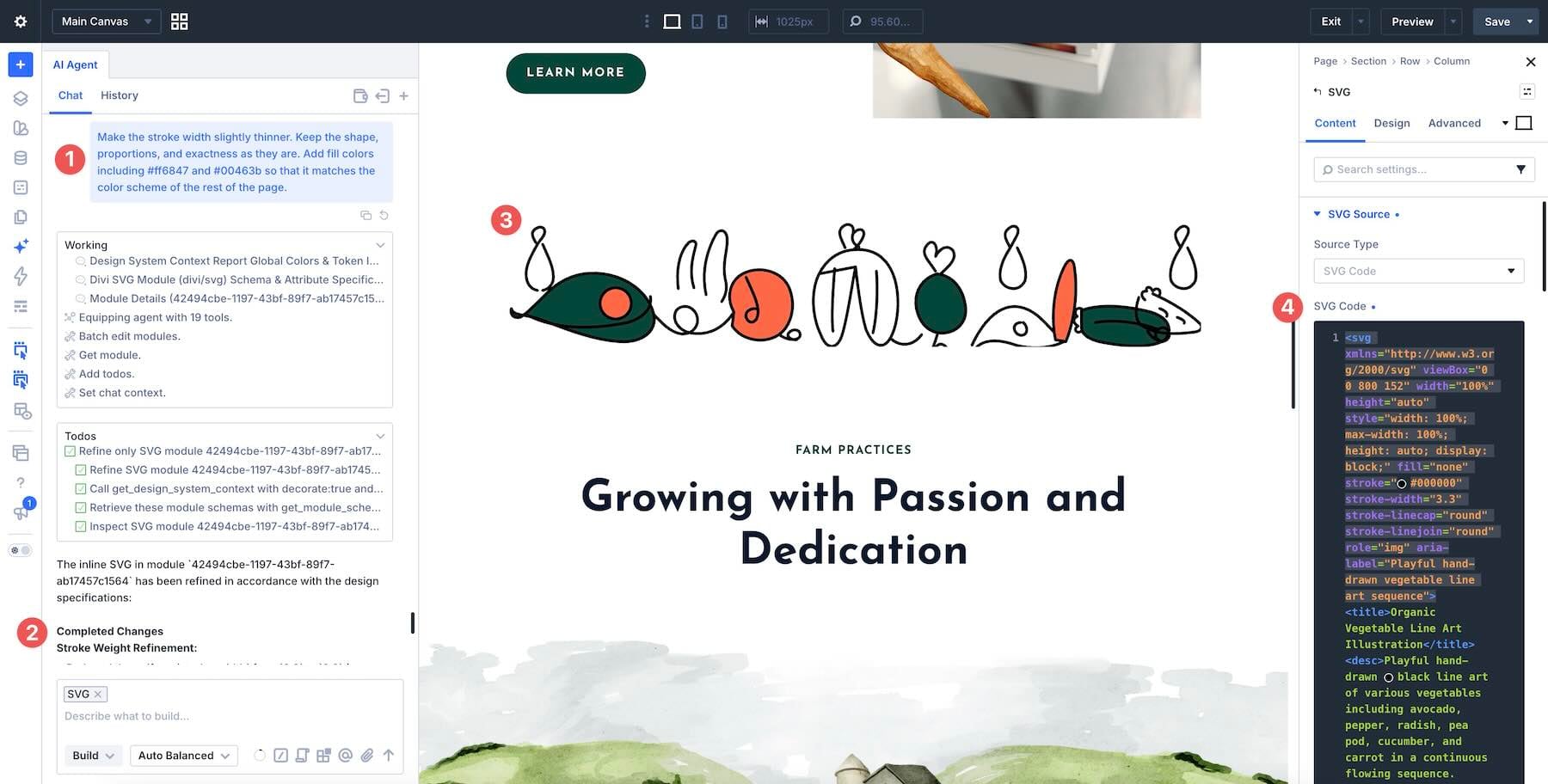
Adapt the request to the artwork. A filled icon may need a Fill adjustment, while an outline icon needs a Stroke adjustment. Changing the stroke width will not thin a shape whose outline was drawn as a filled path.
Review the graphic at desktop and mobile sizes, check its colors and accessibility treatment, and save the page once you are happy with the result.
Create Custom SVGs With Divi AI Agents
Creating an SVG starts with a clear description of its shape, style, and placement. Attach the right element as Context, define the details that matter, and use follow-up prompts to refine the result while preserving the parts you want to keep.
Start with a simple icon in an existing layout. Check its appearance, sizing, and accessibility before saving, then apply the same approach to other graphics. With Divi AI Agents and the SVG Module, you can create and refine vector artwork directly in the builder while keeping its code editable.
The post Creating Custom SVGs with Divi AI Agents appeared first on Elegant Themes Blog.