Most grid layouts fill every available cell. Leaving some cells empty can create a more interesting composition, with space that guides the eye through the content. With CSS Grid in Divi 5, Grid Offset Rules let you position items precisely and leave selected cells unoccupied.
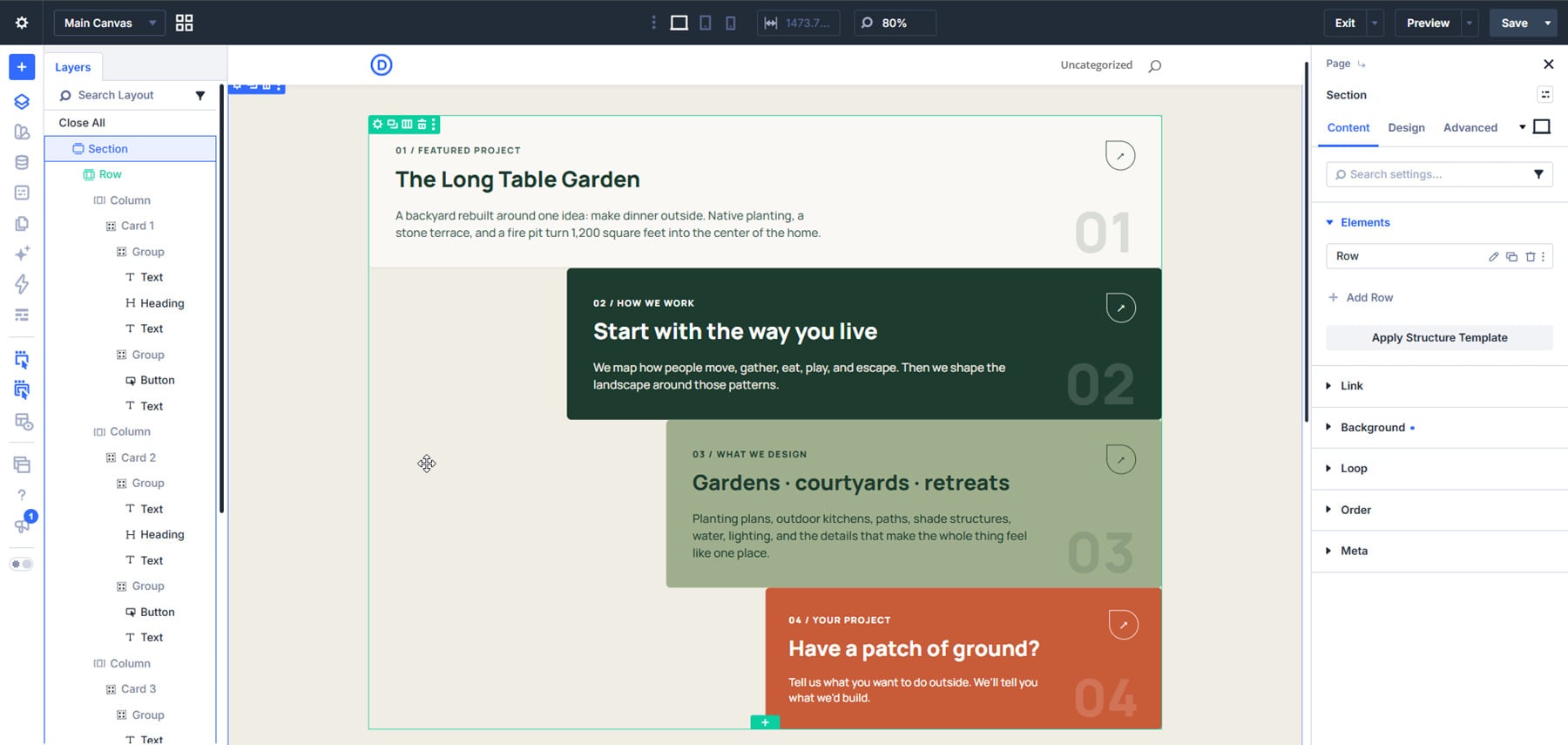
In this tutorial, we’ll build four cards on an eight-column grid. Each card starts farther to the right and spans fewer columns, creating a stepped area of empty space along the left.
Why Use Offset Rules Instead Of Spacers?
Spacers, margins, and column spans can all create empty space, but they give you different types of control.
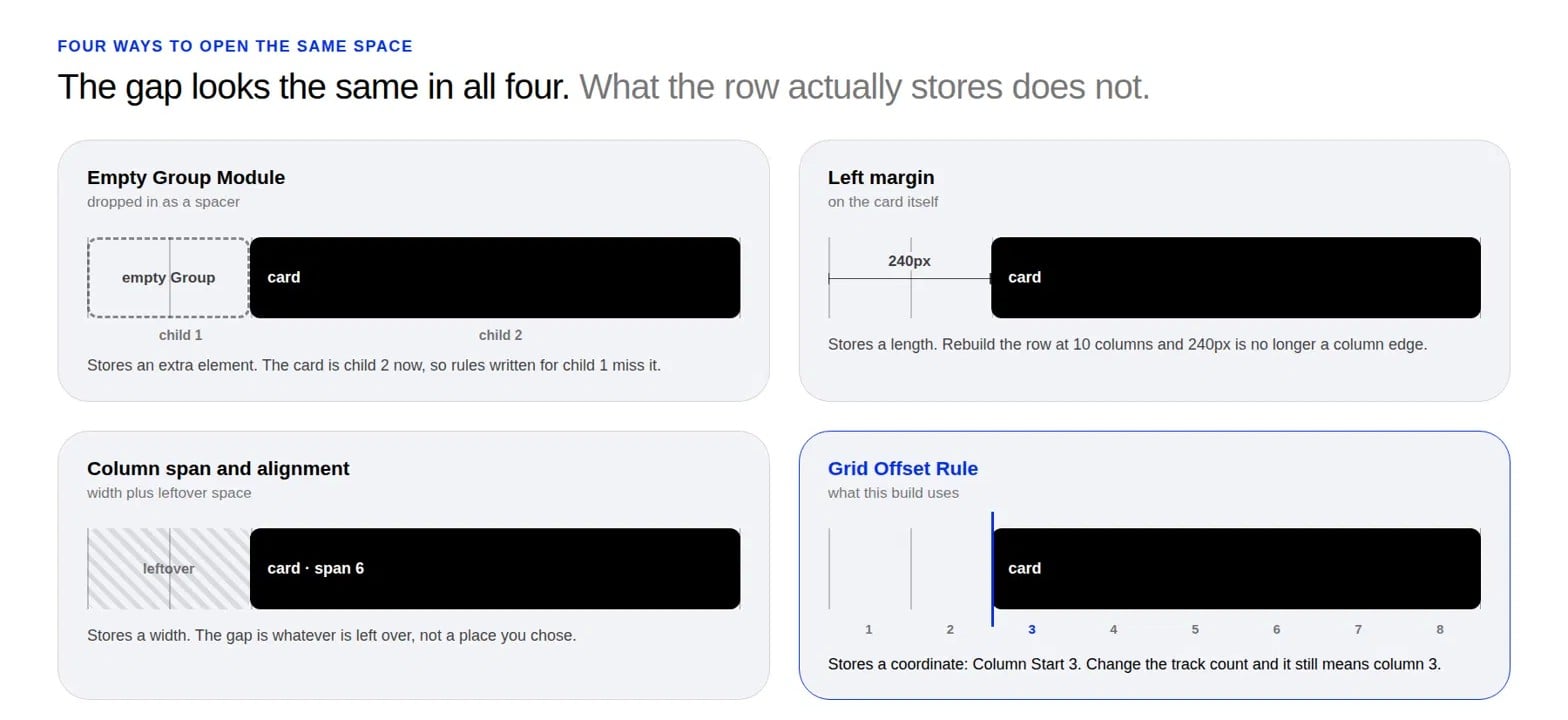
An empty Group Module can act as a spacer. However, if you add it as a direct child of the grid container, it also counts as a grid item. Inserting it before a card changes that card’s position in the sequence, which can affect rules targeting items by index.
A left margin adds space beside an item, but a fixed value such as 240px does not stay aligned with grid tracks as the container width changes.
Column spans control how many tracks an item covers, while alignment positions it within its assigned grid area. To specify exactly where that area begins, use a start value.
Grid Offset Rules combine these controls. For example, Card 2 can start at column line 3 and span 6 columns. The two columns before it remain empty, without adding a spacer.
Set Up The Section
Add a Section, then insert a Row using the Single Column Flex Structure Template. Leave the Row’s Layout Style set to Flex while you build the cards. This gives you room to adjust their content and styling before applying the grid composition.
Set the Section’s Background Color to #F0EDE4 and its CSS ID to work. We’ll use #work as the card button’s example link later.
Build The Card
Each card will be a Group Module inside its own Column. When we switch the Row to Grid, those Columns will become the grid items.
Add a Group Module inside the first Column and set its Element Label to Card 1. Apply these settings:
- Background Color: #FAF8F5
- Border: 1px solid #D8D8D0 on all sides
- Border Radius: 6px
- Padding: 2.25rem on all sides
- Overflow: Hidden
- Layout Style: Flex
- Layout Direction: Row
Add two more Group Modules inside the card. The first will hold the text; the second will hold the button and oversized number.
Set the first inner Group’s Layout Style to Flex, its Layout Direction to Column, and its gap to 0.75rem.
Inside it, add a Text Module for the eyebrow label, a Heading Module, and another Text Module for the body copy. Set the heading to Heading 2 at 30px. Set the body text to 16px and its Max Width to 590px.
Place The Button And The Number
Set the second inner Group’s Layout Style to Flex and its Layout Direction to Column. Then apply:
- Size: Grow to Fill
- Justify Content: Space Between
- Align Items: End
Because the outer card uses a Row direction, Grow to Fill lets this Group take up available horizontal space. Space Between separates the button and number vertically when there is spare height, while Align Items: End aligns them to the right.
Inside this Group, add a Button Module. Use an arrow glyph as its text and set its background to #FAF8F5.
Unlink the Border Radius values. Set Top Left to 0 and the other three corners to 50% to create a leaf-shaped button.
Under Border, set Button Border Width to 1px, Button Border Color to #1D3B2E, and Button Border Style to Solid.
Adjust the arrow’s size and color under Text. Turn Show Button Icon off so Divi does not add another icon beside the arrow. Under Sizing, set both Button Width and Button Height to 2.5rem.
Set the button’s link to #work for this example. For a live project, replace it with the relevant destination.
In the Attributes option group, add an Aria Label that describes the link’s purpose, such as View our work. An arrow alone does not clearly communicate the destination to screen reader users.
Add The Oversized Number
Below the button, add a Text Module for the card number. Set its text size to 76px and its Opacity to 0.15.
The second Group’s layout places the number below the button and aligns it to the right. The card’s Overflow: Hidden setting clips any content that extends beyond its boundaries.
For Card 1, we’re using the eyebrow 01 / FEATURED PROJECT, the heading The Long Table Garden, and a short body description. The oversized number repeats 01.
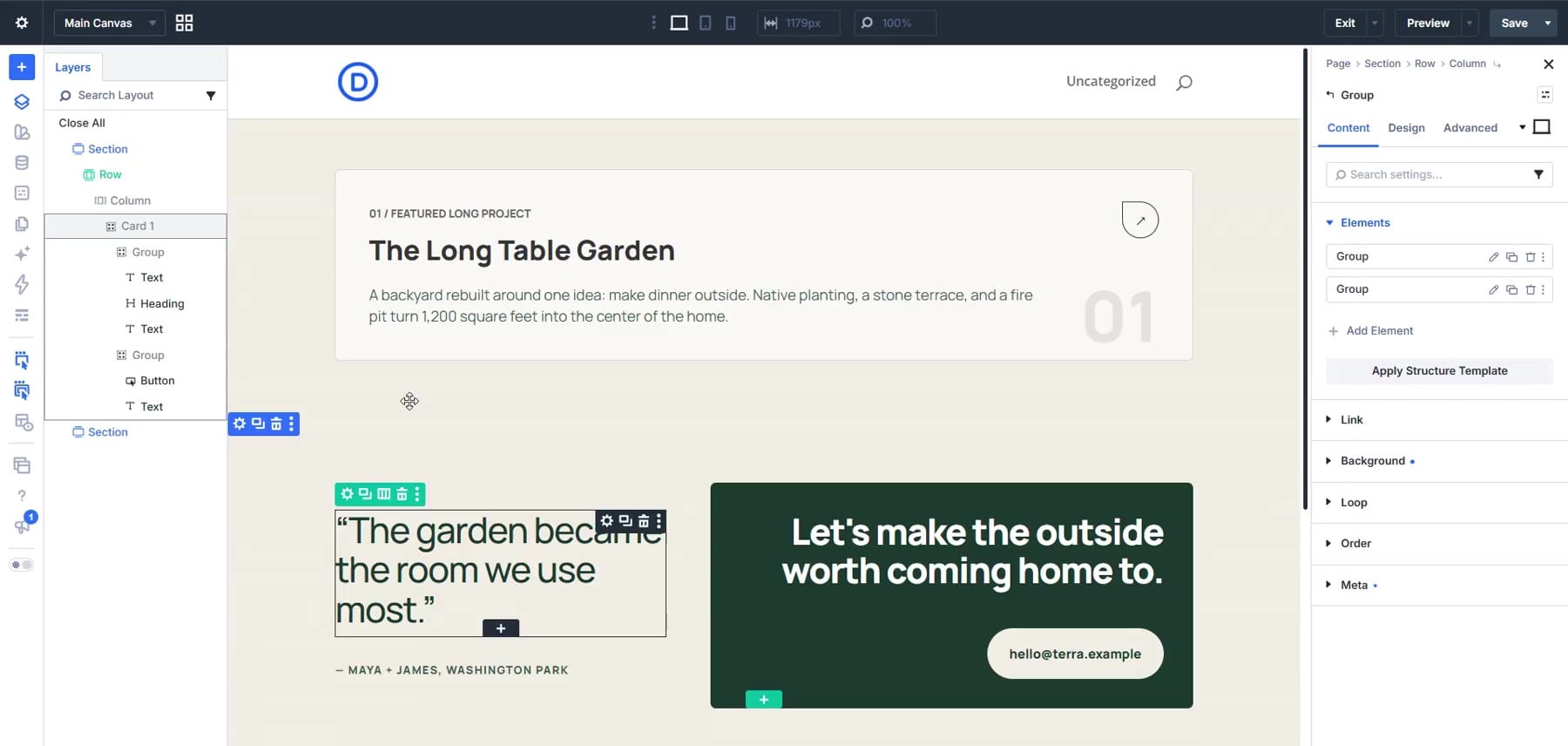
Duplicate The Card
Finish styling Card 1, then duplicate its Column three times. This keeps each card inside a separate direct child of the Row.
Update each card’s label, heading, body copy, and number. Apply these settings to the corresponding card Groups:
- Card 2: CSS ID approach; Background Color #1D3B2E
- Card 3: CSS ID services; Background Color #9FAF8D
- Card 4: CSS ID contact; Background Color #C85B38
Adjust the text and button colors to maintain readable contrast against each background. Give every CSS ID a unique value, entered without the # prefix.
Keep the Columns at full width and the Row’s wrapping enabled while editing so the cards remain stacked.
Switch The Row To Grid
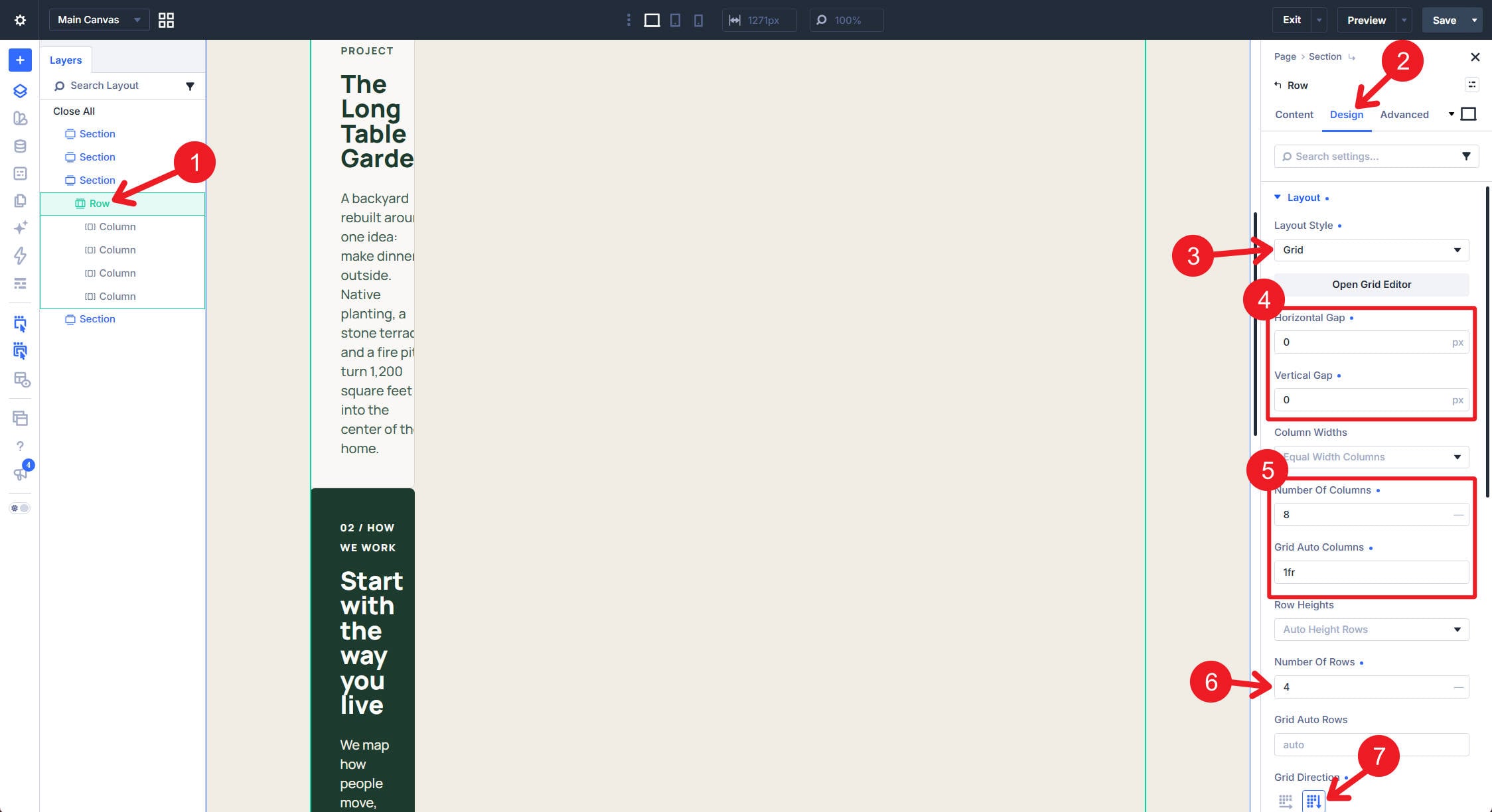
Open the Row’s Design → Layout settings and apply:
- Layout Style: Grid
- Number of Columns: 8
- Number of Rows: 4
- Grid Auto Columns: 1fr
- Grid Direction: Column
- Horizontal Gap: 0px
- Vertical Gap: 0px
The cards may look compressed before we add their placement rules. Next, we’ll give each card its own row, starting position, and column span.
With both gaps set to zero, the cards will meet vertically. The unoccupied cells to their left will create the stepped composition.
Add The First Offset Rule
Find Grid Offset Rules in the same Layout option group and click Add Grid Offset Rule. For an introduction to the container settings, see How To Create A Grid Layout In Divi 5.
The rule dialog includes an optional Admin Label, a Target Offset, and fields for column and row placement.
Rules target the Row’s direct children in their source order. In this layout, those children are the four Columns containing our cards.
Set Target Offset to Custom nth-child Rule and enter 1 in the field below it. This targets the first Column. Enter:
- Column Span: 8
- Column Start: 1
- Row Start: 1
Leave Column End, Row Span, and Row End unset.
Start values refer to grid lines; spans count the tracks between them. Starting at column line 1 and spanning 8 columns makes Card 1 cover the full grid width.
Build All Four Card Offset Rules
Add three more rules, targeting items 2, 3, and 4. Your four rules should use these values:
- Card 1 — nth-child 1: Column Span 8, Column Start 1, Row Start 1
- Card 2 — nth-child 2: Column Span 6, Column Start 3, Row Start 2
- Card 3 — nth-child 3: Column Span 5, Column Start 4, Row Start 3
- Card 4 — nth-child 4: Column Span 4, Column Start 5, Row Start 4
Leave the other placement fields unset for each rule.
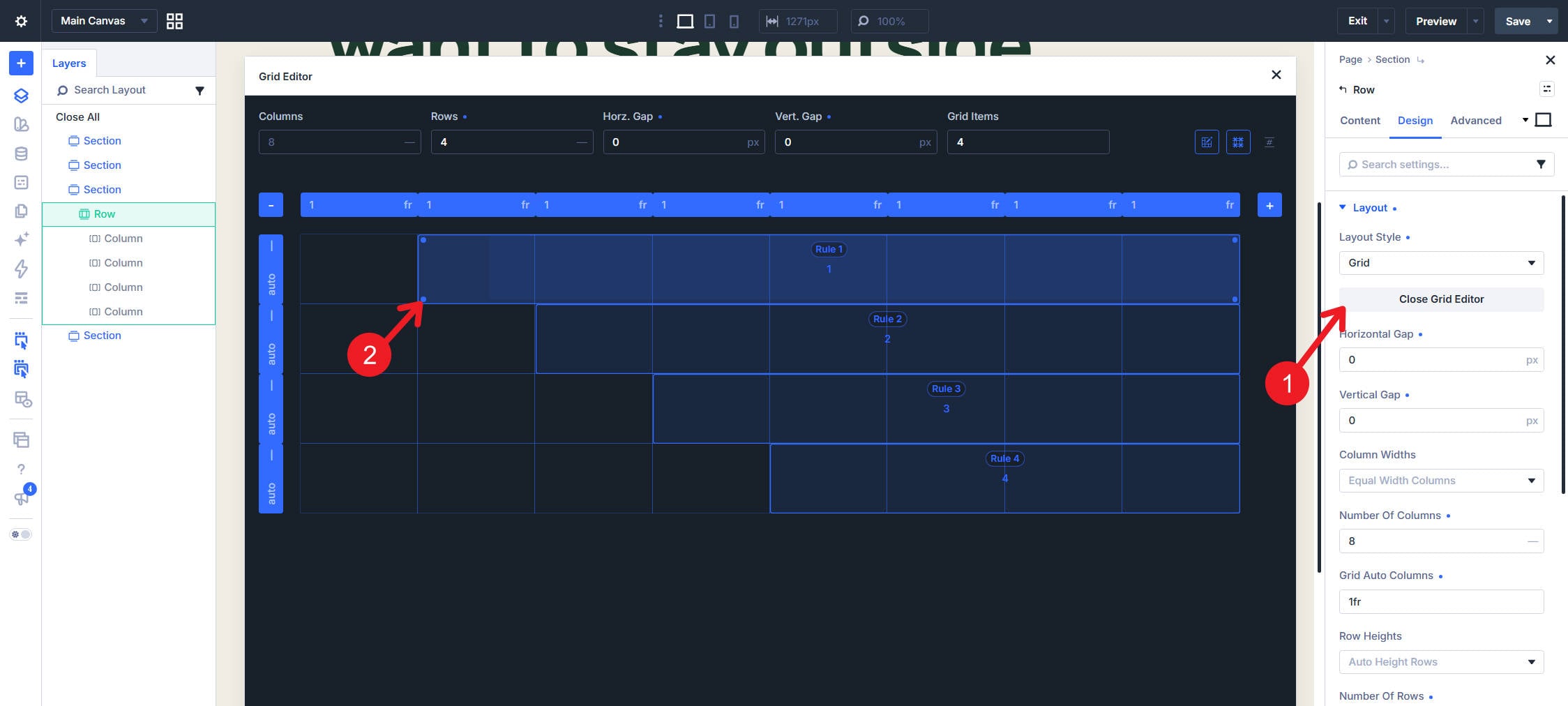
All four cards end at the right edge of the grid. Card 2 leaves two empty columns on the left, Card 3 leaves three, and Card 4 leaves four. This creates the stepped shape without adding empty elements.
You can also arrange the cards visually using Divi 5’s CSS Grid Editor. Click Open Grid Editor in the Row’s settings, then move and resize the items to match the placement above. Check the resulting rules to confirm their start and span values.
Make The Cards Presentable On Mobile
Preview the layout on Tablet and Phone. The desktop placement leaves less room for each card’s content as the screen narrows, especially in the fourth card.
To retain the stepped composition, start by adjusting the content inside each card. At the Phone breakpoint:
- Change the outer card Group’s Layout Direction to Column so its two inner Groups stack vertically.
- Reduce the card’s Padding from 2.25rem to 1.75rem.
- Reduce the heading size from 30px to 26px.
- Reduce the body text size from 16px to 15px.
The video below shows these content adjustments on Card 1. Repeat them on Cards 2, 3, and 4, since changes made after duplication do not automatically apply to the other copies.
If the narrower cards still feel cramped, simplify the grid placement too. Grid Offset Rule values can be overridden responsively. For a full-width stack on Phone, set the Row’s Number of Columns to 1, then set every rule’s Column Start and Column Span to 1 at that breakpoint. Keep the four Row Start values at 1, 2, 3, and 4.
This preserves the desktop composition while giving each card the full available width on Phone.
Build A Different Shape
The same controls can create other compositions. Change the track count, starting positions, and spans to leave an opening within the layout or a channel of empty cells between groups of content.
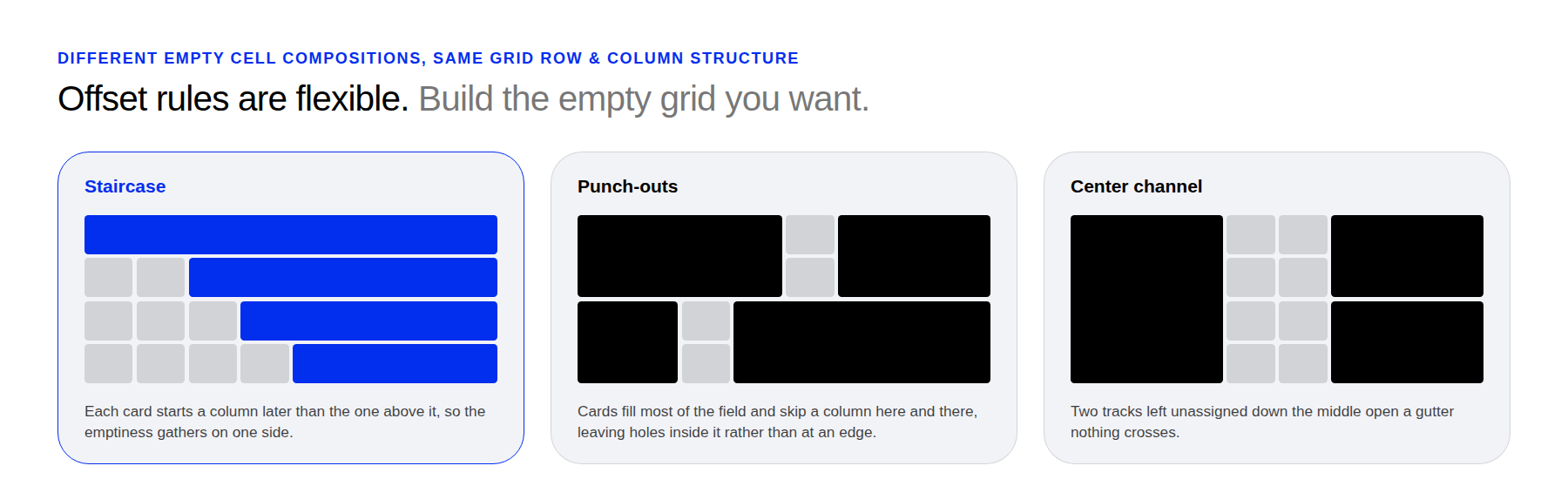
This example uses one rule for each card. If you add a fifth card, give it a placement rule if it needs a specific position; otherwise, the grid’s auto-placement settings determine where it appears. Recheck the targets whenever you insert, remove, or reorder Columns, since the rules follow their positions in the Row.
For more on adapting the grid to smaller screens, see How To Master Grid Responsiveness In Divi 5.
The post How To Use Empty Grid Cells To Create More Interesting Compositions In Divi 5 appeared first on Elegant Themes Blog.