When resource usage on a client site starts climbing without a matching increase in visits, bot traffic is likely the cause. Bots hitting uncacheable endpoints such as cart actions, filtered product pages, and search queries trigger PHP execution and database queries on every request. As such, your page cache never gets the chance to absorb them.
While your instinct is to block all automated traffic, Googlebot, Bingbot, RSS readers, and uptime monitors fall into the same automated category as the bots you want to stop. Blocking everything removes the traffic that keeps your sites visible and functioning.
Kinsta’s Bot Protection lets you filter out requests that incur costs without value and let the ones that matter through. These controls sit at the infrastructure layer, meaning filtering occurs before requests even reach your WordPress site.
Why blanket blocking traffic isn’t the answer
A hard block on all automated traffic is, in theory, a valid tactic for reducing bandwidth waste. However, doing this also removes the requests you depend on. For example, hard blocks mean Googlebot and Bingbot can’t crawl your content, uptime monitoring tools won’t do the jobs you need them to, and API integrations that connect your client workflows to WordPress stop working.
In contrast, the traffic worth stopping is a specific subset of the whole: unverified bots and automation that hit non-cacheable endpoints. These don’t contribute to SEO, user experience, or revenue in many cases.
However, this is typical behavior for lots of bot-based action, according to David Belson, formerly Head of Data Insights at Cloudflare:
Most of what we’re seeing isn’t malicious. It’s bots behaving inefficiently at scale, and that’s where the real problems start.
A bot following URL variations cannot recognize that it is looping. For example, consider each product filter, query string, or cart parameter treated as a distinct page. Our own infrastructure data recorded 550 million requests filtered by a single loop-detection rule in a 30-day window. A server processes each one as real work, regardless of intent.
Kinsta’s platform-level security already handles the clearest threats by blocking traffic classified as malicious before it reaches your site. This covers DDoS mitigation and requests from IPs associated with known attack sources. However, between this baseline protection and the traffic you want to allow through is a middle layer of security from unverified and unwanted bots.
Selectively filtering the remaining automated traffic is what prevents resource usage from climbing while visit counts stay flat. It’s this pattern that many agencies running WordPress hosting for multiple clients recognize as a sign that bot-driven load has crossed the threshold of what the default security layer alone can handle.
Understanding the traffic you’re actually managing
Kinsta classifies every request using a combination of its own traffic analysis and Cloudflare’s machine learning system, which assigns each visitor a bot score from one to 99. A score of 99 indicates the request most likely came from a human; a score of one confirms automated activity.
There are five categories that matter for protection decisions:
- Verified bots are automated traffic from recognized organizations. This includes Googlebot, Bingbot, and other services on Cloudflare’s verified bot directory. These pass through at every protection level, regardless of your settings.
- Likely humans score between 30 and 99 and represent real visitors with normal browsing behavior.
- Likely bots score between two and 29 and represent unverified automation detected as probable bot activity.
- Automated traffic sits at a score of one and covers confirmed bots, but also includes tools that connect to your site programmatically without a verified identity. These are custom integrations, deployment scripts, self-hosted uptime monitors, and more.
- Excessive-rate AI crawlers are AI bots that generate load through high-frequency or looping requests.
There are two other categories worth mentioning. First, malicious traffic is automatically blocked at every protection level, requiring no configuration. However, there is also unclassified traffic. This is typically very small, harmless amounts of traffic. It usually consists of internal service requests that do not impact the origin server, such as requests generated when your site returns an error page.
How to understand your resource usage using MyKinsta
Understanding which category of traffic is driving resource usage is your first step. The Bot and automated traffic analytics view within MyKinsta shows how requests reaching your site are classified, making it easier to identify when automated traffic is contributing to increased load.
To find this data, head to Sites > sitename > Analytics > Bot and automated traffic.
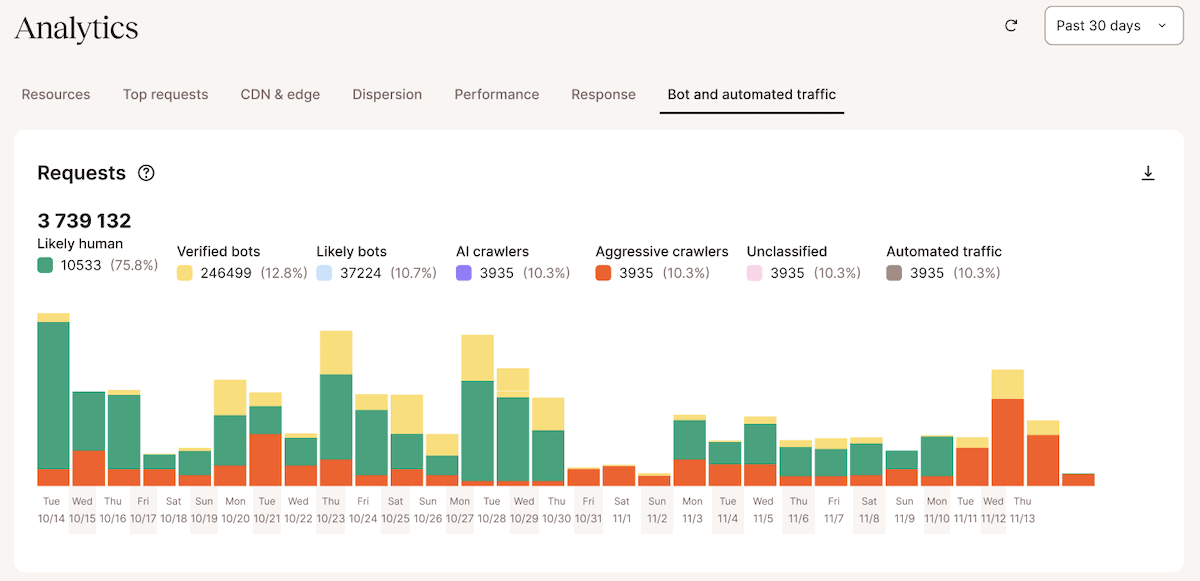
This view categorizes traffic into verified bots, likely bots, AI crawlers, aggressive crawlers, automated traffic, and likely humans. Instead of inferring bot activity indirectly from bandwidth or visit counts alone, you can see how much automated traffic is actually reaching your site and how Kinsta classifies it.
For example, spikes in aggressive crawlers or automated traffic often indicate bots repeatedly hitting uncached endpoints. Similarly, high volumes of AI crawler traffic can explain unexpected bandwidth growth or increased origin load, even when human traffic remains relatively stable.
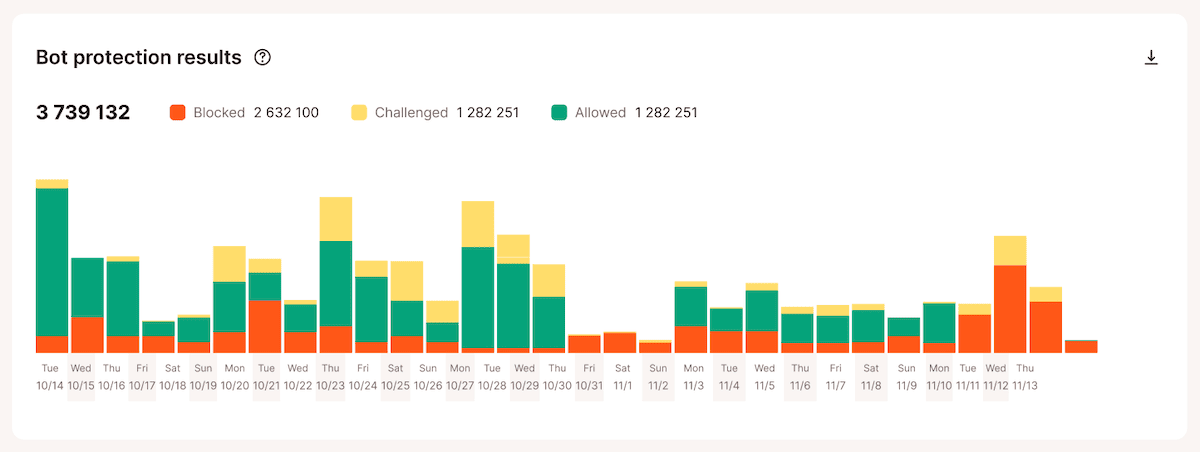
The Bot protection results chart also shows how requests are handled after classification, including traffic that was allowed, challenged, or blocked. This gives you a clearer picture of how your protection settings affect incoming traffic before changing protection levels.
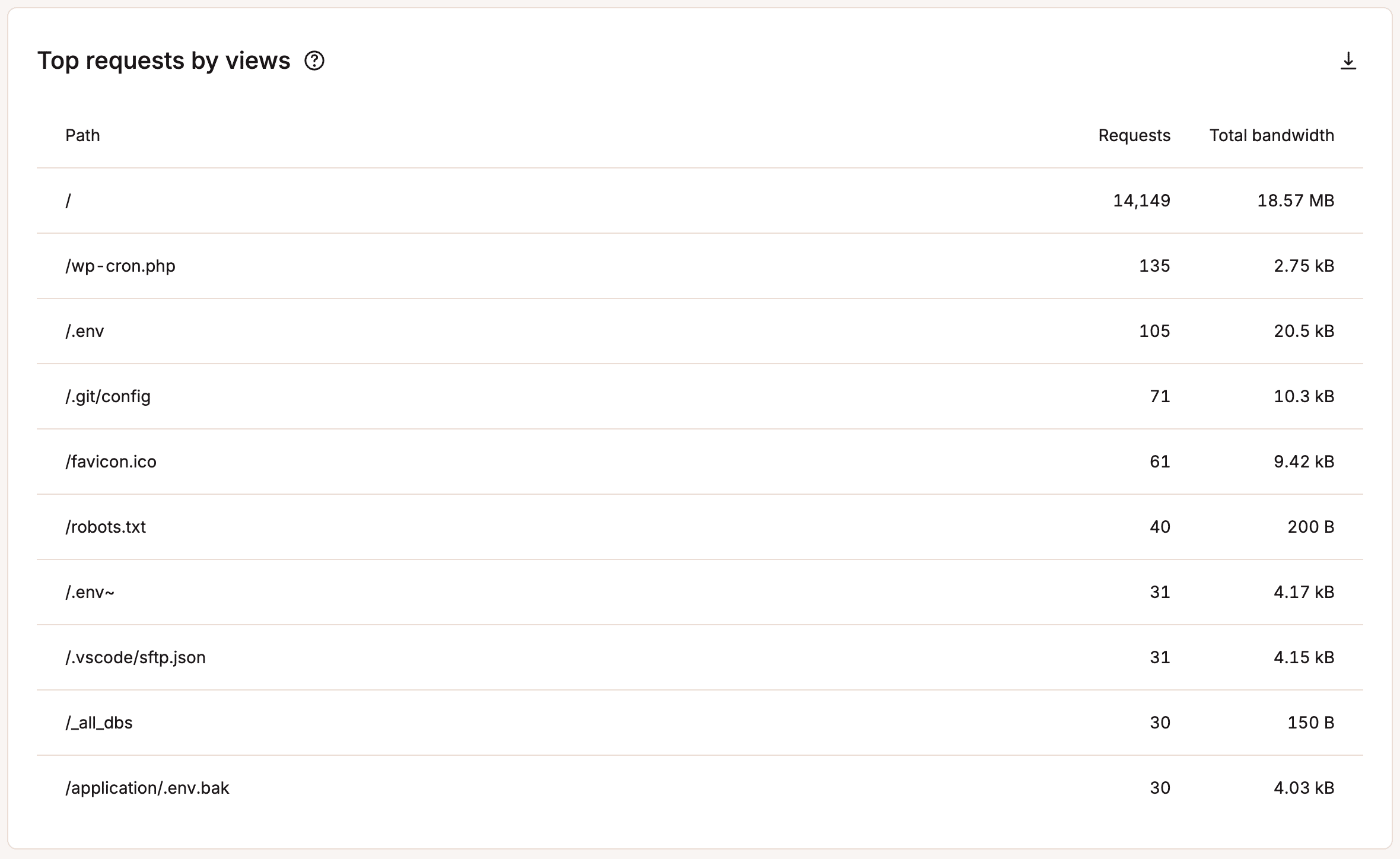
The Top requests by views report in Analytics also helps identify the exact endpoints that receive the highest volume of requests. A cluster of repeated requests to non-cacheable paths, such as add-to-cart URLs, filtered product pages, search queries, and checkout endpoints, usually indicates that bots are consuming server resources that the cache cannot absorb.
Together, these analytics provide the clearest way to correlate traffic patterns with resource usage before deciding which protection level to apply.
How Kinsta’s Bot Protection works
The Bot Protection controls in MyKinsta operate at the infrastructure layer. Filtering happens before requests reach the PHP or database level, so the reduction in server load applies to the full cost of the request. This means there’s no need for a plugin or any required WordPress configuration changes.
Kinsta classifies incoming traffic using a combination of its own traffic analysis and Cloudflare’s enterprise-grade bot detection system. Requests are categorized into traffic groups such as verified bots, likely bots, AI crawlers, aggressive crawlers, automated traffic, and likely humans. Your selected protection level then determines how each category is handled.
All bot protection controls live under Sites > sitename > Bot Protection.
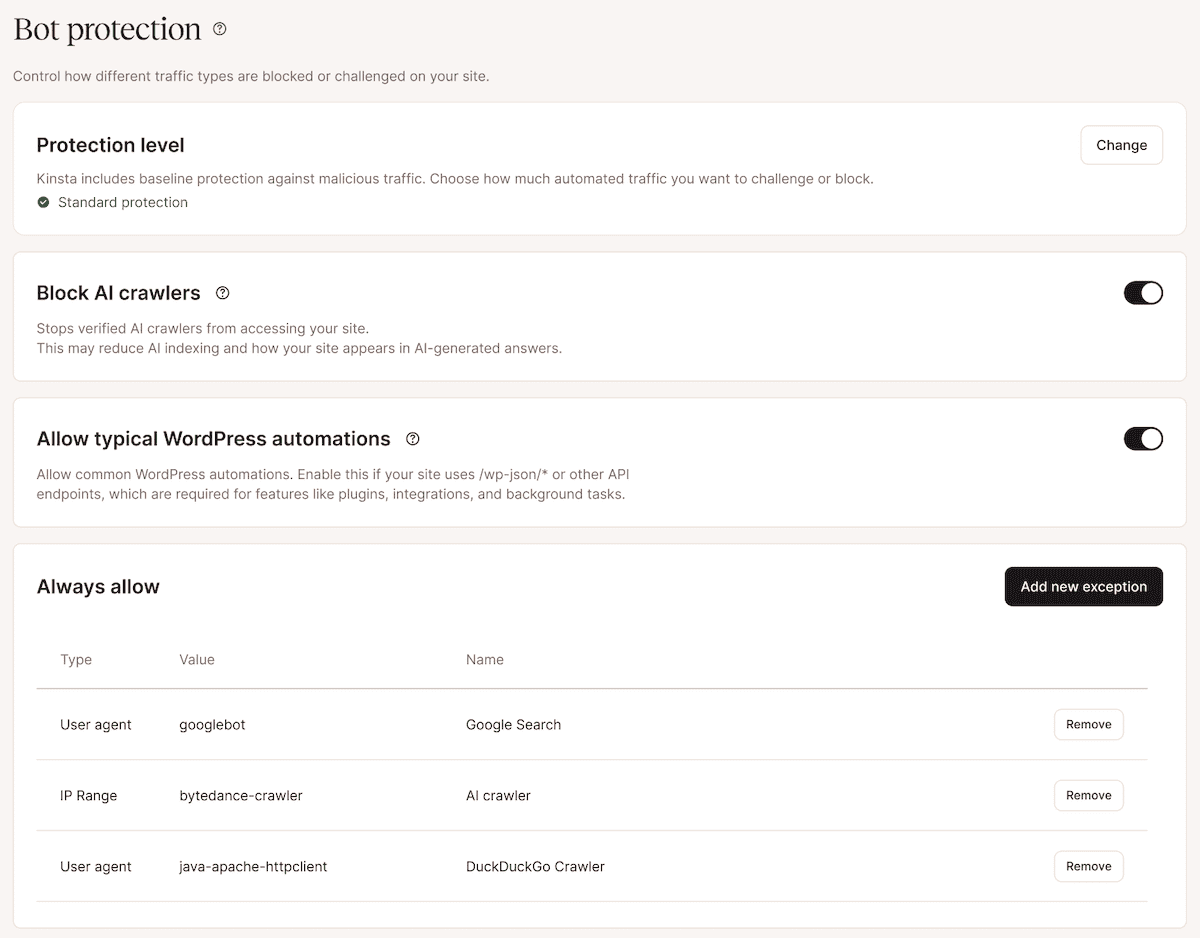
There are four main components within the Bot Protection screen:
- Protection levels that determine whether traffic is allowed, challenged, or blocked.
- A separate toggle to Block AI crawlers.
- An Allow typical WordPress automations settings for common WordPress APIs and background functionality.
- Always allow exceptions for trusted traffic sources.
As part of Kinsta’s Cloudflare integration, the underlying bot scoring and verification infrastructure is enterprise-grade by default.
Choosing a protection level
You have four levels to choose from within the Protection level panel on the Bot Protection screen:
- Block malicious traffic is the default on every Kinsta site. It handles DDoS mitigation and blocks traffic from IPs and endpoints associated with known attack sources.
- Block automations extends the default option to also block confirmed automated traffic, while leaving human and likely-human visitors untouched.
- Challenge bots, block automated and malicious traffic and adds a verification step for likely bots. Visitors who pass are not challenged again for ten days on the same browser and IP address. Note that CAPTCHA-based challenges can be difficult for visitors using assistive technologies, which is worth factoring in for sites with accessibility requirements.
- Challenge everyone applies challenges to likely humans as well, making it better suited to short-term use during a traffic spike than as a permanent setting.
To change the level, go to Sites > sitename > Bot Protection and click the Change button. You can also apply a change across multiple sites by going to Sites, selecting the relevant sites, and using Actions > Change bot protection.
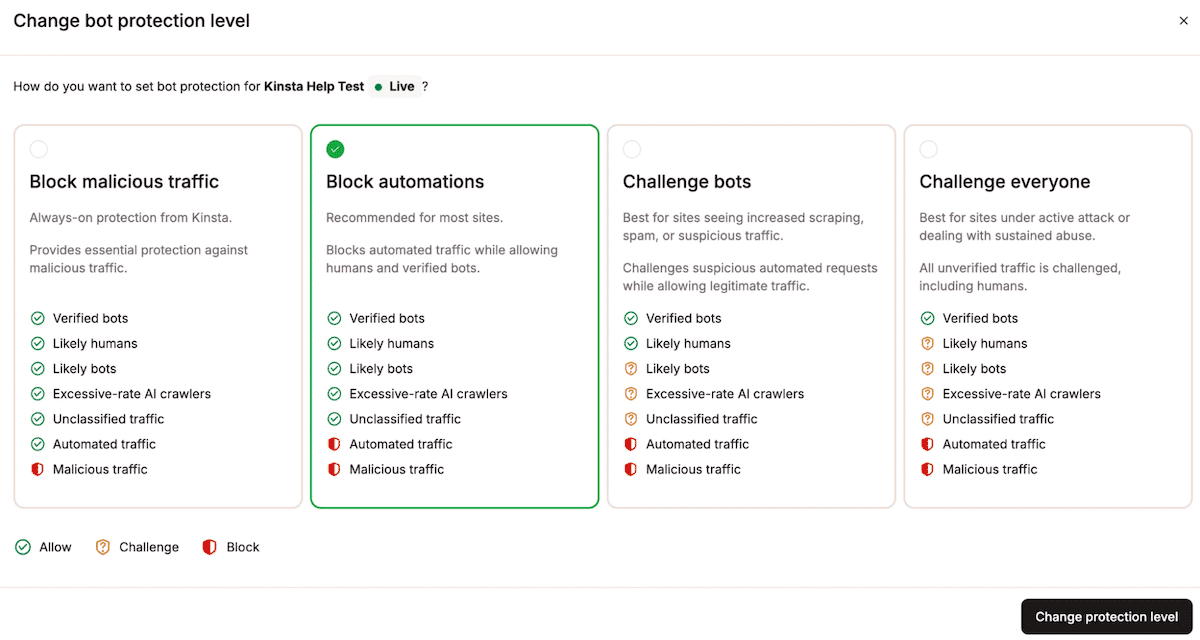
Escalating to Challenge bots or above may affect tools that connect to your site programmatically. Any service not listed on Cloudflare’s verified bot directory will be blocked or challenged at these levels.
Allowing typical WordPress automations
Some WordPress functionality relies on automated requests to operate normally. This includes features such as the WordPress REST API, scheduled background tasks, plugin integrations, SEO tools, forms, analytics connections, and synchronization services.
The Allow typical WordPress automations setting helps preserve these common WordPress workflows while still filtering unwanted automated traffic. This helps reduce the risk of legitimate functionality being blocked when using stricter protection levels.

If your site depends on custom integrations or third-party services, it’s still worth testing critical functionality after enabling stronger protection settings.
Blocking AI crawlers
The Block AI crawlers toggle targets AI crawlers that collect content for model training, retrieval-augmented generation, and AI-powered search features. It blocks these crawlers, including verified ones such as GPTBot, but it does not affect search engine crawlers. Googlebot and Bingbot continue to crawl and index your site, whether the toggle is on or off.
To enable it, go to Sites > sitename > Bot Protection and click the slider next to Block AI crawlers. For multiple sites, use Actions > Change AI crawler block from the Sites view.
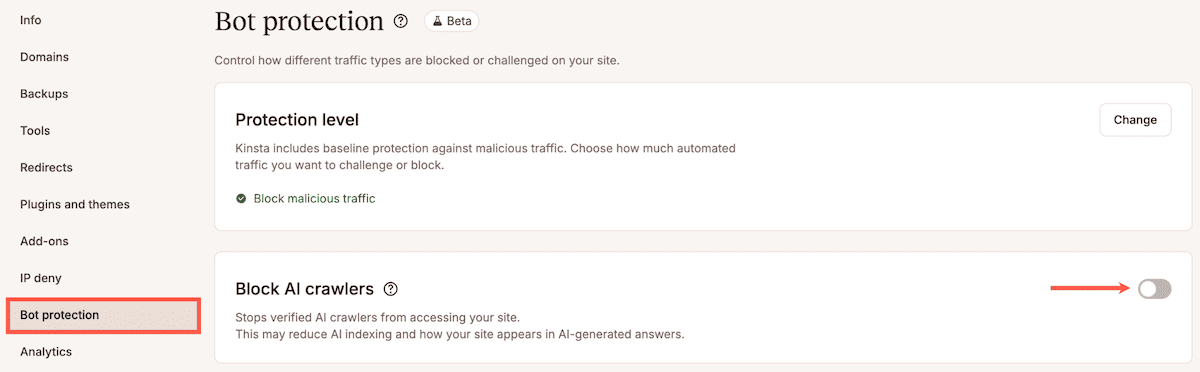
For sites where you suspect AI crawler volume has an impact based on your analytics data, the toggle removes it without affecting traditional search visibility. However, the trade-off is reduced visibility in AI overviews and content summaries.
Crawlers blocked by this toggle feed the systems that surface content in AI-generated answers and recommendations. For content strategies that rely on this exposure, look to monitor the impact before leaving the toggle permanently enabled.
Creating exceptions with Always allow
The Always allow section lets you create exceptions for traffic that should never be blocked or challenged by bot Protection.
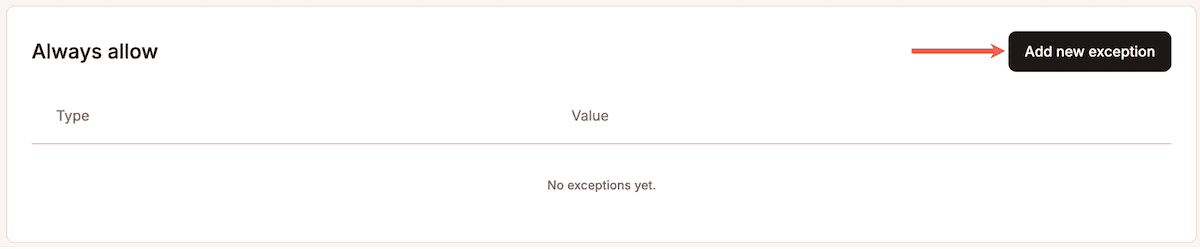
This is useful for trusted integrations, monitoring services, deployment systems, internal APIs, or specific visitors that need uninterrupted access to your site.
You can create exceptions based on:
- IP addresses or IP ranges
- Paths or endpoints
- User agents
For example, you might allowlist a monitoring service, exempt a custom API endpoint from challenges, or ensure that a deployment workflow continues to work normally under stricter protection levels.
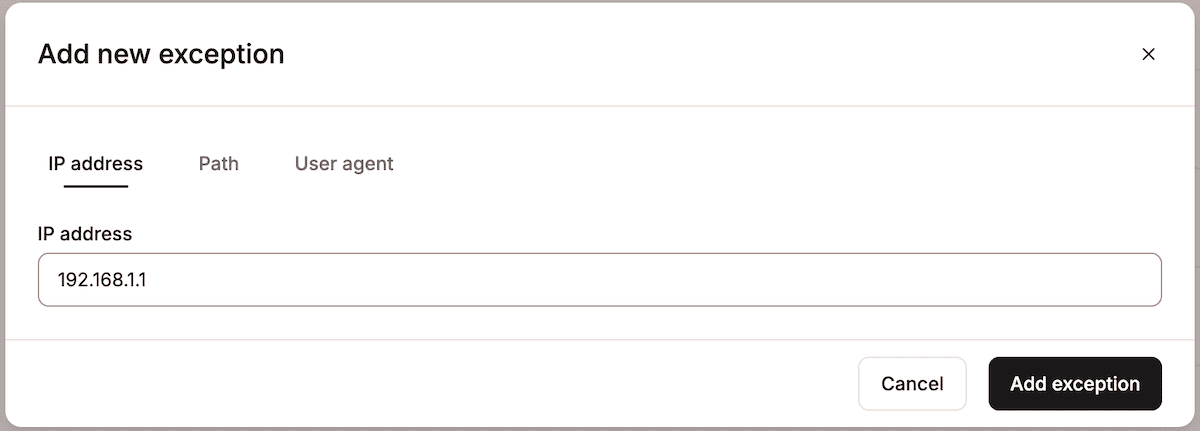
Because exceptions apply before protection rules are enforced, they should be used carefully and reviewed periodically to avoid unintentionally bypassing security protections.
Stop serving bandwidth to traffic that returns nothing
Unmanaged bot traffic generates server load that no code optimization reaches as it arrives before the cache can absorb it. This traffic consumes PHP threads and database connections on every request.
The answer is not to block all automation, but to selectively filter the traffic that wastes resources while allowing the bots and services your site depends on.
If you want more control over how automated traffic is handled on your site, Kinsta’s Bot Protection gives you the tools to monitor, classify, challenge, and block unwanted traffic directly from MyKinsta.
The post How to reduce bandwidth waste without blocking legitimate users appeared first on Kinsta®.