Building faster in the Divi 5 Visual Builder means spending less time opening panels and repeating the same setup. The Command Center handles actions you can name, such as adding modules, applying presets, and opening settings. Workspaces save the panel arrangement you use to carry out those actions.
We will use them together to build a hero section: keep Layers visible while adding its structure, then switch to a Workspace with more room for styling. You can reuse both setups on your next page.
How The Two Tools Work Together
Open the Command Center with Cmd+K on Mac or Ctrl+K on Windows. Type an action, select the matching result, and press Enter. Below, Cmd/Ctrl means Cmd on Mac or Ctrl on Windows.
A Workspace saves your builder preferences and panel arrangement, including which panels are open, where they dock, and their sizes. Switching Workspaces restores that setup without changing the page content.
For this workflow, we use two saved arrangements:
- Command Build: Keep Layers open to select elements and check where queued commands place them.
- Command Style: Close Layers and widen the settings panel for adjusting the elements you have added.
The Command Center lets you switch between them by typing their names. It also opens the settings and tools you need within each setup.
1. Save Your Command Build Workspace
Open a blank page in the Visual Builder and choose to build from scratch. Start by docking the settings panel so it opens beside the canvas. In Workspace Settings, set Settings Modal Default Position to the left or right sidebar.
Next, press Cmd/Ctrl+K, type layers, select the result, and press Enter. Dock the Layers panel and leave it open. When you add several elements through one command queue, the tree lets you check their nesting without opening each element on the canvas.
With the panels arranged, reopen the Command Center and run Save as New Workspace. Enter Command Build in the Workspace Name field and click Save. You can return to this arrangement whenever you need to add or reorganize page content.
2. Build The Hero Structure With Commands
Selection controls where new modules go. Use the Layers panel to check your selection before opening the Command Center:
- With a module selected, the new module goes below it in the same container.
- With a row selected, adding a module creates a new row to hold it.
- With a section selected, adding a module creates a new section and row to hold it.
- With nothing selected, Divi uses a module in the viewport as the insertion reference. Select an element explicitly when placement needs to be predictable.
For the hero, we need a row with a heading, supporting text, and a Group containing two buttons. Queuing lets us add related elements without reopening the module picker for each one.
Press Cmd/Ctrl+Enter to queue an element or preset and keep the Command Center open. Press Enter to run the queue. The > operator nests the next element inside the previous one, and *2 adds two copies of an element.
Select the empty section and open the Command Center. Type row, select the matching element command, and press Cmd/Ctrl+Enter. Then type > heading and press Enter. Divi adds the row with a Heading module inside.
Select the heading, reopen the Command Center, and run text to add a Text module below it. With that Text module selected, build the button container:
- Type group and press Cmd/Ctrl+Enter.
- Type > button and press Cmd/Ctrl+Enter again.
- Type *2 and press Enter to run the queue.
The Group contains both buttons, giving you one element to select when arranging them together. Check the Layers tree before continuing. Replace the modules’ placeholder content with your heading, supporting copy, and button labels and links.
If you need to insert something above an existing module, select it and prefix the new module command with ^. For example, ^ text adds an eyebrow line above the selected heading.
3. Switch To Command Style For Styling
With the structure in place, give the settings panel more room. Close Layers, widen the settings panel, and run Save as New Workspace from the Command Center. Name this arrangement Command Style and click Save.
Once both Workspaces are saved, switching phases takes one command. Press Cmd/Ctrl+K, type Command Build or Command Style, select the matching result, and press Enter. Use Command Build when adding more structure, then return to Command Style for settings adjustments.
In Command Style, select the button Group and open the Command Center. Type layout and choose the result under Settings. Set Layout Direction to Row to place the buttons side by side. The command opens the relevant option group in your docked panel; you still choose the setting value there.
Apply saved styles the same way. Select the first button, open the Command Center, type its preset name, choose the matching preset, and press Enter. Repeat for the second button. This skips opening each button’s preset dropdown and searching through the list.
The presets must already exist on your site. Use clear names you can remember, such as Primary Button and Secondary Button. If you need to create them, follow our guide to presets in Divi 5.
For future additions, the + operator applies a preset within the element queue. Queue button with Cmd/Ctrl+Enter, then type + followed by your saved button preset name. Select the preset and press Enter to add a styled button. To add two, queue the preset with Cmd/Ctrl+Enter, type *2, and press Enter.
4. Use Commands For Settings And Responsive Checks
Stay in Command Style while refining the hero. With an element selected, reopen the Command Center and type the option group you need, such as spacing or border. Select its Settings result and press Enter. The docked panel opens directly to that group, skipping the tabs and scrolling.
You can also change your selection from the keyboard. With the canvas focused, Left Arrow selects a parent, Right Arrow selects a child, and Up and Down move between siblings. Return focus to the canvas before using these keys for navigation; inside a text field, they move the cursor.
Reopen the Command Center for each of these checks:
- Run phone to inspect the hero at the phone breakpoint, then desktop to return.
- Run hover state to edit supported hover settings on the selected element. Run default state when you finish.
- Run variables to open the Design Variables manager if you need another reusable value.
If a search returns several similarly named commands, narrow it with a category filter. :settings limits results to option groups, :preset to presets, and :view to view commands. Confirm the highlighted result before pressing Enter.
When you finish, run save and preview to save your changes and inspect the page before exiting the builder.
Keep Your Workspaces Ready To Reuse
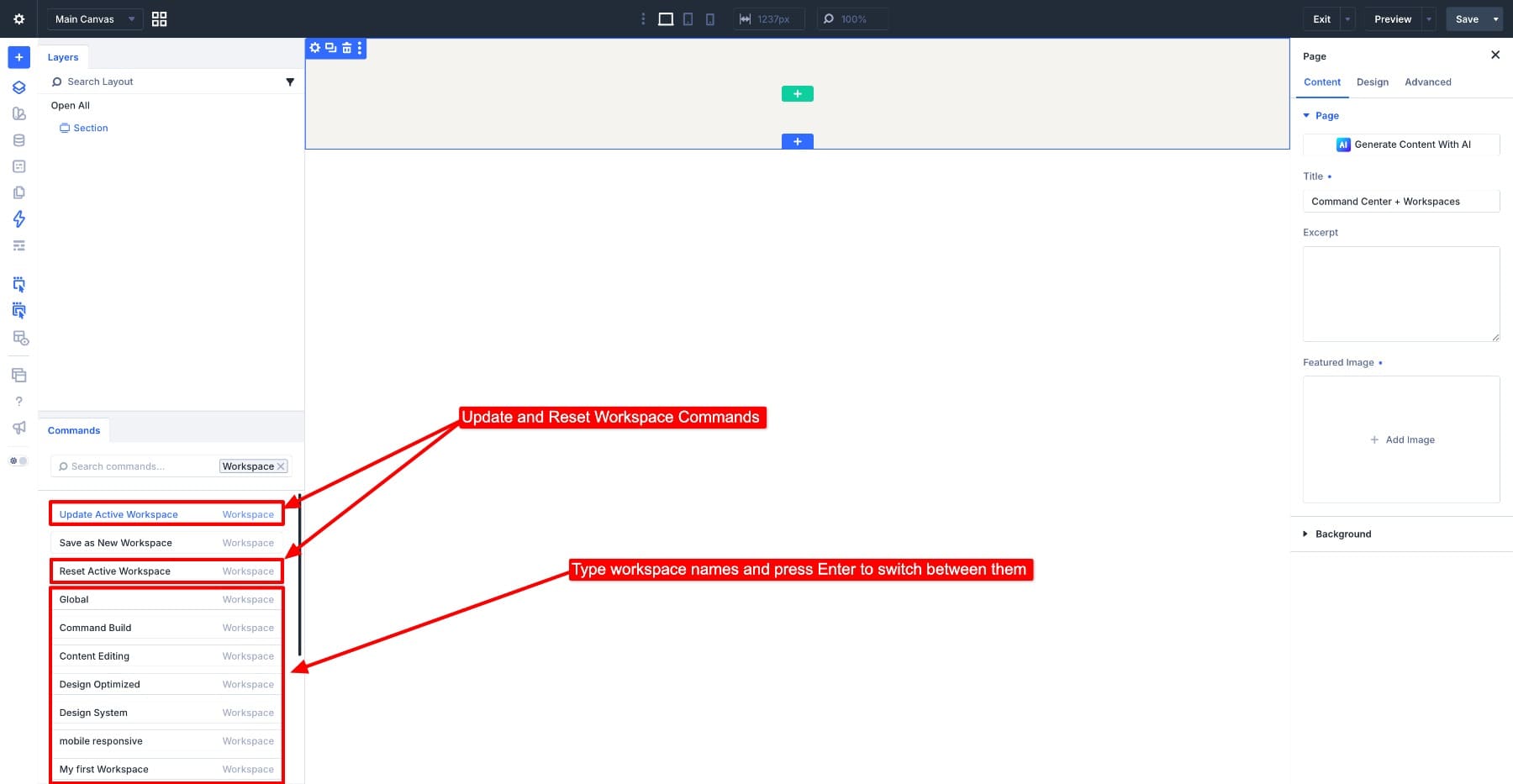
If you move panels while working, run Reset Active Workspace to restore the saved arrangement. If the new arrangement works better, run Update Active Workspace to keep it. These commands manage the builder setup; they are separate from saving your page edits.
Use the mouse for adjustments you need to judge visually, such as spacing, colors, or dragging modules into a different order. Commands are useful when you already know the action or setting you want. If you are still looking for it, browse the panel and learn its name for next time.
Start with these two Workspaces and the commands you repeat most. Keep Layers available while building, switch to a wider settings panel for styling, and use presets to apply reusable designs. On the next page, both your builder arrangements and saved styles are ready to use again.
The post How To Build Faster In Divi 5 With The Command Center And Workspaces appeared first on Elegant Themes Blog.