WordPress sites running on fast infrastructure can still have reliability problems, mainly because that infrastructure only determines how quickly pages load. It’s the enterprise’s ‘change management process’ that determines whether the site continues to work after someone updates a plugin, deploys a redesign, or upgrades the PHP version.
This is why the process of controlling, testing, approving, and recovering from changes to a production environment is one of the primary criteria by which enterprise teams evaluate hosting platforms.
A platform that can’t support a disciplined change process forces teams to build their own controls around it: manual pre-update backups passed through chat, informal approval steps, and post-deployment firefighting that pulls engineers off project work on a recurring basis.
Why change risk is the primary enterprise concern
The scope of changes a WordPress environment requires over its lifetime is broader than it first appears. For example:
- Core releases typically arrive on a fixed schedule.
- Plugin updates can run to dozens per month across a complex installation.
- PHP version upgrades affect the entire execution environment.
- Database schema changes accompany major plugin versions and can conflict with customizations built on the previous structure.
Within enterprises where WordPress powers a customer portal, a compliance-critical content workflow, or a high-revenue e-commerce platform, each change interacts with numerous dependencies that aren’t always documented. However, for any failures, the cause is often deployment that runs without a reliable testing path rather than infrastructure.
A hosting provider that lacks formalized staging, rollback paths, or access controls means the onus is on your team to build them. As such, the primary questions are whether deployment is predictable and recovery is fast as a result.
How staging environments create a safe testing path before production
MyKinsta gives you the tools to make a disciplined change process the default rather than an overhead through staging environments, selective pushes, layered backups, and role-based access controls.
Every Kinsta plan includes one free, containerized standard staging environment per site. To create one, navigate to Sites, select the site you want to stage, click the environment selector (for example, Live), and choose Create new environment. You can clone the existing live environment, install a blank WordPress instance, or create an empty environment for a custom setup.
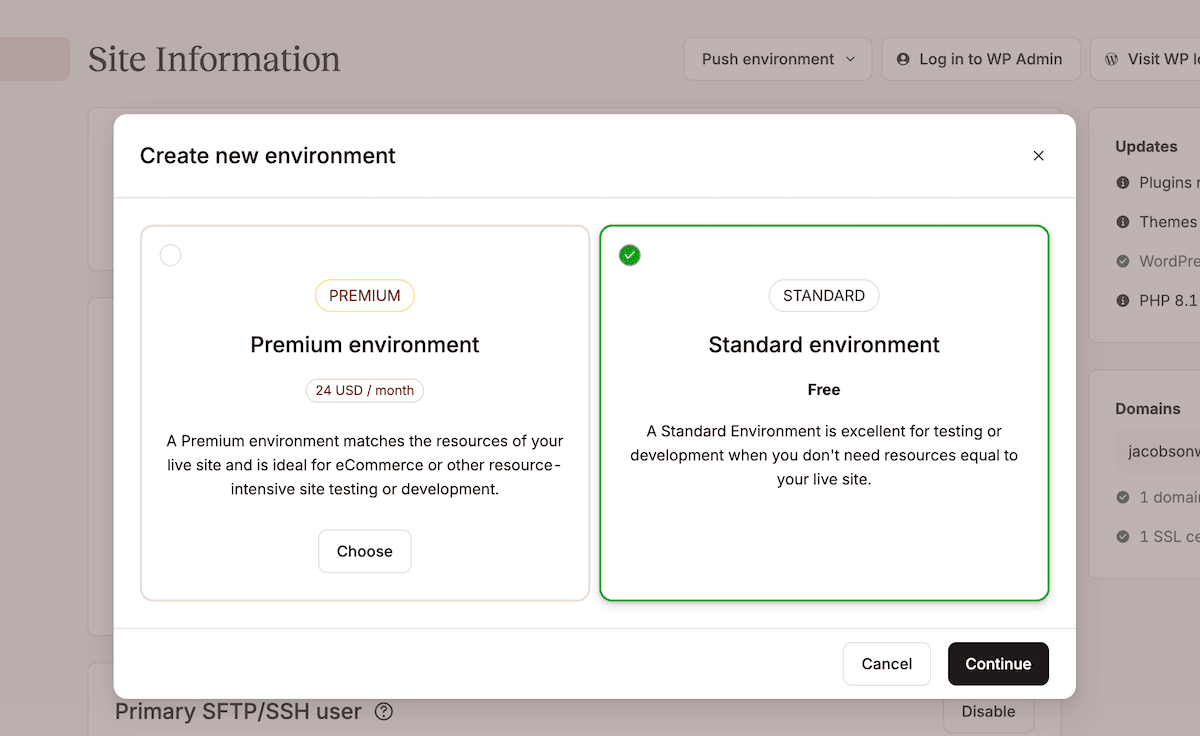
Kinsta’s premium staging add-on provides up to five premium staging environments per site, in addition to the one free standard environment included with every plan. This is ideal if you run parallel development streams, need to validate resource-intensive functionality, or work against conditions that have to match production. The differences between the two environment types are worth understanding when scoping your workflow:
- Standard staging always runs on a single CPU and has fixed RAM allocation. Server caching is available without a CDN or edge caching support. It suits plugin updates, design reviews, and content workflow testing.
- Premium staging matches your live container resource profile and gives you both CDN availability and edge caching support. You use this when tests involve high-traffic configurations, WooCommerce integrations, or behavior that only surfaces under production-scale loads.
For plugin or theme updates, your staging workflow should include running the update, verifying every integration point it could affect, gathering sign-off from the relevant stakeholders, and only then preparing a push to production. It’s simple to enforce when staging and production are separate environments.
Kinsta customer Itineris builds its enterprise client workflows around Kinsta’s staging infrastructure:
Staging environments, automated backups, and a robust infrastructure were essential for streamlining our workflows and enhancing site performance.
How selective pushes control the scope of every deployment
Staging removes risks from the testing phase, but pushing the entire staging environment to production introduces a different risk. Now, every file and every database table is replaced, including changes not part of the intended deployment (such as test content).
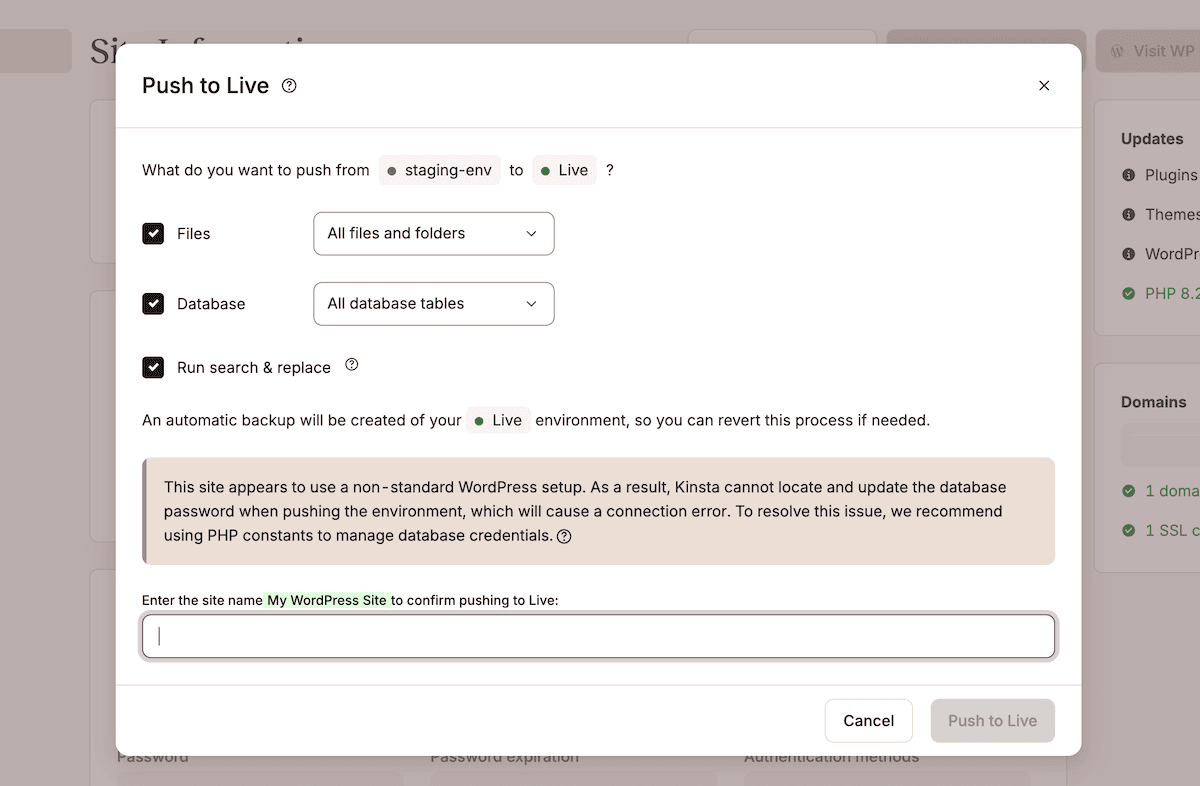
Kinsta’s selective push gives you control over exactly what moves from staging to production. To use it, select your staging environment in MyKinsta, click Push environment, and choose a deployment scope:
- Files. This pushes themes, plugins, and code changes while leaving the live database intact. Use this when the staging database is out of sync with production data, or when the change affects only the codebase.
- Database. Here, you can push database changes while leaving production files unchanged. Use this for structural changes such as custom post type updates or plugin configurations stored in the database.
You also have drop-down menus to further refine the push. For instance, you can choose to select specific files, folders, or database tables.
Before every push to a live environment, Kinsta automatically creates a system-generated backup of the production environment that captures the state immediately before the deployment. It’s available as a restore point the moment the push completes. If the push produces an unexpected outcome, the rollback is a single operation in MyKinsta rather than a reconstruction from a backup.
The search and replace step
If the deployment involves a change to the URL structure or a domain swap, the database will contain references to the staging URL. MyKinsta’s search and replace tool lets you update those types of changes.
Note that the Run search and replace option within the Push to Live dialog only works on the database, so you have to run an extra step for files and folders. You do this through the Tools screen in MyKinsta for a site, then find the Search and replace tool.
Here, enter the staging URL in the Search field and the production URL in the Replace with field. Once you click Replace, MyKinsta will run a system-generated backup, then carry out the search and replace.
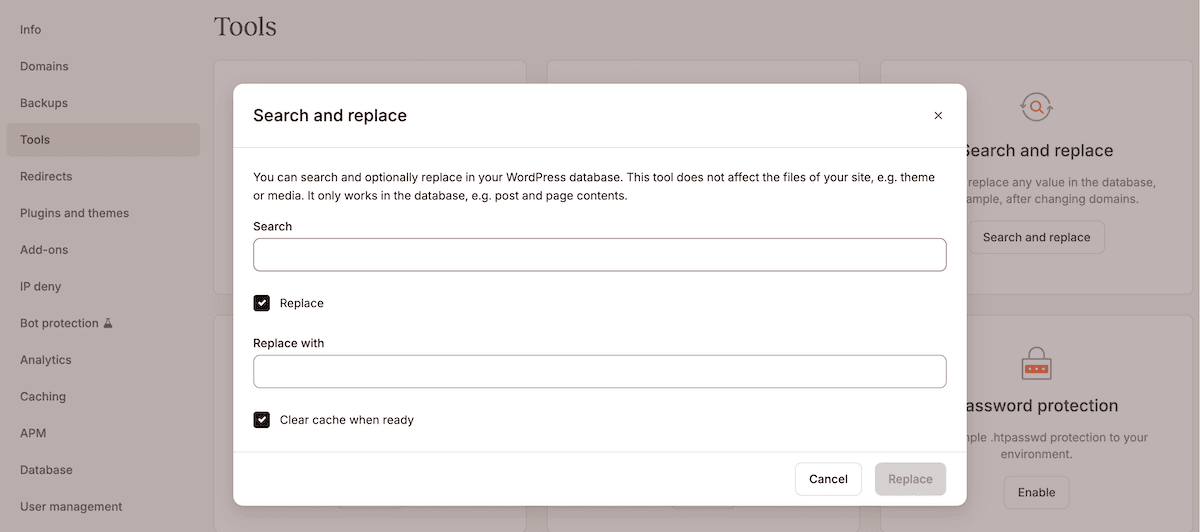
Taken together, selective push, pre-push backups, and a dedicated search and replace step turns staging into a process with enforced checkpoints at every stage.
How layered backups reduce the fallout of a failed change
Even with a staging environment and selective push workflow in place, some changes produce unpredictable failures. For instance, a third-party API can behave differently against production credentials than within staging.
Backups can help you limit the fallout when this happens. For a site in MyKinsta, head to the Backups screen to access them all:
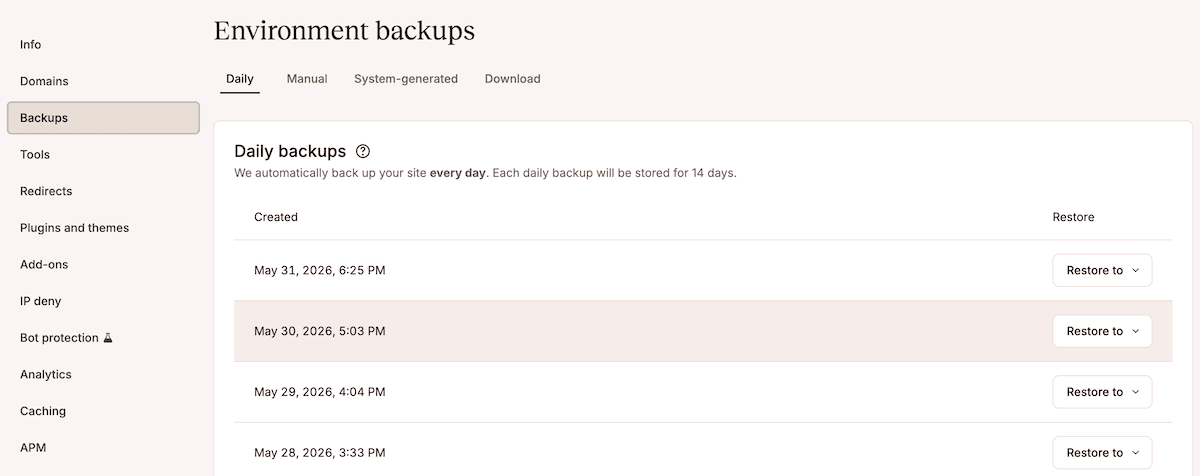
Kinsta covers every stage of the deployment cycle across four backup types:
- Daily backups run automatically and exist for 14–30 days, depending on your plan. Each backup is a complete snapshot of a site.
- System-generated backups trigger automatically before key operations, including pushing staging to live, applying a plugin or theme update, restoring a backup, running a search and replace, and resetting a site. Restore points always exist before an operation runs automatically.
- Manual backups let you create up to five additional tagged snapshots at any time from the Manual tab (the number available depends on your plan). These cover operations that fall outside the automated schedule, such as a PHP version upgrade or a database migration you are running through WP-CLI.
- Hourly backups are available as a paid add-on in two tiers: 6-hour interval backups and true hourly backups. See the add-ons page for current pricing.
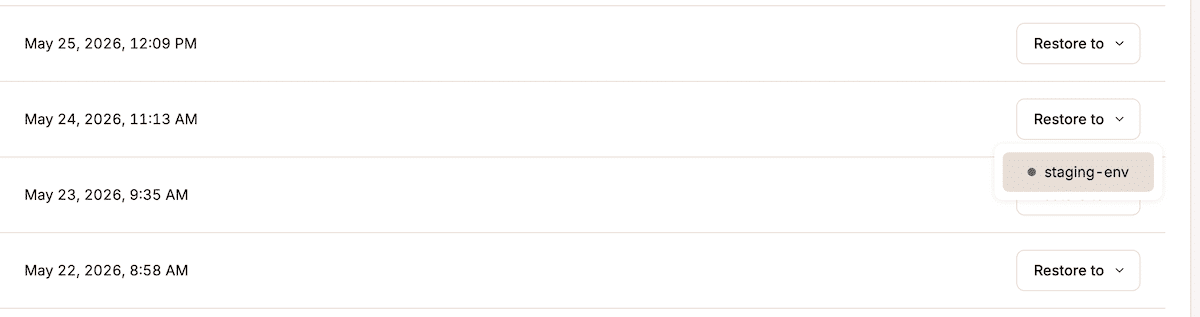
Clicking the Restore to button for a backup, then choosing the target environment, lets you revert to that specific backup. When the restore completes, MyKinsta generates a new system backup reflecting the state just before the restore ran.
Building a change management process around this sort of functionality reduces scheduled maintenance windows and formal rollbacks into a single, executable workflow within MyKinsta. For example, Konica Minolta replatformed its marketing site to WordPress on Kinsta in three months and identified deployment reliability as the foundation of the project:
Our biggest concern was downtime and losing performance during the migration, but Kinsta’s team handled everything smoothly with zero disruptions.
How role-based access enforces the change process across teams
Enterprise deployment typically involves multiple stakeholders with different responsibilities at each stage of the change process.
For instance, developers need access to staging to build and test changes, while QA engineers need to validate those changes. Further down the line, project managers need visibility into what is in staging without the ability to push it to production and client-side reviewers need to approve a staging state.
Kinsta’s access model and user management lets you define and enforce six roles, although for enterprise change management, three are more relevant:
- Company Developers can manage all sites and staging environments, access DNS, view analytics, and push staging to a live environment. They can’t access billing details, approve migrations, or add and remove paid add-ons. The role suits internal developers and technical leads with full deployment authority.
- Site Administrators have complete control over a specific site and all of its environments. However, they can’t remove a site from the company account or create and delete premium staging environments. This role suits technical stakeholders responsible for a specific property.
- Site Developers have access to all staging environments for the sites assigned to them, but cannot push staging to production. For a contractor working on a feature branch, or a QA engineer validating a release candidate, this role gives access to the part of the workflow their position requires.
MyKinsta makes it straightforward to invite a user through the Company settings > Users page. Here, the Invite users button lets you enter their email address and select whether to grant company-level or site-level access.
Centralizing access with SAML SSO
If you’re an enterprise managing access across multiple tools from a central identity provider, Kinsta supports SAML SSO with any Identity Provider (IdP) that uses the SAML standard. This includes Microsoft Entra ID, Okta, Google Workspace, and many others.
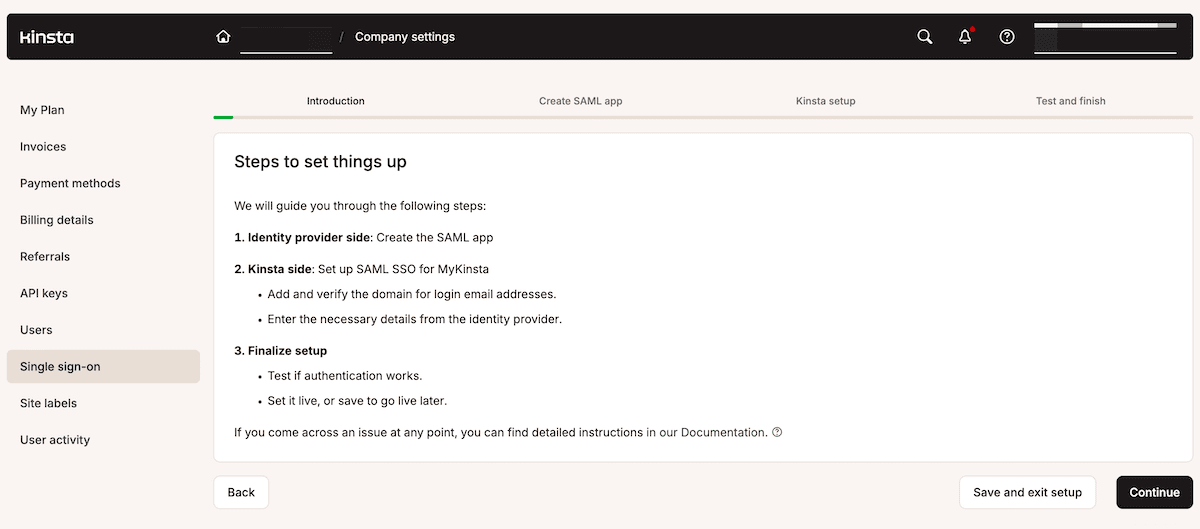
To enable it, navigate to Company settings > Single sign-on within MyKinsta and click Enable. From there, you configure the SAML application in your IdP using the connection details MyKinsta provides, then return to MyKinsta to complete the setup with your IdP’s SSO URL, Entity ID, and public certificate.
Once active, a user authenticates through your IdP using existing company credentials. Enabling mandatory SSO prevents users from bypassing the IdP with a direct login. When someone leaves the organization, revoking their access in the IdP removes it from MyKinsta at the same time, through the same process used for every other tool in the stack.
Finally, Two-Factor Authentication (2FA) is required by default for all accounts not covered by SAML SSO. A Company Owner can view each user’s 2FA method from the Company settings > Users > 2FA screen.
Change management is how enterprise WordPress scales safely
For enterprise organizations, the hosting platform is the infrastructure that determines how safely a WordPress environment can change, not just how fast it runs. What separates platforms at the managed hosting tier is whether a team can deploy a WordPress update with a reliable recovery path in place if something goes wrong.
Kinsta’s staging environments, selective push, layered backup system, and role-based access controls give enterprise teams the tools to run a disciplined change workflow without maintaining those controls themselves.
To see what this looks like for your organization, explore Kinsta’s enterprise WordPress hosting options to discover if you need to review your current change management process.
The post How Kinsta helps enterprise WordPress teams manage change without the risk appeared first on Kinsta®.