Divi AI Agents can help you understand your website as well as build it. With the Ask feature in Divi 5, you can ask about settings and layout approaches and get guidance based on the page you’re working on, all from inside the Visual Builder.
Ask works from the page you’re on. A question about CSS Grid becomes a conversation about your services section and how its columns should adapt on phones. You can then ask where to find the relevant controls without starting over or explaining the layout again.
Below, we explore how to use Ask for on-demand support, using a portfolio page to work through practical questions about CSS Grid and Flexbox, including how a layout adapts on phones.
What Ask Mode Does In Divi AI Agents
Ask is an interaction mode in the Divi AI Agents panel. It lets you ask questions about your page and how Divi works. The agent can inspect the page and consult Divi documentation to explain an approach before you make changes.
Ask explores and advises without changing your design, while Build is the mode for requesting actions, such as updating settings or rearranging elements.
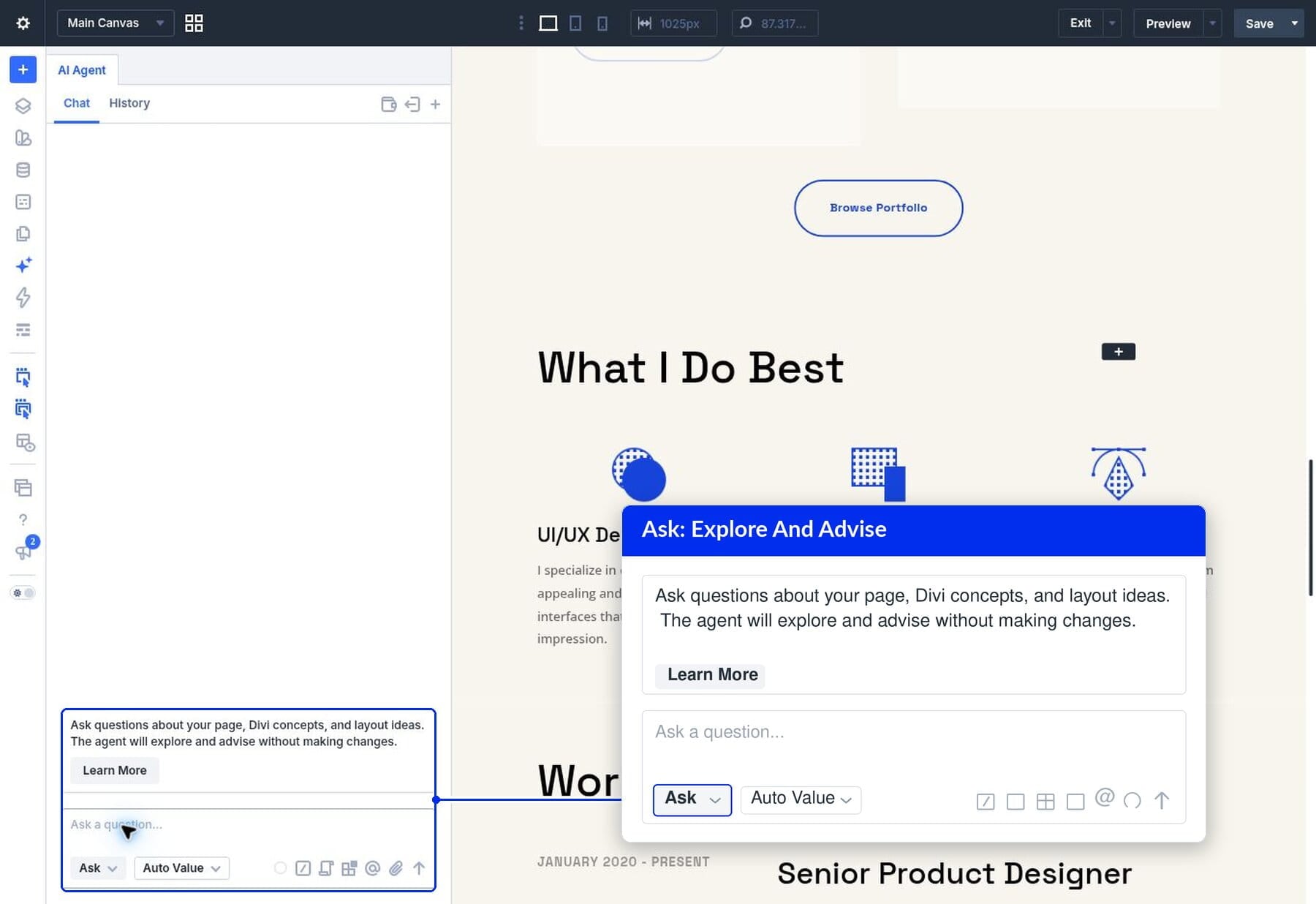
This makes Ask useful at several points in your workflow. You might need help choosing between Flexbox and CSS Grid, locating a responsive setting, or understanding why an existing structure needs to change before a particular design will work.
You don’t need to know the exact setting name to start. Describe the element, what you want to achieve, and the part you’re unsure about. Ask can use that information to investigate and explain the next steps.
How To Switch To Ask Mode
Open your page in the Divi Visual Builder and open the AI Agent panel. If prompted, sign in to your Divi AI account.
At the bottom of the panel, open the interaction mode selector and choose Ask, the same selector you use to switch between Ask and Build.
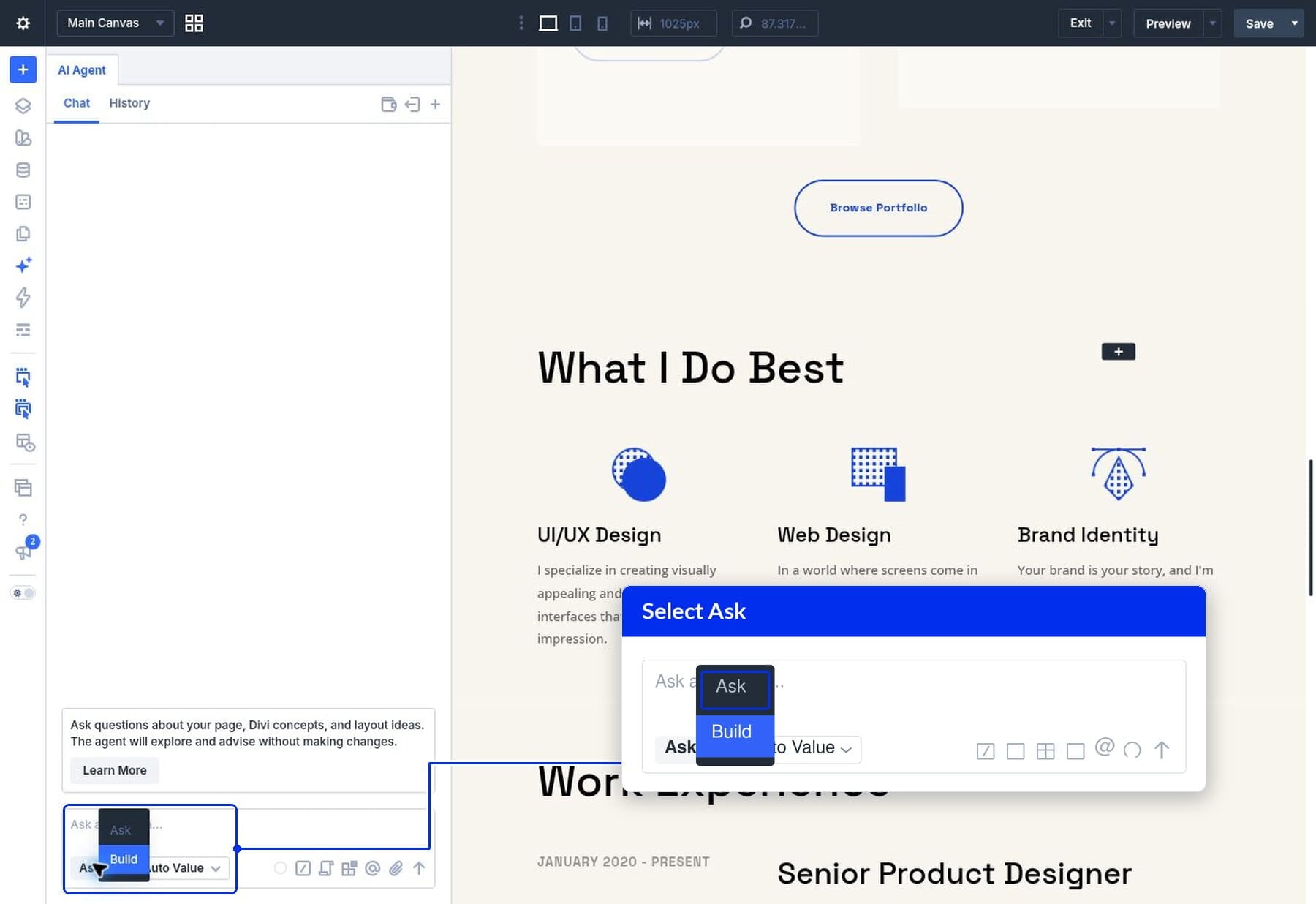
Enter your question in the input field and send it. For a page-specific question, name the section or element. Referring to a visible heading, such as “What I Do Best,” gives the agent a concrete starting point.
For our examples, we’re using a portfolio page with a services section and a Featured Work section. We’ll keep the existing design in place while asking for guidance on how its layout could work with Divi 5’s layout controls.
Ask Whether To Use Flexbox Or CSS Grid
Knowing which layout system to use is often the first decision. Both Flexbox and CSS Grid can arrange a set of services, but the most useful answer depends on the structure you have and the result you want.
Our “What I Do Best” section contains three services, each with an icon, a heading, and a description. To get advice for this specific section, we asked:
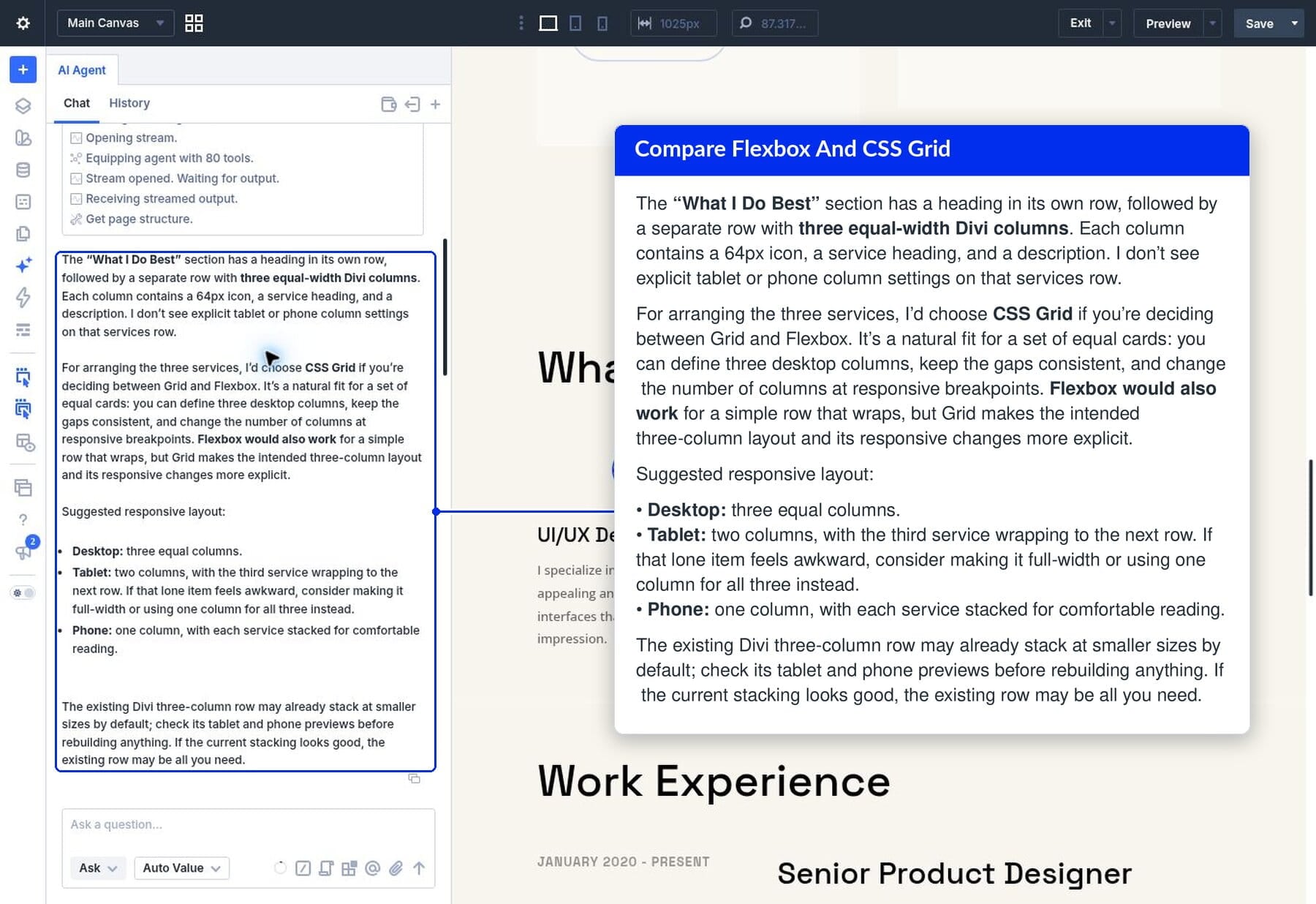
Ask inspected the page and identified a heading row followed by a separate row containing three equal-width columns. It recommended CSS Grid for the services. An explicit column count makes the desktop layout and its responsive changes easy to define.
It also explained that Flexbox could work for a row of items that wraps, a comparison that ties the recommendation to what this layout needs.
For the responsive layout, Ask suggested three columns on desktop and one column on phones. It offered a two-column tablet layout while noting that the remaining service would sit in another row. It also noted that the existing layout might already stack correctly. A look at the responsive previews could show that no rebuild is necessary.
Because Ask explained why it chose Grid, you can test that reasoning against your own design. If your services need a set number of columns at each breakpoint, Grid fits. If they should wrap as space allows, Flexbox does.
Ask Follow-Up Questions To Find The Exact Setting
Once you have a direction, use the same conversation to get more specific. You don’t need to repeat the entire question or describe the section again.
We followed up with:
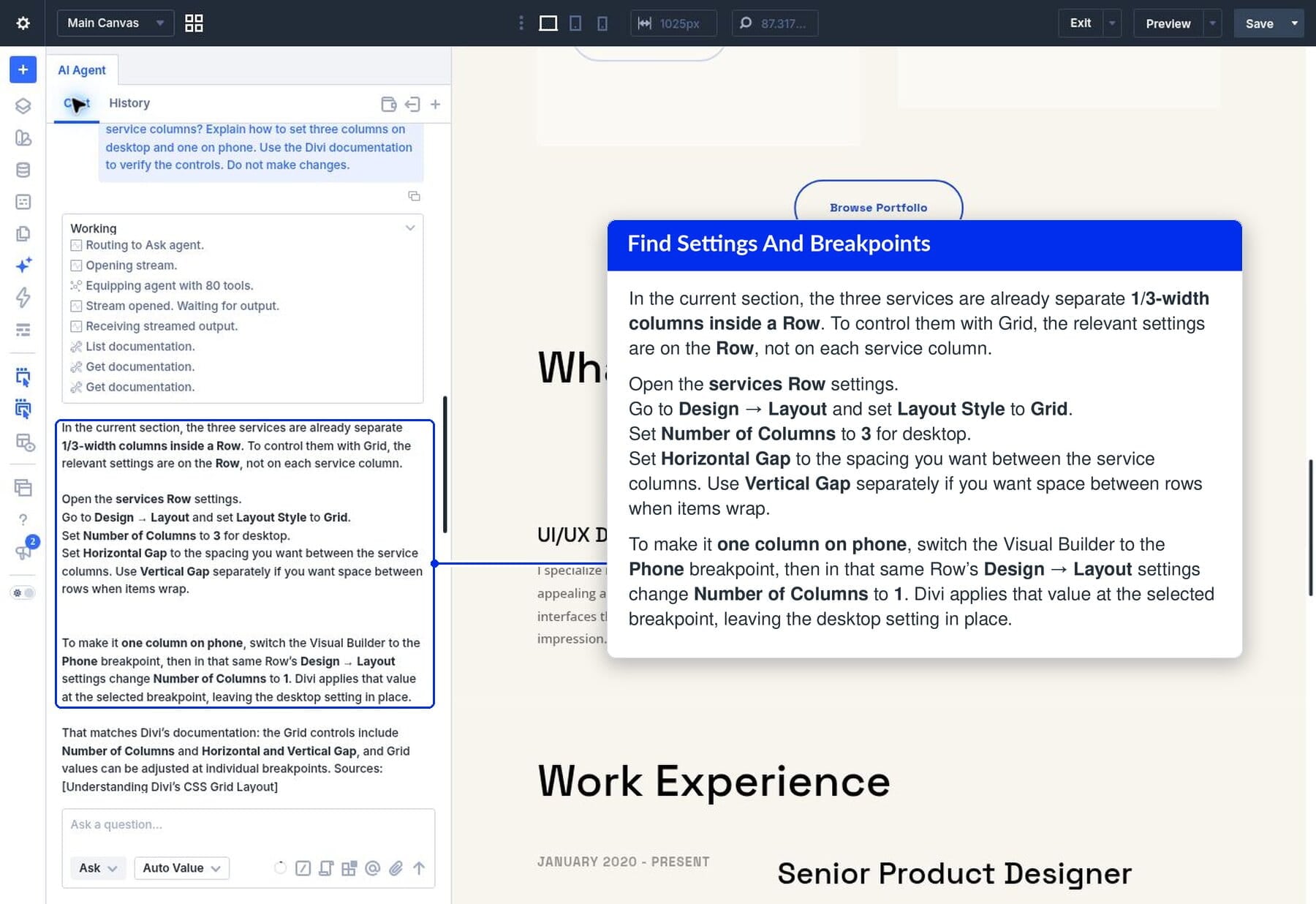
Ask explained that the relevant controls belong to the parent Row, which contains the three service columns. It directed us to Design > Layout, identified Grid as the Layout Style, and explained how column count and horizontal and vertical gaps control the arrangement.
It then described using the Phone breakpoint to set a single column while retaining the desktop configuration. The response is also linked to Divi’s documentation on CSS Grid and responsive editing. That gave us somewhere to read more.
A follow-up like this turns a broad recommendation into steps you can follow. If part of an answer is unclear, ask about that specific point. You could ask which parent element to edit or how a breakpoint change affects the rest of the layout.
Ask What Your Page Structure Needs Before A Redesign
Sometimes the question is about whether your current layout can support a different design. Ask can help you understand the structural changes involved before you start moving elements.
For the Featured Work section, we explored an alternating image-and-text arrangement on desktop, with each image appearing before its text on phones. This is a useful Flexbox question because the answer depends on which elements share a parent container.
Our test also showed what inspection catches. The question assumed the projects were already arranged as alternating image-and-text rows. Ask identified a different structure: each project’s image, text modules, and button were inside the same project column. There wasn’t an existing pair of image and grouped text containers to reverse.
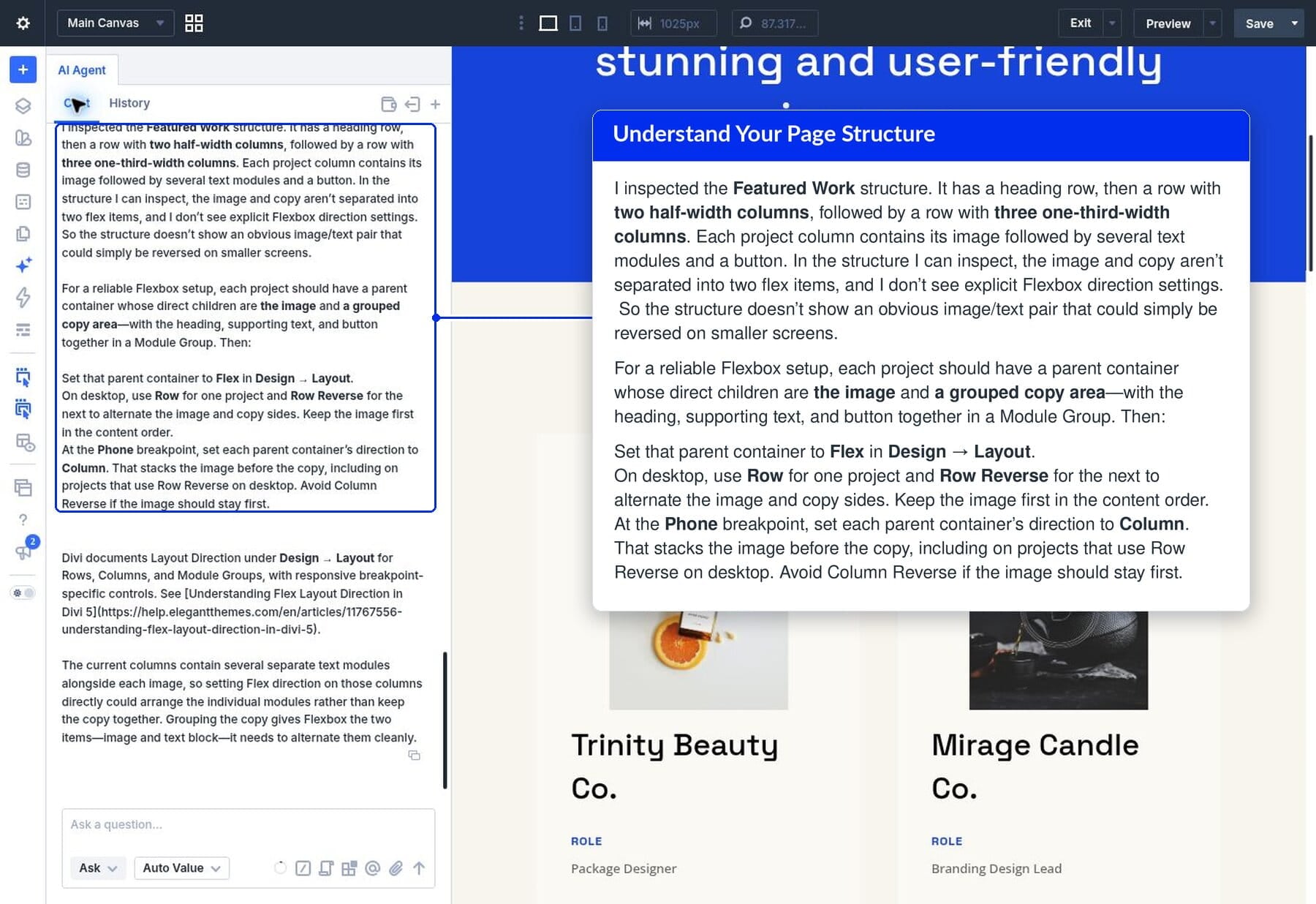
Ask explained that the proposed design would need a parent container with two direct children: the image and a grouped copy area. Keeping the heading, description, and button together would allow the copy to behave as one item.
It then outlined a Flexbox approach using Row and Row Reverse for alternating desktop arrangements, followed by Column at the Phone breakpoint, with the image first in the content order. It also linked to the Flex Layout Direction documentation.
That response helped clarify both the design approach and the preparation it required. Changing the direction of the existing project column could arrange all its individual modules, rather than create the intended image-and-copy pairing.
Try this with your own layout. Describe the outcome you want, and ask the agent to inspect how the relevant elements are organized. This gives it room to identify structural requirements you may not have considered.
Switch To Build To Make The Changes
After reviewing an answer, you can follow its instructions manually in the Visual Builder. This lets you learn the controls while checking the result at each step.
If you want Divi AI Agents to carry out the changes, switch from Ask to Build and give it a specific instruction based on the approach you’ve chosen. For the services example, that means specifying which row to update, the number of columns at each breakpoint, and which existing content and styling should be preserved.
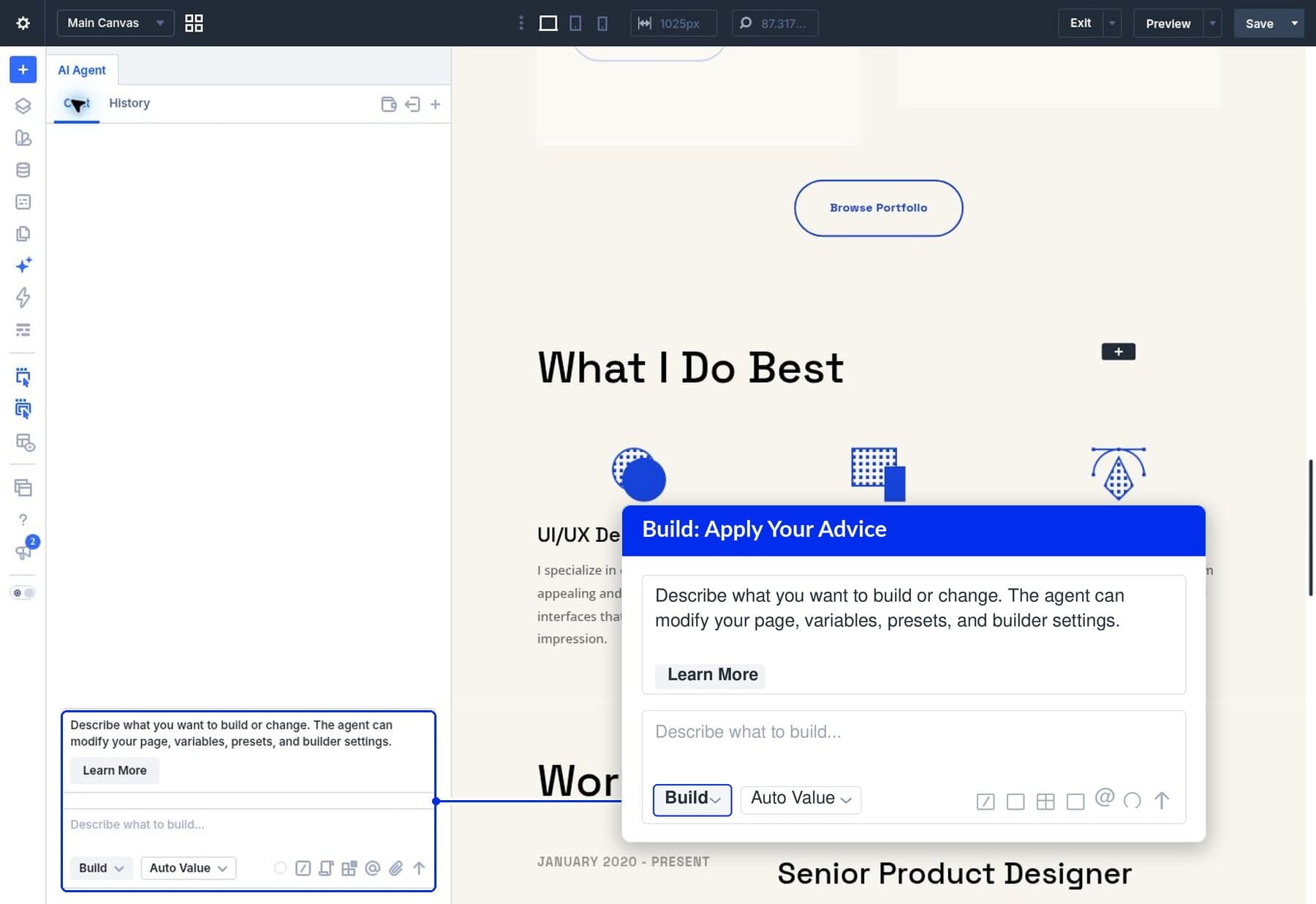
Keep the request focused, then review the result in the relevant desktop, tablet, and phone previews. Ask helps you decide what to do. Switching to Build lets you request the implementation.
Use Ask As On-Demand Divi Support
The Ask feature gives you a way to explore Divi 5 settings, such as a row’s Grid columns or a Flexbox direction, on the page you’re building. Start with a question about one section. Ask reads how that section is built before it answers, and each follow-up narrows the advice until you know which control to change.
Whether you’re choosing a layout system, locating responsive controls, or planning a different arrangement, Divi AI Agents can help you weigh the options before putting them into practice. Open Ask on your next page and start with the part of the design you want to understand better.
The post Getting On-Demand Support With The Ask Feature In Divi AI Agents appeared first on Elegant Themes Blog.