The Instagram Feed Module brings Instagram galleries directly into Divi 5. Connect an account, choose how many posts to display, and style the resulting feed directly inside the Visual Builder.
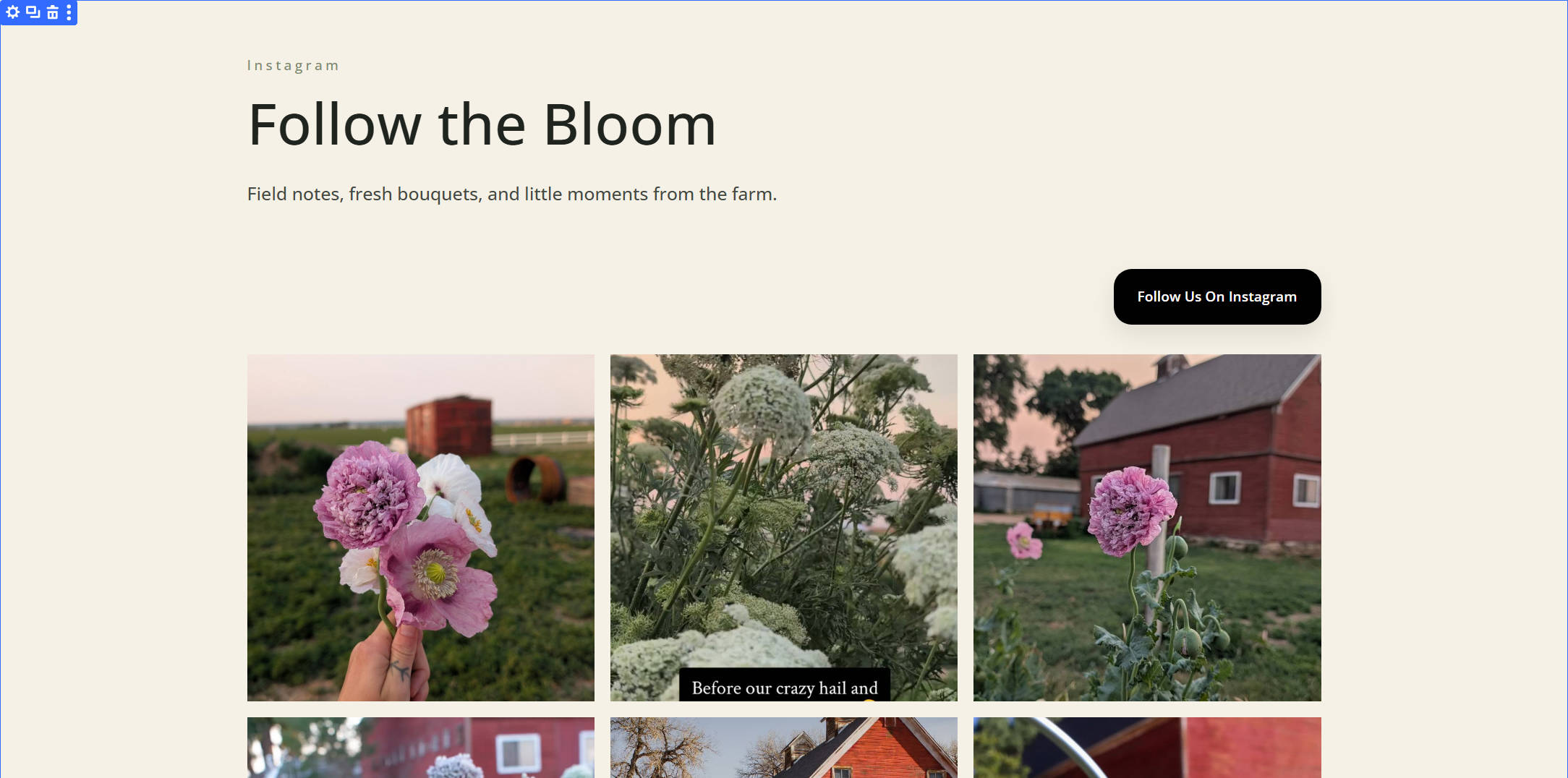
One of the module’s biggest advantages is how deeply it connects with Divi 5’s newer image tools. Instagram feeds naturally mix square, portrait, and landscape media, but Aspect Ratio and Framing let you give those posts a consistent shape without editing the original images. You can define the frame, control how each image fills it, reposition the crop, and reuse that treatment with Image Option Group Presets.
The rest of the feed follows the same principle. Feed and Item controls shape the gallery itself, the Follow button uses Divi’s familiar Button settings, and the module can be styled as part of the same design system as the page around it.
Connecting An Instagram Account
Before the feed can display anything, Divi needs an Instagram Access Token. Open the Instagram Feed Module and go to Content > Account.
On a site without a connected account, you’ll see a Select An Account dropdown and an Add button. Click Add and Divi asks for two values: an Account Name and an Access Token. The Account Name is simply the label Divi uses to identify the connection, which is useful if you work with multiple Instagram accounts. The Access Token is the credential that allows the module to retrieve media from Instagram.
Click Submit to save the connection.
Once the account is connected, select it from the dropdown and the module can begin displaying its posts. The interface also gives you controls for fetching the feed again and removing a saved account when you no longer need it. The Access Token itself is generated through Meta’s developer tools. Setting that up involves creating a Facebook App, configuring the Instagram use case, connecting the Instagram account, and generating the token.
Rather than condensing that entire Meta workflow here, follow our step-by-step guide: How To Connect The Instagram Feed Module With An Instagram Account In Divi 5. Meta’s setup interface and requirements can change over time, so using the current connection documentation is the safest way to generate a working token.
Control What The Instagram Feed Displays
Once the account is connected, the Content tab controls what the feed displays and how visitors interact with it. The Instagram Feed Module includes groups for Account, Feed, Link, Button, Elements, Background, and Meta, but the main feed-specific controls are straightforward.
Choose How Many Posts To Display
Inside the Feed group, the Posts control determines how many Instagram posts appear in the module. Choose a number that suits the role of the feed rather than simply displaying as many posts as possible.
A compact social section might only need a few images, while a dedicated Instagram gallery can display a larger selection. The Feed Layout settings in the Design tab determine how those posts are arranged once they are on the page.
Choose What Happens When Visitors Click A Post
The module provides an Open In Lightbox option for individual feed images. When enabled, visitors can view the media in an overlay instead of immediately leaving the website.
That gives you two useful approaches depending on the purpose of the feed. A lightbox works well when the Instagram images are part of the page’s visual experience and you want visitors to keep browsing the site. Linking to Instagram makes more sense when the feed is primarily there to direct people to your social profile and content.
The module’s broader Link group can also make the Instagram Feed Module itself clickable, directing visitors to another URL when that fits the surrounding layout.
Add A Follow Button
Inside the Button group, Show Follow Button determines whether the feed includes a call to action, while Follow Button Text lets you customize its label. That gives the module a clear next step when the goal is to turn website visitors into Instagram followers. If the feed is primarily decorative or editorial, you can leave the button hidden and let the images stand on their own.
Add Nested Elements
The Instagram Feed Module also supports Divi 5’s nested-element system through the Elements group. That means the feed does not have to exist as an isolated image gallery. You can add other Divi elements inside the module and build a larger composition around the social content.
Combined with the standard Background and Meta groups, this gives you more freedom to treat the Instagram feed as a designed section of the page instead of a self-contained embed.
The Four Unique Styling Groups
The Instagram Feed Module becomes especially interesting in the Design tab. Alongside Divi’s standard controls for Layout, Sizing, Spacing, Border, Box Shadow, Filters, Transform, and Animation, four styling groups give you direct control over the parts that make up the feed: Image, Button, Feed, and Item.
Feed and Item are specific to the structure of the Instagram Feed Module, while Image and Button bring familiar Divi styling controls into the feed. Together, these four groups let you treat the Instagram gallery as a designed part of the page rather than a fixed social embed.
Feed Arranges The Grid, Item Styles Each Tile
Feed controls the container that holds the Instagram posts themselves. It includes controls for Layout, Background, Border, Box Shadow, Sizing, and Spacing. Its nested Layout group is where you control the structure of the Instagram gallery, including how the posts are arranged and how much space sits between them.
Adjust the Grid to suit the section, then use responsive values to rethink the arrangement on Tablet and Phone. A wider desktop gallery can be simplified to a two-column or single-column feed as available space decreases.
Item works one level deeper and controls each Instagram tile individually. It includes Background, Border, Box Shadow, Sizing, and Spacing, allowing you to establish a consistent card treatment for every post in the feed.
Add rounded corners, a subtle border, extra internal spacing, or a soft shadow once, and that same styling carries across the complete gallery. The separation between Feed and Item makes the structure easier to understand: Feed styles the collection, while Item styles the repeated tile.
Image Controls The Shape, Crop, And Framing
Image is one of the most useful styling groups in the Instagram Feed Module because Instagram media rarely comes in one consistent format. One post may be square, the next portrait, and another landscape. If every image simply follows its original proportions, the feed can quickly lose its visual rhythm.
Divi 5’s Aspect Ratio settings solve the first part of that problem by defining a consistent frame for every image. You might use 1:1 for a classic Instagram-style grid, 4:5 for a taller editorial treatment, or another ratio that better suits the surrounding page. Because the ratio belongs to the website design rather than the original Instagram media, differently shaped posts can occupy the same proportional space.
Framing controls what happens inside that frame. Set Object Fit to Cover when you want each image to completely fill its tile while preserving its original proportions. Divi crops whatever extends beyond the defined frame instead of stretching the image.
Then use Object Position to control which part of the media remains visible. If a portrait subject sits toward the top of the original image, for example, Top Center may produce a better crop than Center.
This combination is one of the features Elegant Themes specifically highlighted when the Instagram Feed Module launched. Aspect Ratio defines the shape, Framing determines how differently proportioned Instagram media sits inside it, and Composable Settings help bring Divi’s wider design options to module sub-elements.
Because the Image option group supports Option Group Presets, you can also turn the complete treatment into something reusable. An Instagram Image preset could contain the Framing settings alongside a Border Radius, Border, Box Shadow, Filters, and other shared image styling.
Button Connects The Feed To Your Existing CTA Style
Button controls the Follow button that can appear alongside the feed. It uses Divi’s familiar Button styling options, so you can control its typography, background, borders, spacing, sizing, and other supported settings without treating it as a separate social-media interface.
Option Group Presets are especially useful here. Apply the same Button treatment used by other calls to action on the site, and the Instagram Follow button immediately feels like part of the wider design system instead of an unrelated element.
Remember To Refresh Your Instagram Access Token
There is one maintenance detail to know before relying on the feed long term: the Instagram Access Token generated through Meta is valid for 60 days. When that period ends, the token needs to be refreshed or regenerated. If it expires without being replaced, the Instagram Feed Module can no longer retrieve the account’s posts.
The current refresh workflow is:
- Open the Facebook App used for the Instagram connection.
- Return to the Instagram access-token section.
- Generate a new token.
- Copy the new token.
- Open the page containing the Instagram Feed Module.
- Go to Content > Account.
- Remove the existing account connection.
- Add the account again using the new Access Token.
We cover the complete process in How To Refresh The Instagram Access Token.
Because the expiration window is predictable, it is worth adding a reminder before the 60 days are over, especially on client sites where nobody may be opening the module regularly.
A Feed That Is Stylable Like The Rest Of The Page
The Instagram Feed Module in Divi 5 works especially well because the Instagram-specific setup is only one layer of the workflow. Once the account is connected, Divi 5’s design system takes over.
Aspect Ratio establishes a consistent image shape. Framing controls how mixed Instagram media fits inside it. Feed determines how the gallery is arranged, Item controls the repeated tiles, and the Button group brings the Follow CTA into the same styling system as the rest of the site. Image and Button Presets can then turn those decisions into reusable design treatments.
That makes the module useful in more places than a dedicated social section. Add it to a homepage, About page, creator site, restaurant layout, ecommerce landing page, portfolio, or any other design where recent Instagram content adds useful visual context.
Connect the account, choose the content, define the image system, and design the feed like any other part of your Divi 5 website.
The post Exploring Divi 5’s Instagram Module appeared first on Elegant Themes Blog.