Divi 5 includes a native icon system that makes icons easy to add and style throughout the Visual Builder. For projects that need a much larger selection, Divi Sensei Icons by Divi Sensei expands that same workflow with thousands of additional choices.
Built specifically for Divi 5, the extension adds more than 14,000 icons directly to Divi’s native icon picker, with more than 30,000 variations when its thin, regular, and bold line weights are counted. The library combines familiar open icon collections with custom, industry-focused sets designed for more specific business use cases.
In this Product Highlight, we’ll look at what Divi Sensei Icons includes, how its native Divi 5 integration works, how the library stays manageable at this scale, and how to start using the icons inside the Visual Builder.
Why A Larger Icon Library Can Be Useful
Icons are a practical way to add visual cues without adding more copy. They can help visitors scan a service grid, distinguish features, recognize actions, understand navigation, and move through a page more quickly. When the icon style stays consistent across a website, it can also become part of the wider visual system alongside typography, color, spacing, and imagery.
Divi 5 already gives designers a native icon picker and dedicated Icon Module, along with icon controls inside modules such as Blurbs and Buttons. Divi Sensei Icons builds on that existing workflow by dramatically increasing the number and variety of symbols available from the same picker.
That becomes especially useful on industry-specific websites. A generic symbol may work for broad ideas such as email, location, or settings, while a financial services site, bakery, medical practice, construction company, florist, or legal firm may need much more specific visual language.
Instead of introducing a separate icon workflow, Divi Sensei Icons keeps those additional choices connected to the way icons already work inside Divi 5.
Built Specifically For Divi 5
Divi Sensei Icons was developed for Divi 5 and integrates directly with its native icon system. Once the extension is installed and activated, its icons become available anywhere the Divi icon picker is supported rather than living inside a separate proprietary module.
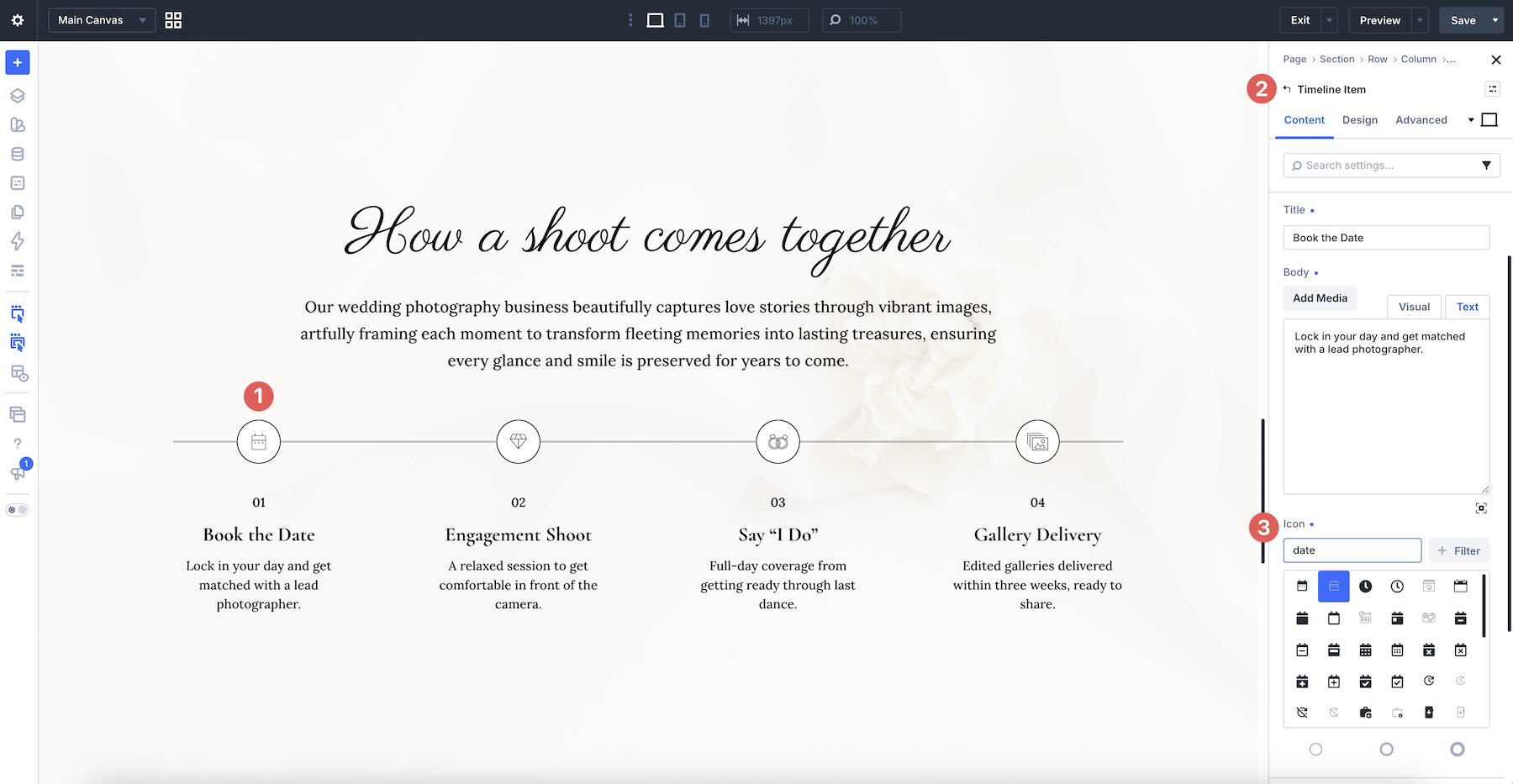
That means you can use the library in modules such as Blurbs, Buttons, Accordions, Toggles, the Icon Module, and other elements that expose Divi’s icon picker. Divi Sensei also states that the library works with compatible third-party modules that use the same native icon system.
The benefit is mostly about continuity. You browse and select the icon where you would normally choose one, then use Divi’s existing design controls to style it. There is no shortcode to insert and no separate icon module required simply because the icon came from the expanded library.
The Marketplace listing currently marks Divi Sensei Icons as compatible with Divi 5 and not compatible with Divi 4, so this is specifically a Divi 5 extension.
You can explore the live demo to browse the collection before adding it to a project.
What Is Included With Divi Sensei Icons?
Divi Sensei Icons currently includes more than 14,000 icons. Its line-style icons are available in three matching weights, thin, regular, and bold, bringing the total number of available icon variations to more than 30,000.
A major part of the library is its collection of 40+ custom icon sets designed around real industries and use cases, including accounting, banking, bakeries, cafés, cleaning, construction, medical services, legal services, weddings, florists, and more.
Alongside those original collections, the library includes established open icon sets such as Material, Phosphor, and Lucide. That gives you recognizable general-purpose iconography alongside more specialized designs when a project needs something specific.
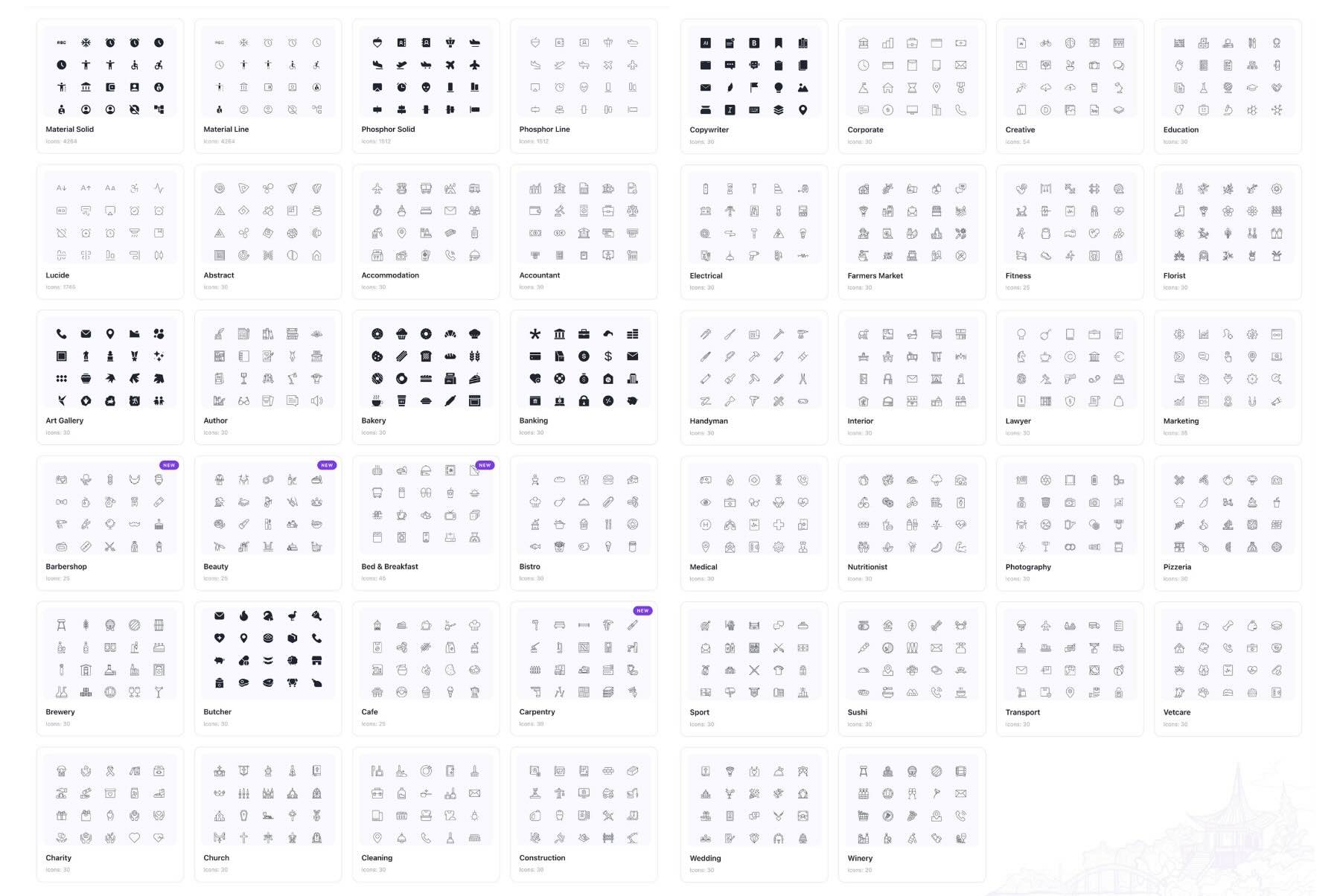
The combination is useful because not every part of a website needs specialized iconography. Common interface actions can use familiar symbols, while service sections, feature grids, menus, and industry-specific content can draw from more focused collections without switching icon systems.
Key Features Of Divi Sensei Icons
The size of the library is the obvious headline feature, but the way those icons are organized and integrated matters just as much. A 14,000-icon collection is only useful if designers can find what they need quickly and use it without disrupting the rest of their workflow.
14,000+ Icons Inside The Native Picker
The library gives you a much wider range of choices while keeping them available through Divi’s existing icon interface. For client work, that can make it easier to find symbols that accurately represent individual services instead of repeatedly using the same broad collection of generic icons.
A feature grid for a medical practice, for example, can use symbols designed around healthcare. A construction website can draw from icons made specifically for that industry. The same applies to hospitality, professional services, retail, fitness, food businesses, and the other categories included in the library.
That variety also makes it easier to keep a project stylistically consistent. Instead of mixing icons collected from unrelated sources, you can choose one compatible family or weight and use it across the site.
Native Integration Across Divi Modules
Divi Sensei Icons does not require a dedicated module to access its library. Once active, the additional icons appear wherever a module uses Divi’s native icon picker.
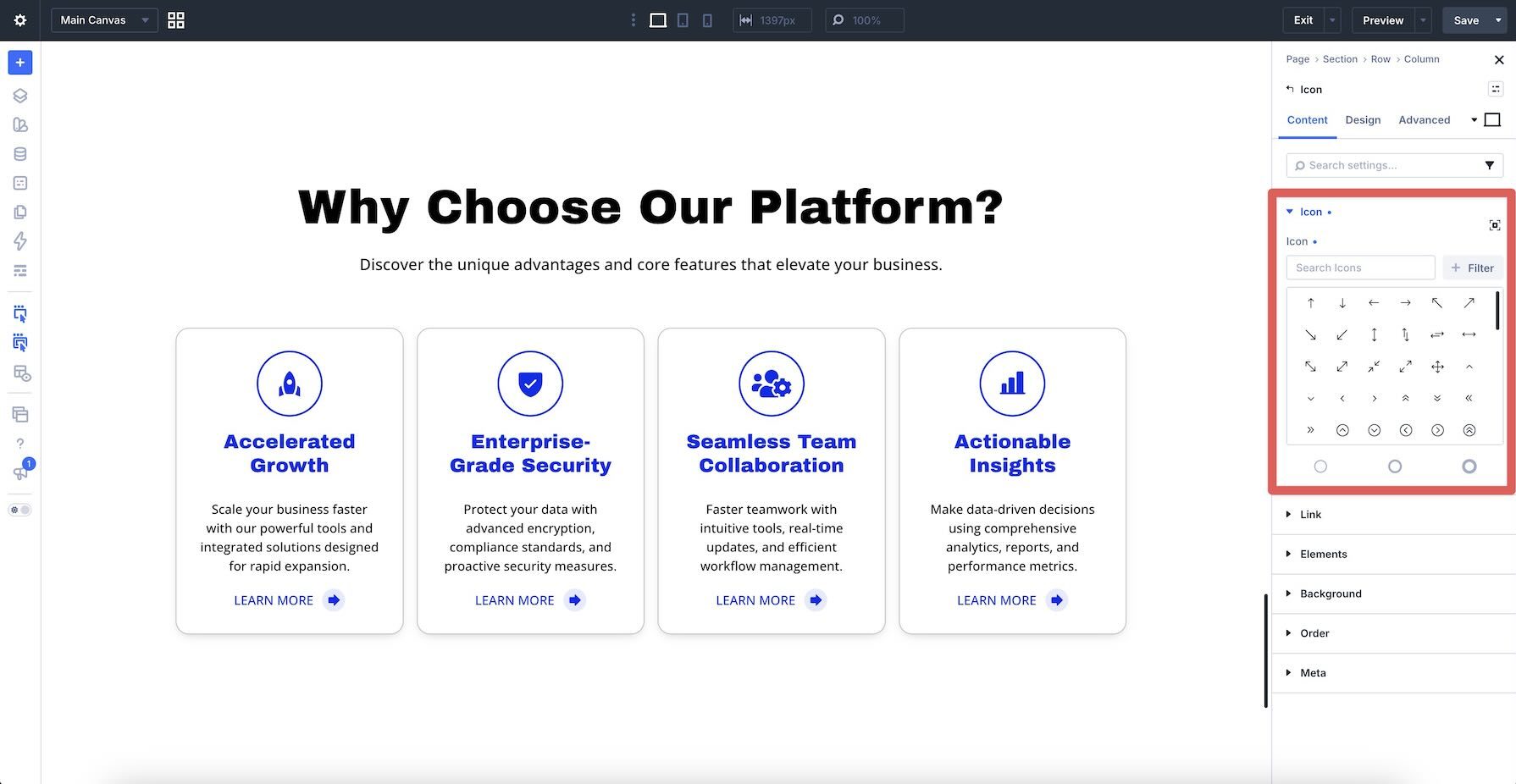
That keeps the workflow familiar when moving between different parts of a design. You can select an icon in a Blurb, Button, Accordion, Toggle, Icon Module, or another compatible element without opening a separate library or rebuilding the design using a specialized icon module.
The same integration can extend to third-party Divi 5 modules that use Divi’s native icon picker, which makes the library useful beyond the core module set as the Divi 5 ecosystem continues to grow.
Search, Filtering, And Library Management
A library this large needs more than a long scrolling picker. Divi Sensei Icons includes search and filtering tools to help narrow the collection, along with a management dashboard for controlling which icon sets are active.
You can search icons by name and filter the collection by style or category. The dashboard also lets you enable only the sets you want available in the Visual Builder, keeping the working library more focused when a particular project only uses a few collections.
A larger modal view is available when you want more room to browse and compare icons visually. Together, these controls make it more practical to work with thousands of options without treating the library as one enormous list.
Three Consistent Line Weights
Line-style icons are available in thin, regular, and bold variations. The global weight control lets you establish the line treatment used throughout the design instead of manually choosing a different version every time.
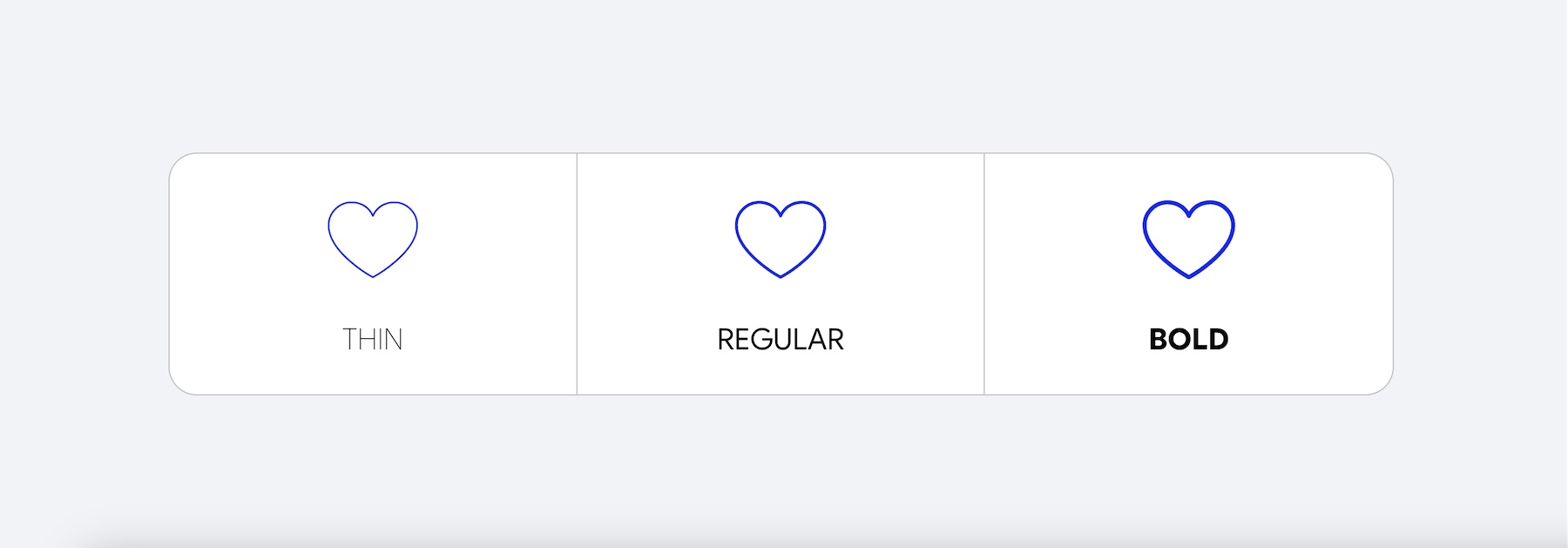
That gives the icon system another way to align with the rest of the brand. A lightweight editorial design might lean toward thin icons, while a stronger UI or high-contrast layout may work better with regular or bold strokes.
More importantly, the three weights belong to the same icon families, so you can change the visual emphasis without introducing a completely different drawing style.
Load-On-Demand Architecture
Divi Sensei Icons is designed so the size of the complete library does not mean the complete library has to be delivered to every visitor. On the front end, the extension loads the icons actually being used on the page rather than loading thousands of unused icons alongside them.
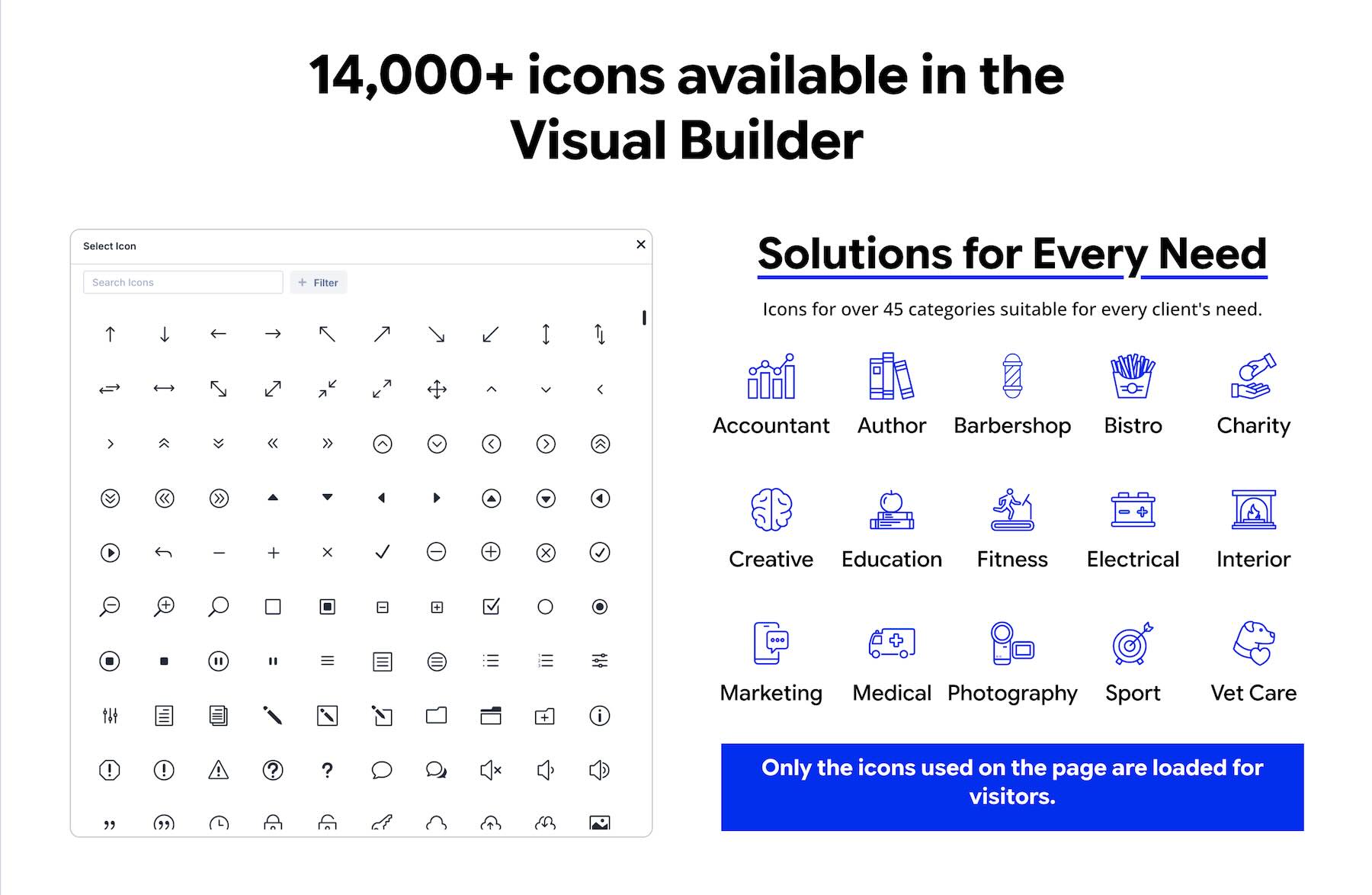
The management dashboard complements this by letting you disable icon sets you do not need in the Visual Builder. One controls what you work with while designing, and the other keeps the front-end delivery focused on what is actually present in the layout.
This is a more useful way to think about performance than the overall library count. The plugin can offer tens of thousands of available variations without requiring every one of those assets to be sent with a page that only displays a handful of icons.
How To Use Divi Sensei Icons
Once Divi Sensei Icons is installed and activated, its library becomes part of Divi’s native icon picker. You do not need to add a special Divi Sensei module first. For this example, we’ll use a Blurb Module, but the same general workflow applies anywhere the native picker is available.
Add a Blurb Module to an existing page or create a new layout in the Visual Builder.
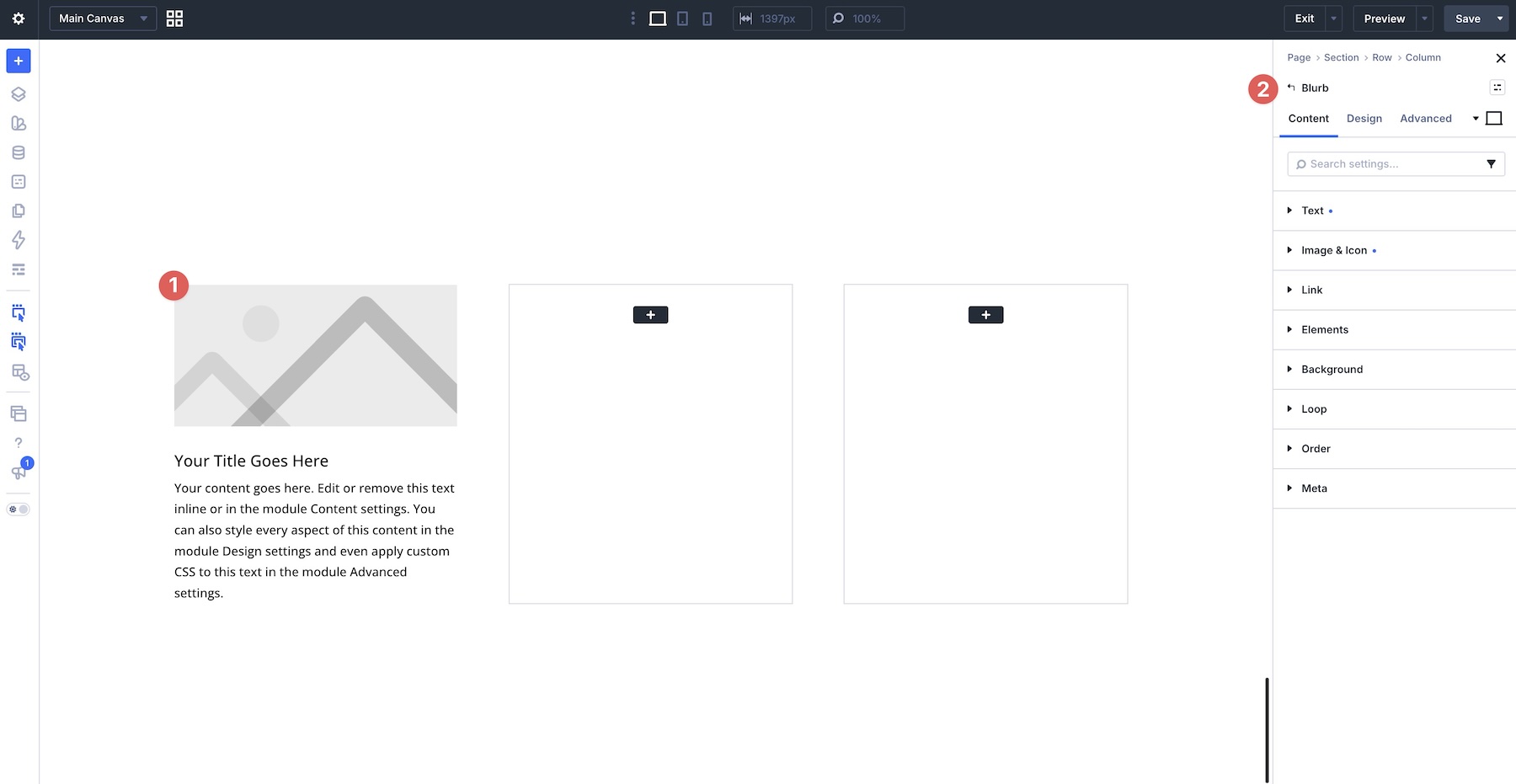
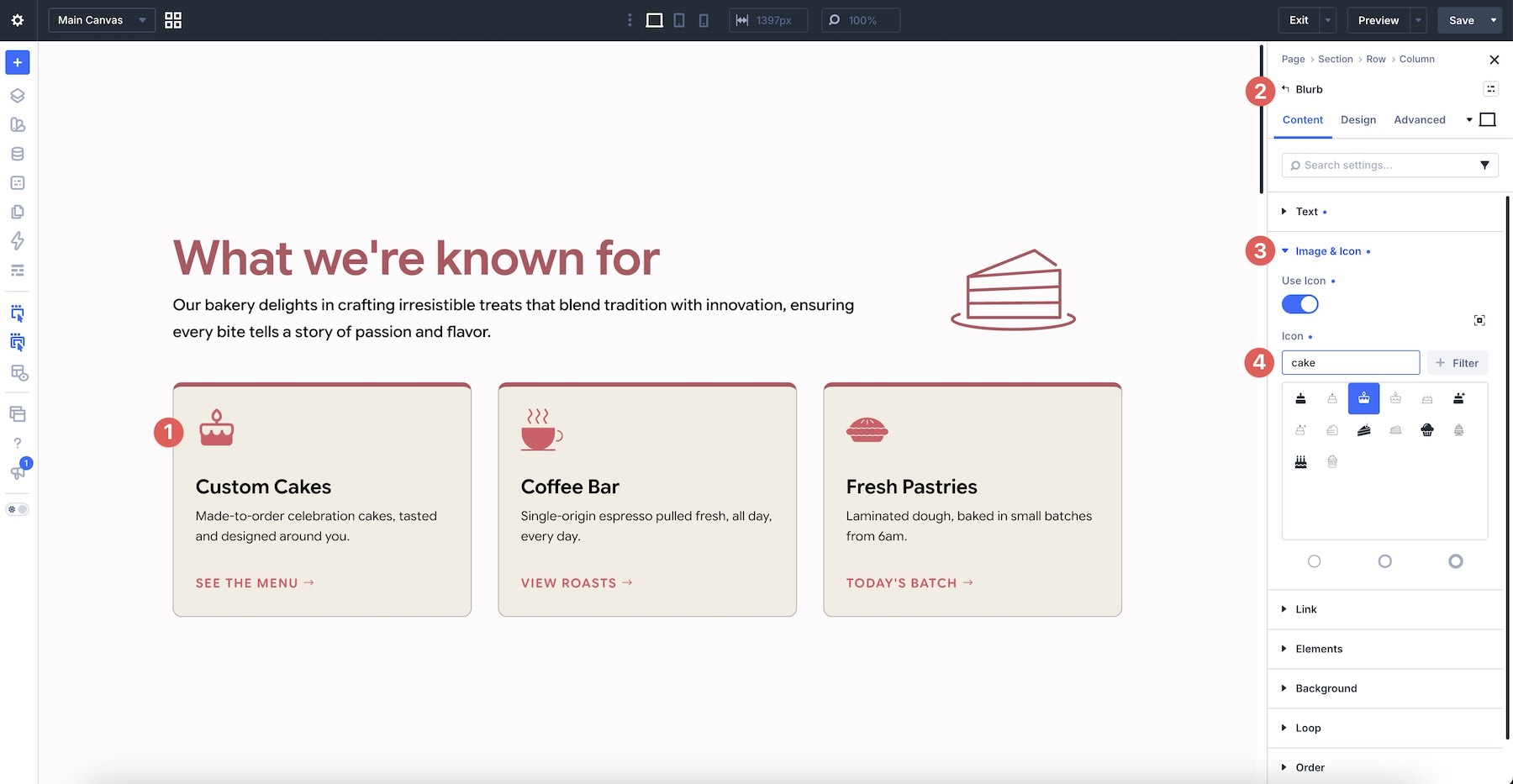
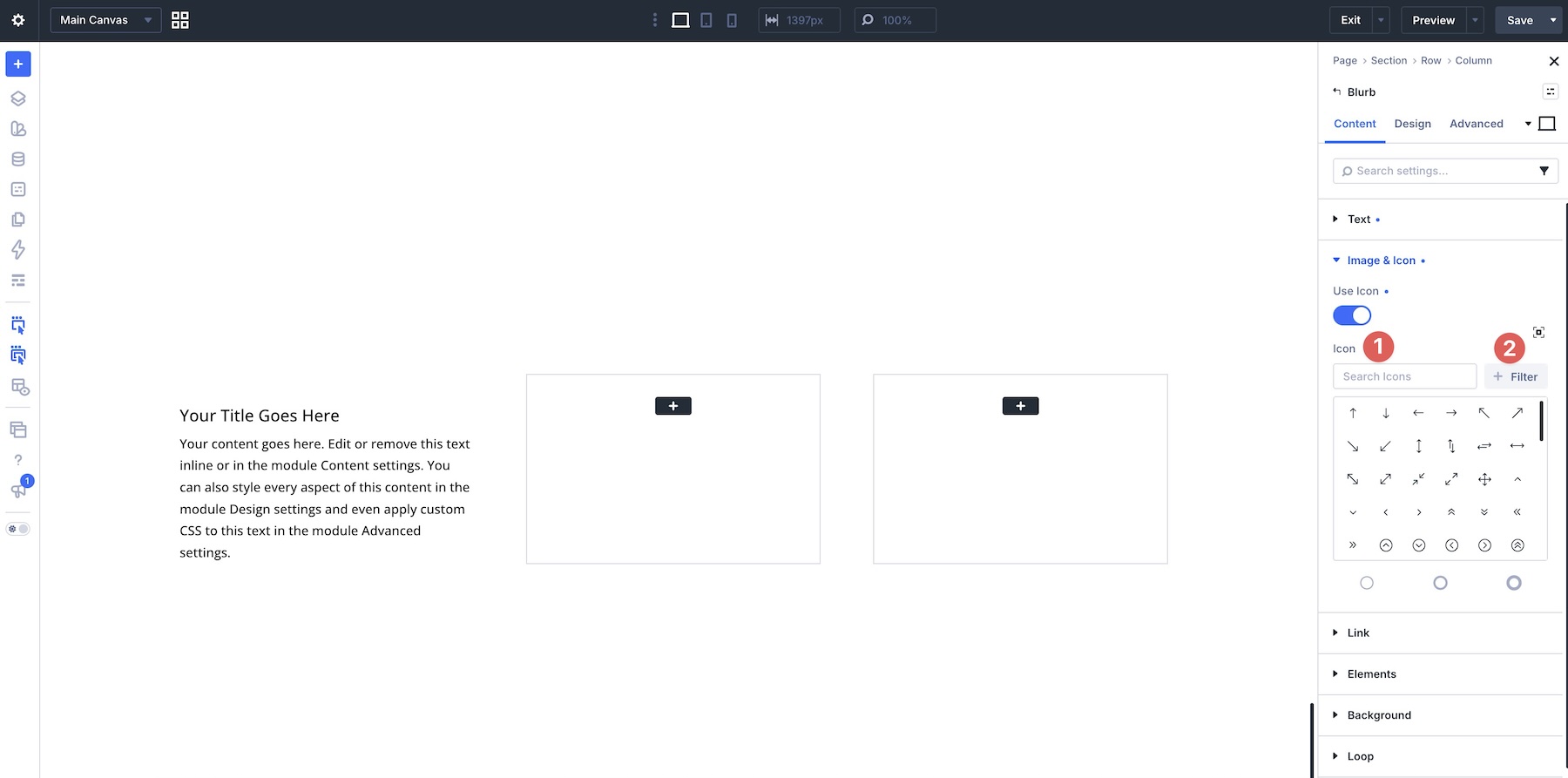
Open the Blurb settings, make sure the Content tab is selected, and expand Image & Icon. Enable Use Icon to open the icon options.
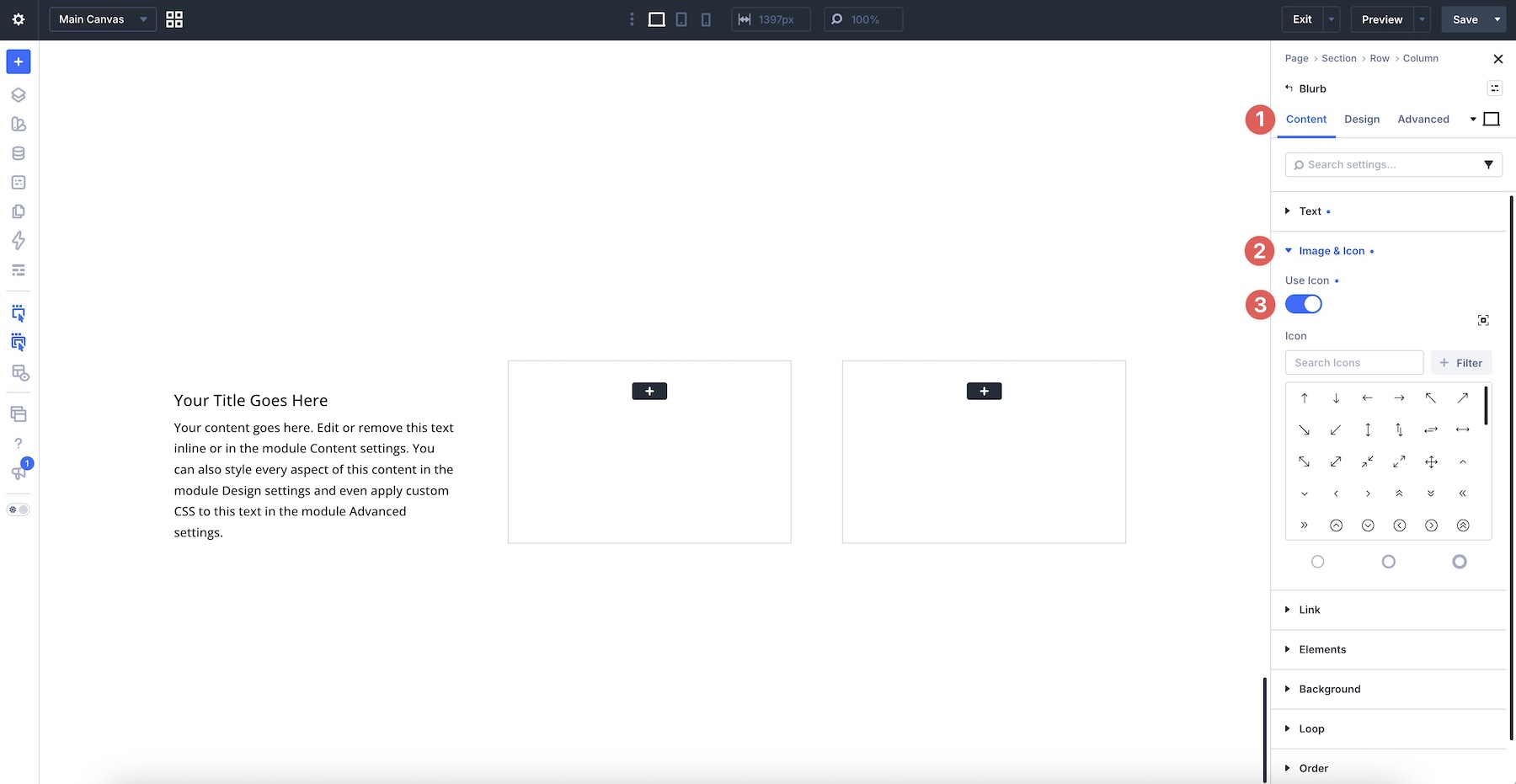
The expanded Divi Sensei collection appears in the same picker. Use Search when you know what you’re looking for, or use the available filters to narrow the results by category or style.
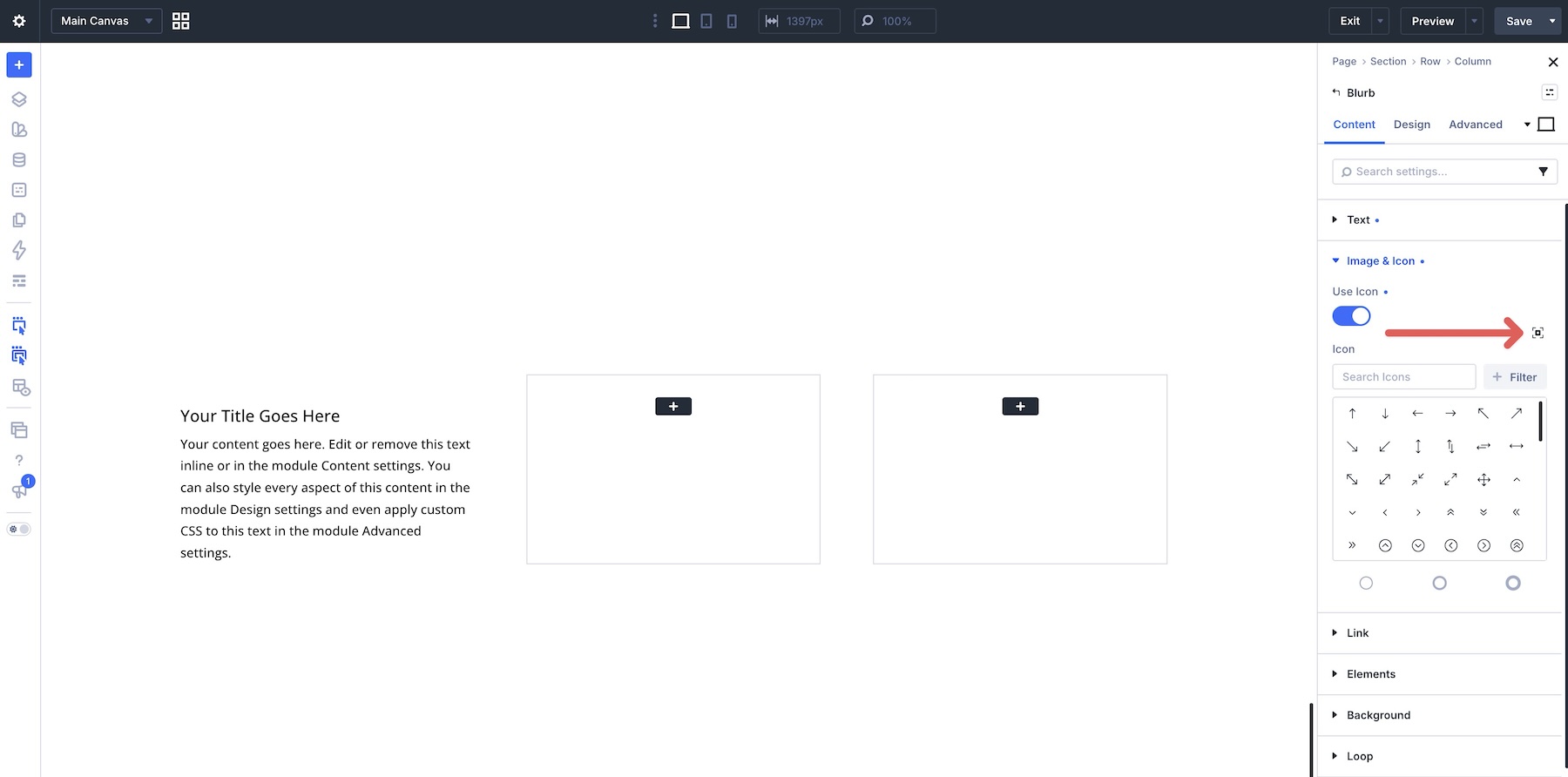
When you want more room to browse, click the Expand Modal control above the filter options to open the larger icon-selection interface.
For line icons, choose between thin, regular, and bold to match the visual weight of the surrounding design.
Once the icon is selected, you style it through the same Divi controls you would use with a native icon. Depending on the module, that can include icon color and size along with alignment, spacing, backgrounds, borders, box shadows, filters, transforms, animations, responsive values, and hover states.
The important part is that the source of the icon does not create a separate styling workflow. Divi Sensei expands the choices available in the picker, while the rest of the design process continues through the Visual Builder.
Who Is Divi Sensei Icons For?
Divi Sensei Icons makes the most sense for designers who use iconography frequently and want a larger library available without sourcing files individually.
Agencies and freelancers can benefit from the industry-specific collections when moving between clients in very different sectors. Instead of maintaining separate icon packs for restaurants, medical practices, construction companies, financial services, and other industries, those options can remain accessible from one Divi library.
Business website designers can use the specialized sets to make service grids, pricing sections, process steps, contact information, navigation, feature comparisons, and calls to action more closely reflect what the company actually does.
Design-system-focused users can also benefit from the consistent line weights. Choosing a primary icon family and weight gives iconography the same kind of repeatable visual logic you would normally establish for typography, colors, buttons, and other recurring design elements.
And because the icons use Divi’s existing picker and styling controls, the extension is particularly suited to users who want more icon choices without adding another design interface to their workflow.
Expand Divi 5’s Icon Library With Divi Sensei Icons
Divi Sensei Icons adds a substantial icon collection to Divi 5 while keeping the workflow centered around the native Visual Builder. More than 14,000 icons, three line weights, custom industry collections, familiar open libraries, search and filtering, library management, and load-on-demand delivery all work together to make the larger collection practical to use.
Its strongest feature is the integration. The icons appear through Divi’s existing picker, can be used across compatible modules, and continue to use the design controls you already know. The extension expands the available visual language without asking you to rebuild the rest of your workflow around it.
Divi Sensei Icons is currently available in the Divi Marketplace for $39. The Marketplace license includes unlimited website usage, one year of support and updates, and a 30-day money-back guarantee. The current listing is specifically compatible with Divi 5.
You can also browse the live icon library before deciding which collections fit your projects.
The post Divi Product Highlight: Divi Sensei Icons appeared first on Elegant Themes Blog.