A background behind a few words can change the emphasis of an entire section. In this free pack, you’ll get 6 Text With Background Designs for Divi 5, combining bold typography, contrasting color, and supporting imagery to give your message a clear focal point.
These styled sections work as starting points for event announcements, workshop pages, creative portfolios, campaign landing pages, and promotional content. Import a design, replace the sample copy and imagery, and adapt the colors to your website.
Divi 5 also gives you room to develop the designs further. Its Composable Settings let you enable additional styling controls for module sub-elements, including backgrounds, borders, spacing, and transforms. That flexibility is useful when you want to refine the relationship between text and its surrounding design.
Preview
Here’s a look at the six Text With Background Designs included in the pack. The download is further down the post.
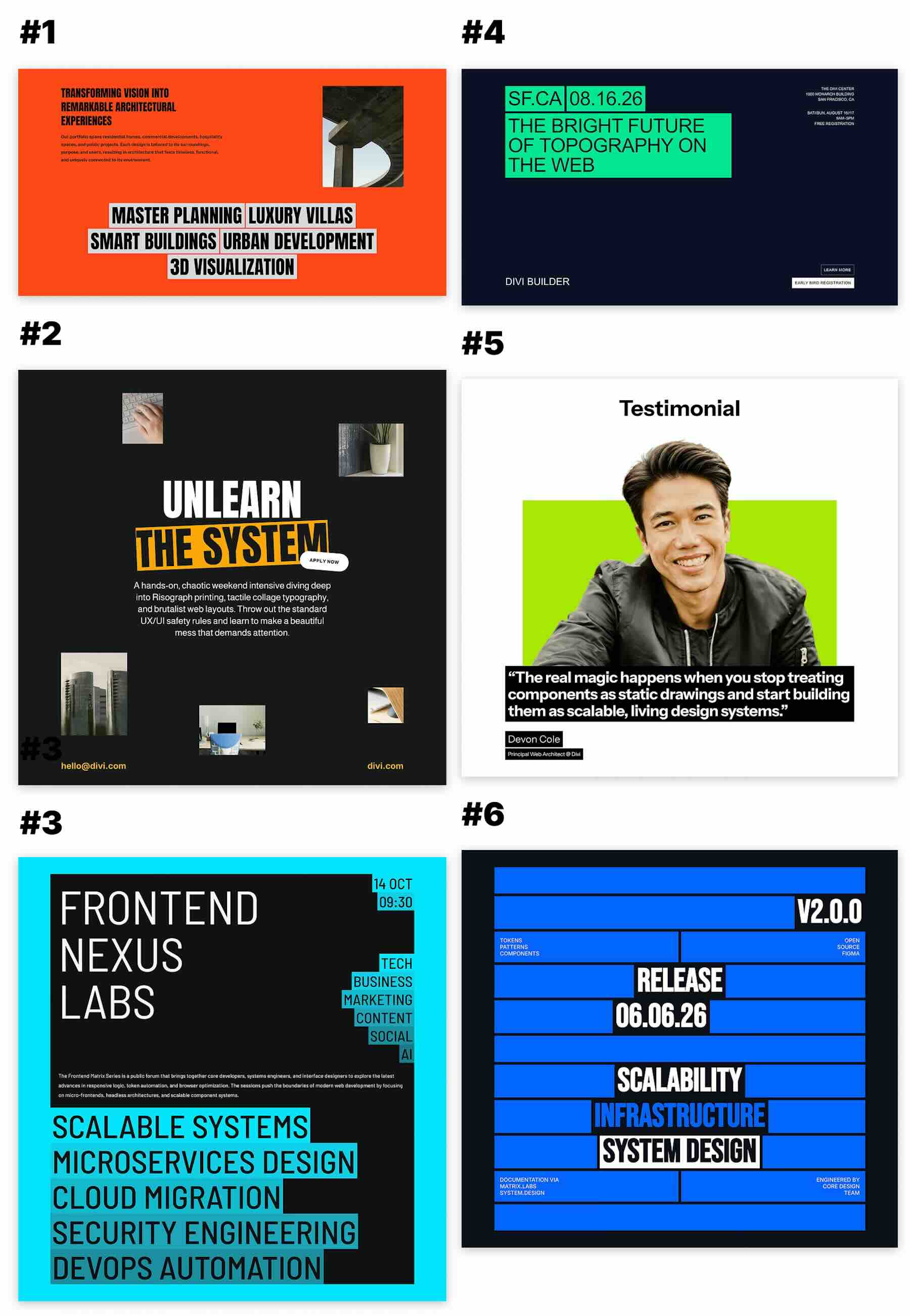
The collection uses background color as part of the typography. A compact highlight can emphasize one phrase, while stacked strips can turn several lines into a larger graphic composition. Supporting images, labels, and buttons give the text context without needing the same treatment everywhere.
Download 6 Text With Background Designs For Divi 5
Get all six styled sections for free. Download the ZIP file, unzip it on your computer, and import the included JSON files into your Divi Library.

What’s Included (7 Exports)
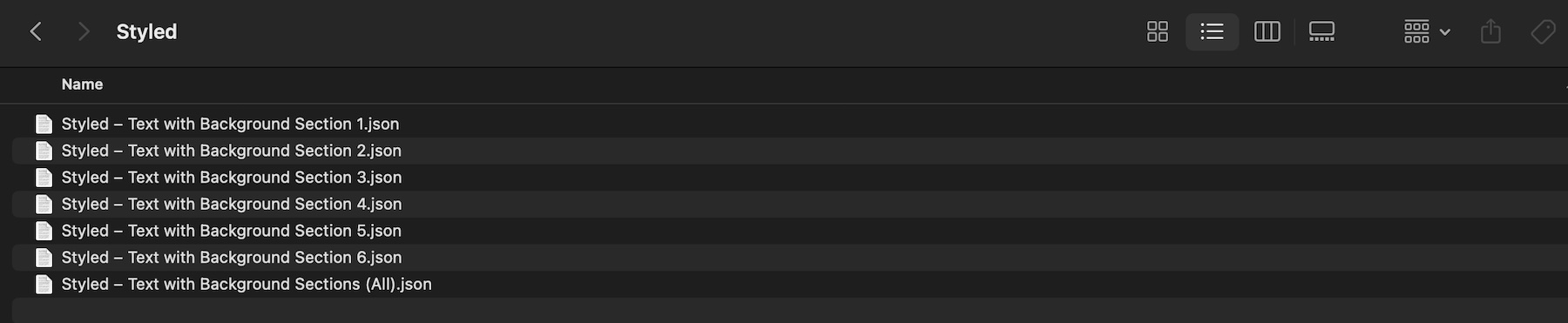
Inside the Styled folder, you’ll find six individual section exports and one combined export containing the full collection.
- Styled – Text with Background Section 1.json
- Styled – Text with Background Section 2.json
- Styled – Text with Background Section 3.json
- Styled – Text with Background Section 4.json
- Styled – Text with Background Section 5.json
- Styled – Text with Background Section 6.json
- Styled – Text with Background Sections (All).json
Choose an individual file when you only need one design, or use the combined file to bring in the full collection. These are styled starting points, with example typography, colors, imagery, and spacing already in place.
A Closer Look At The Designs
The previews show how the same idea can serve different types of content. Background color can draw attention to a single phrase or organize a much denser section of text.
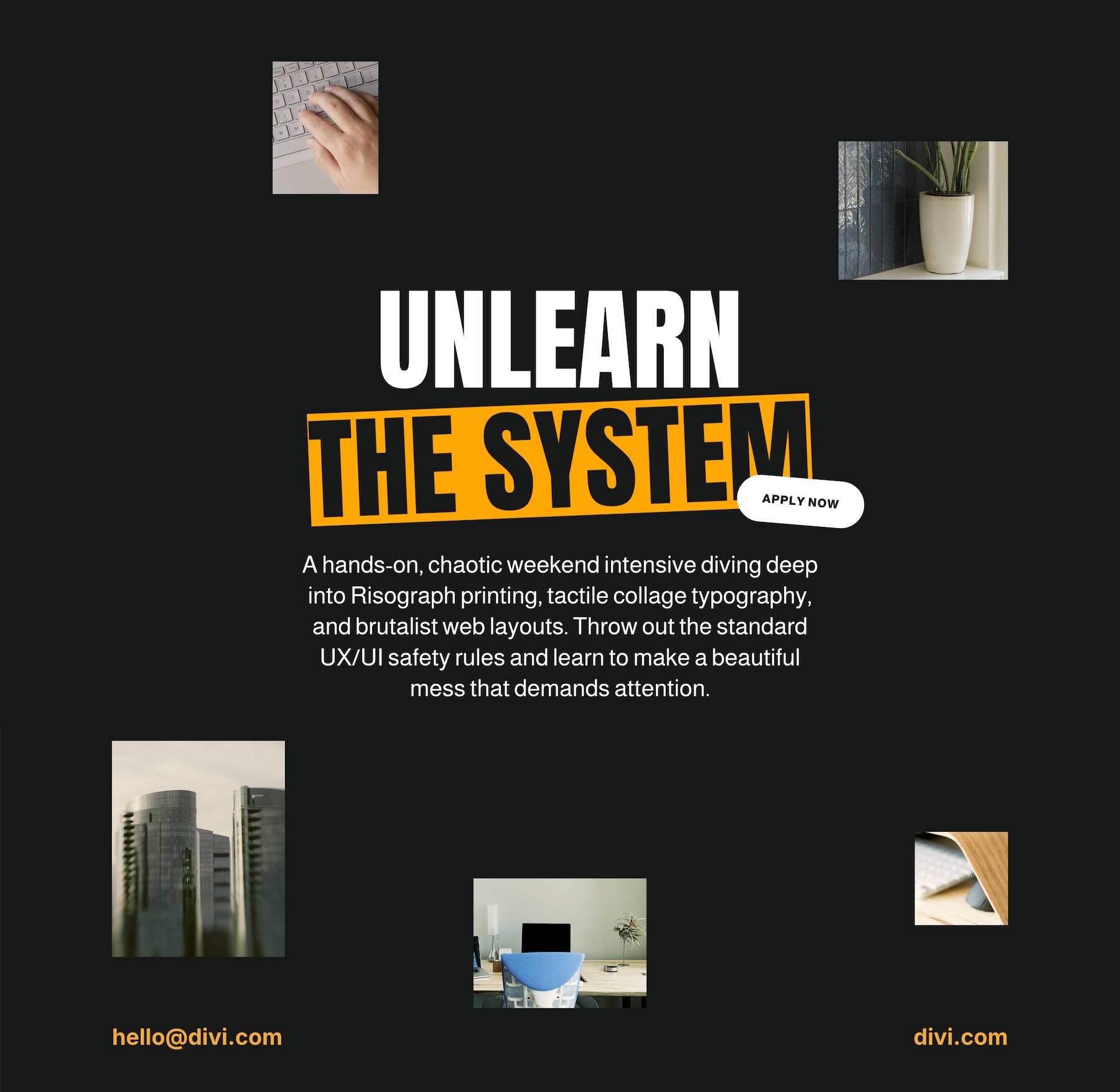
A Highlighted Headline With Supporting Imagery
In Section 2, the dark background gives the centered headline room to stand out. White text introduces the message, while an orange highlight and a slight tilt emphasize the words below it. Small photographs sit around the main content, and an overlapping button adds another point of interest.
This approach suits a workshop, creative event, or campaign with a short central message. Keep the highlighted phrase concise so its shape remains a strong part of the composition.
Stacked Text With Contrasting Backgrounds
Section 3 takes a more graphic approach. Cyan surrounds a dark central panel, with compact date and topic labels along the right side. Larger lines of text near the bottom sit on cyan backgrounds of different lengths, making the words and their backgrounds read as a connected arrangement.
This treatment works well for event themes, areas of expertise, or a short list of services. The line lengths contribute to the design, so review the overall shape when replacing the sample wording.

How To Use The Text With Background Designs
Keep your unzipped download folder handy. We’ll import a design, add it to a page, and customize the text, colors, and supporting content.
1. Import Sections Into The Divi Library
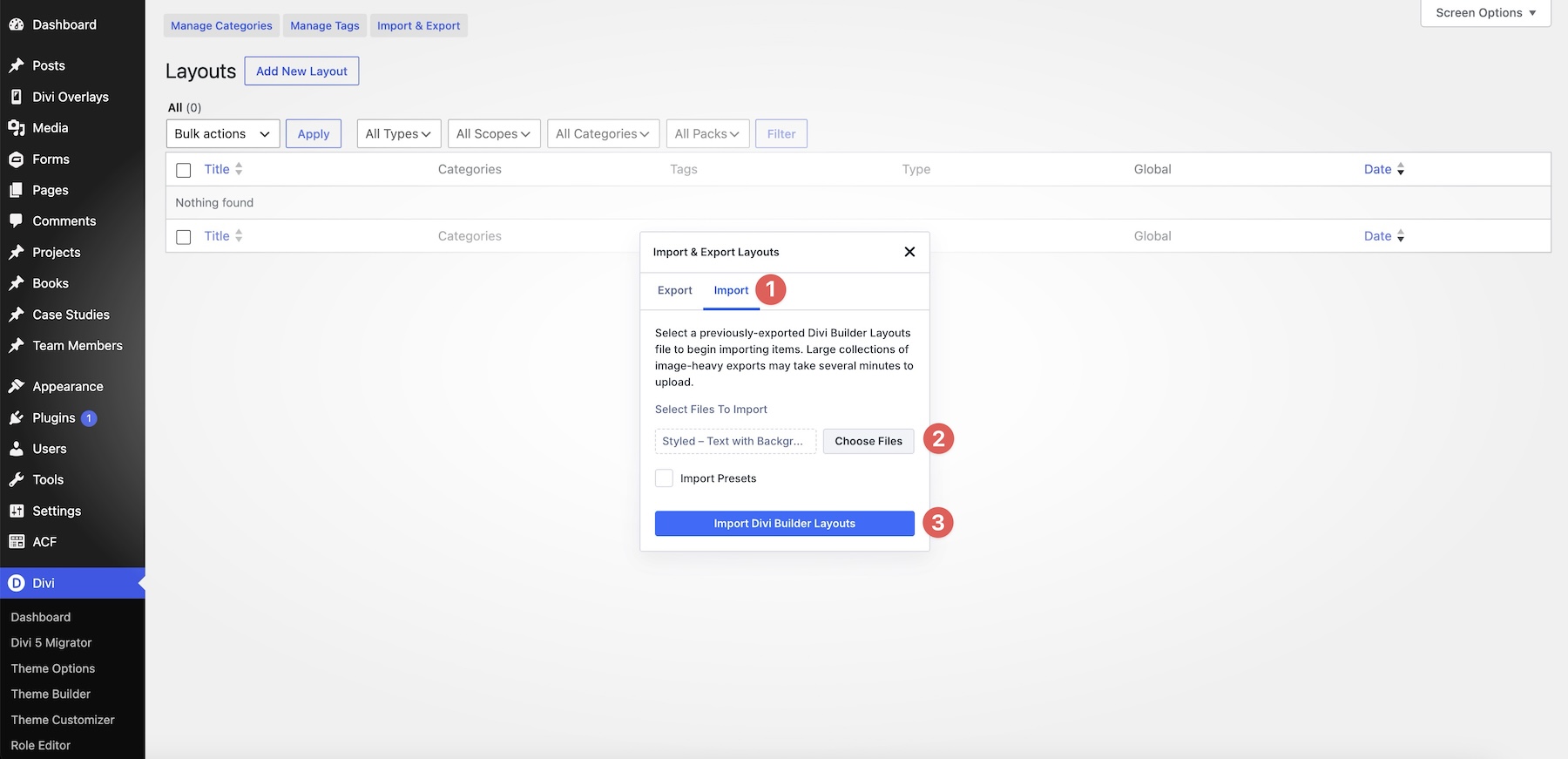
In your WordPress dashboard, go to Divi > Divi Library. Click Import & Export at the top of the screen.
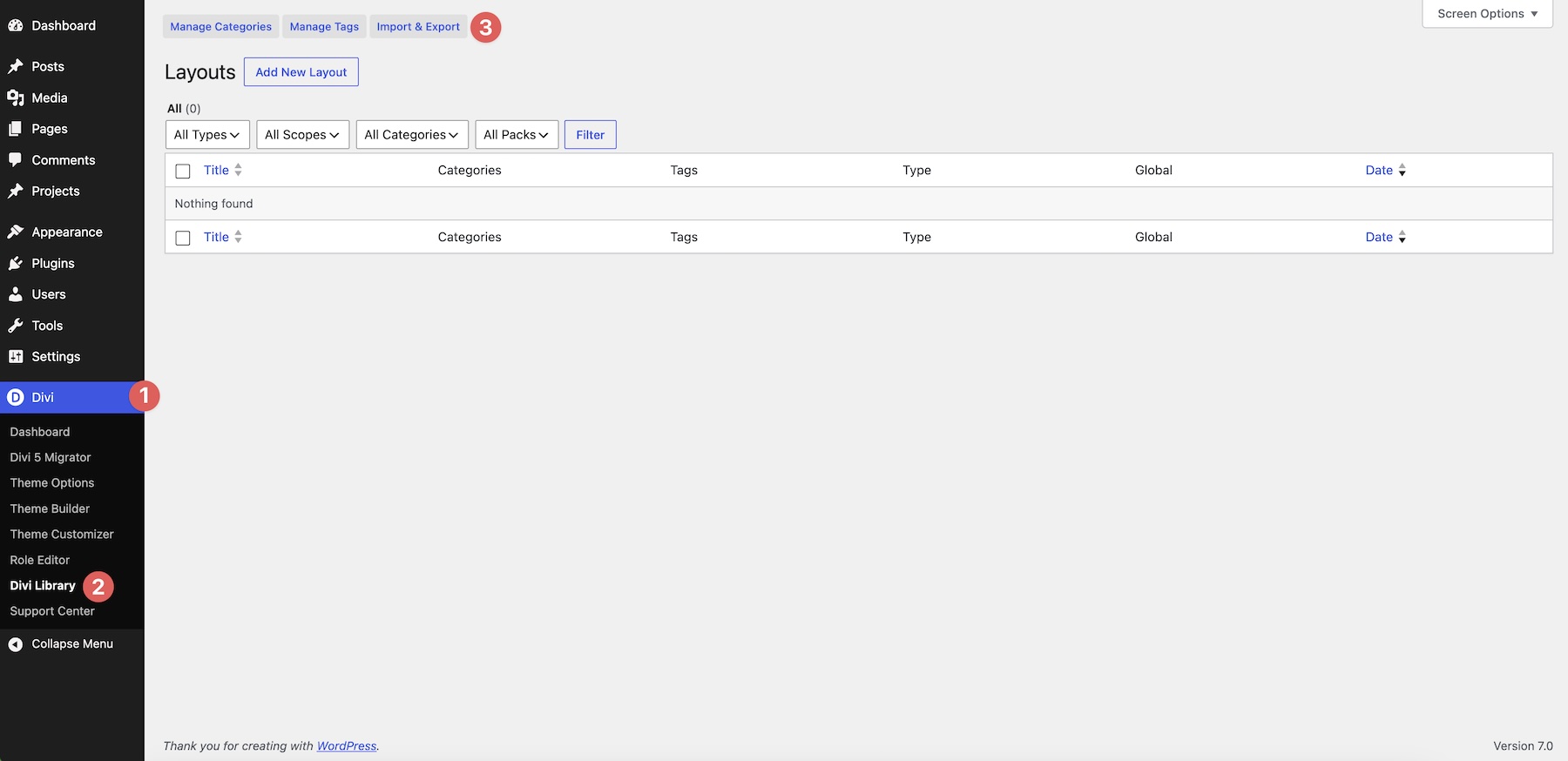
In the import modal, open the Import tab and click Choose File. Select one of the individual Styled – Text with Background Section JSON files, or choose Styled – Text with Background Sections (All).json for the complete collection.
Click Import Divi Builder Layouts and wait for the import to finish. Select the JSON file itself rather than the ZIP archive.
2. Add A Section To Your Page
Open a page in the Visual Builder and add a new section where you want the design to appear. Choose Add From Library, select the imported design you want to use, and click Use This Section.
The section provides the starting composition, including its example content and styling. Review how it sits beside the surrounding sections before changing individual elements. A vivid text treatment may need more space around it when placed on an already busy page.
3. Replace The Text And Links
Start with the main headline. Select the element containing the text and open its content settings, then replace the sample wording with your own message.
Keep the existing formatting while making your first text changes. Some compositions separate words or lines into different elements, so work through each visible text element rather than replacing the whole section at once. Use the Layers panel if overlapping elements are difficult to select on the canvas.
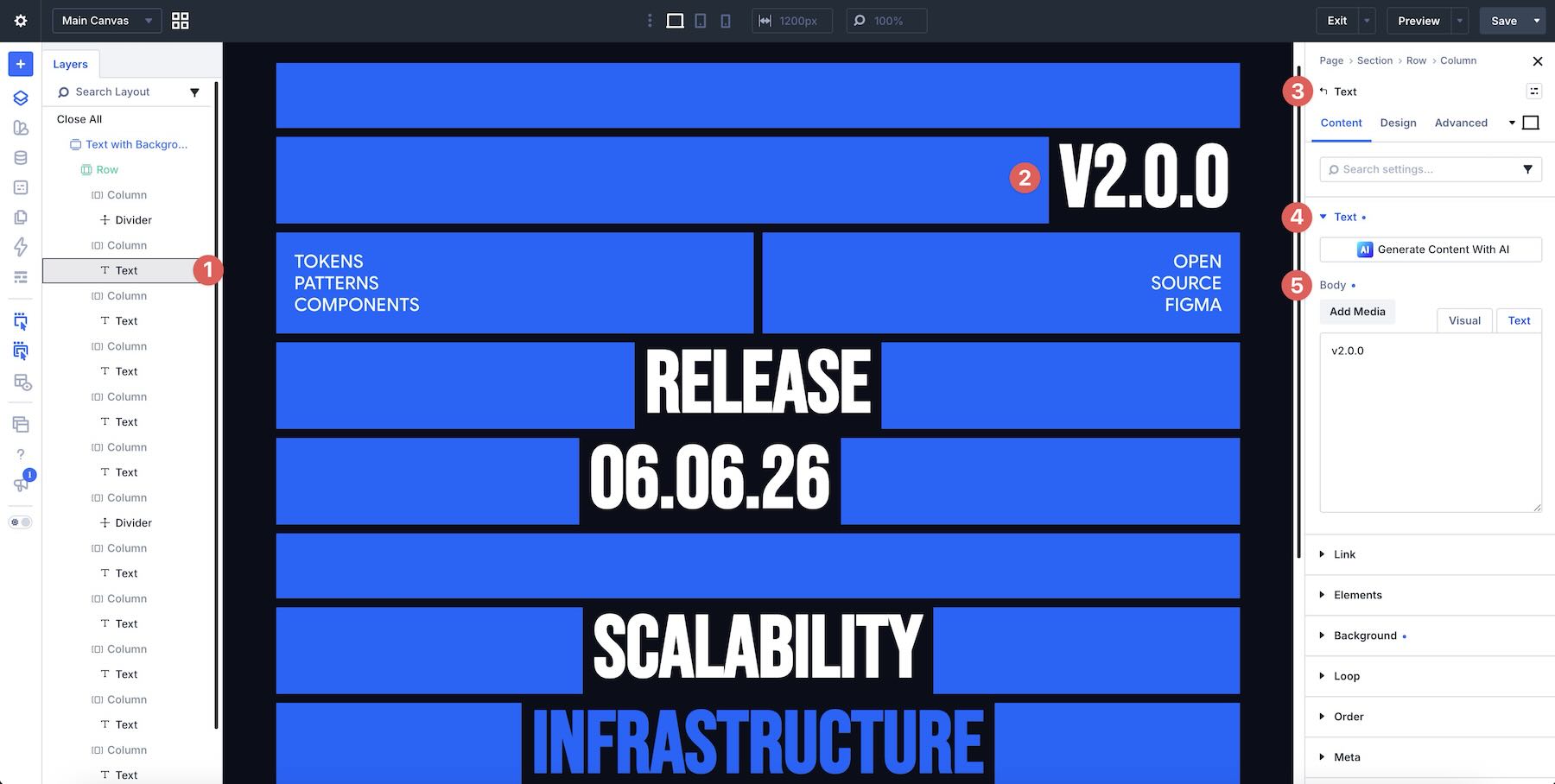
Update the supporting paragraphs, dates, topic labels, and contact details as well. If the design includes a button or linked text, replace both the label and its destination so visitors reach the correct page.
After updating the copy, check the line breaks. A longer headline can change the width of a highlight, push a button out of position, or alter the stepped shape of stacked text. Refine the wording before reducing the type size simply to make it fit.
4. Adjust Text And Background Colors
Choose a text and background pairing that fits your brand. You can retain the original palette or replace the accent colors while keeping the same visual hierarchy.
Select the element carrying the background you want to change. Check that element’s existing background settings rather than changing the section background by default. The section backdrop, a text highlight, and a supporting panel may belong to different parts of the layout.
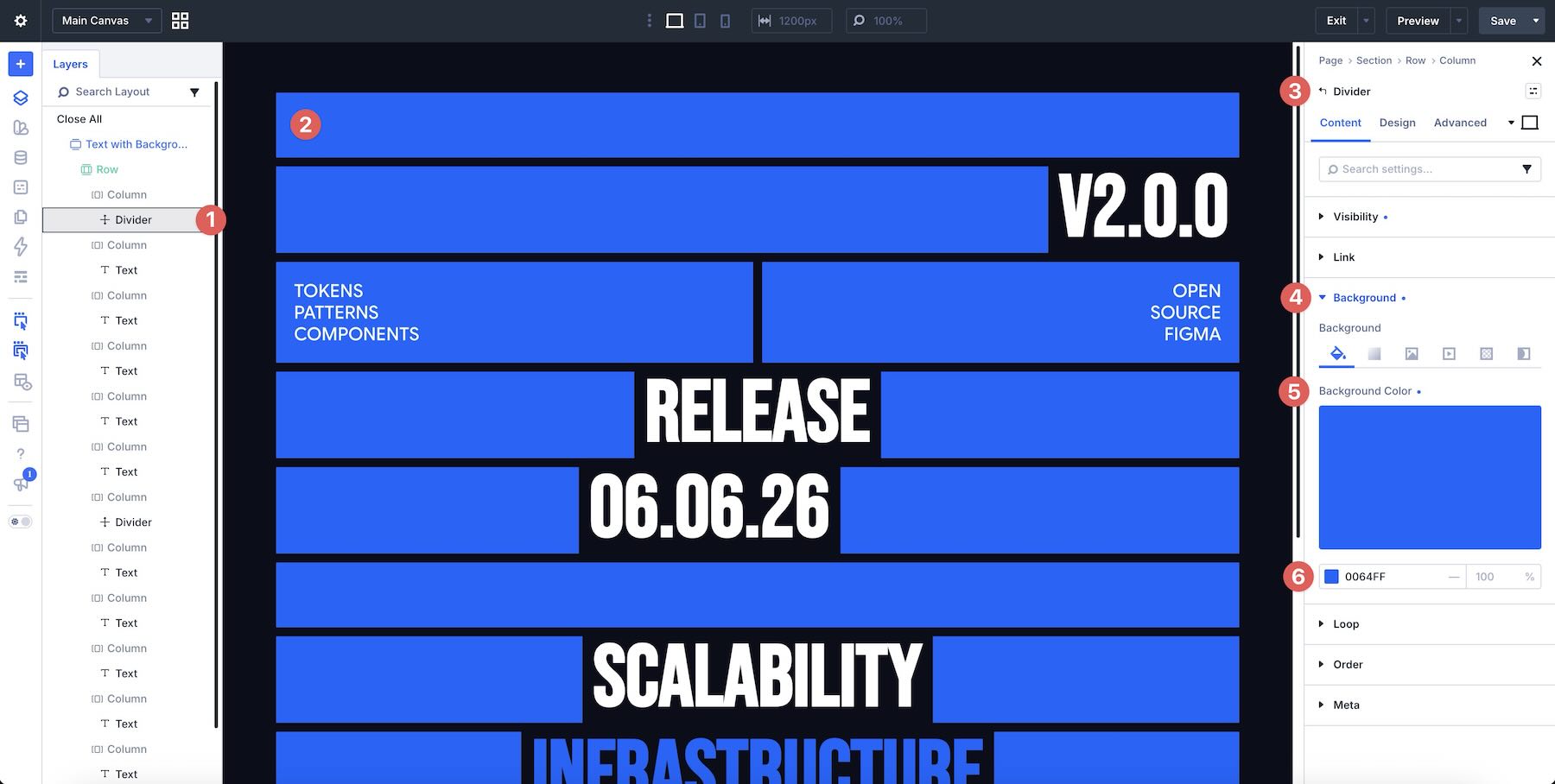
When styling a module sub-element, Composable Settings can make additional controls available. Hover over its option group, click Toggle Options, and enable the settings you need. Use this when extending the design, while preserving any existing formatting responsible for the imported effect.
If you want to reuse a palette across your site, save the colors as Design Variables and assign them to the relevant fields. Updating a variable then changes the fields connected to it.
5. Replace Supporting Images
For designs that include photography, replace the examples with images related to your message. Open the relevant image or background settings and choose a replacement from the Media Library.
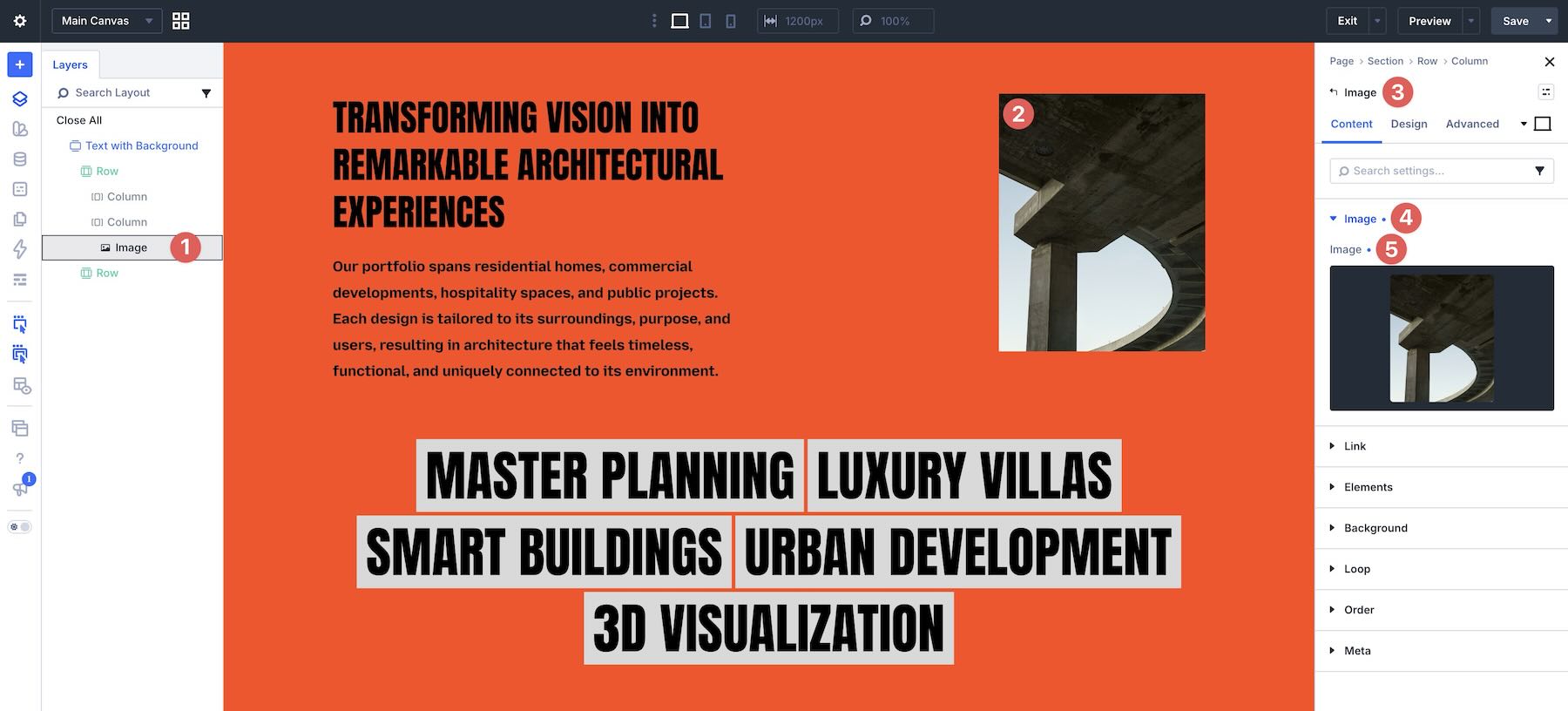
Keep each image’s role in mind. Small supporting photographs should remain recognizable at their displayed size, while a larger portrait or focal image needs enough resolution and room around its subject. Review crops after replacing the images. Preserve the balance between imagery and typography so the supporting visuals do not compete with the main highlighted text.
6. Refine Typography, Spacing, And Overlap
Adjust the font, text size, line height, and letter spacing to suit your copy. A different typeface can change the length and height of each line even when the font size stays the same.
Then review the spacing around the text. Padding controls the space inside an element’s background, while margins control its separation from neighboring elements. Make small adjustments and check the whole section after each change.
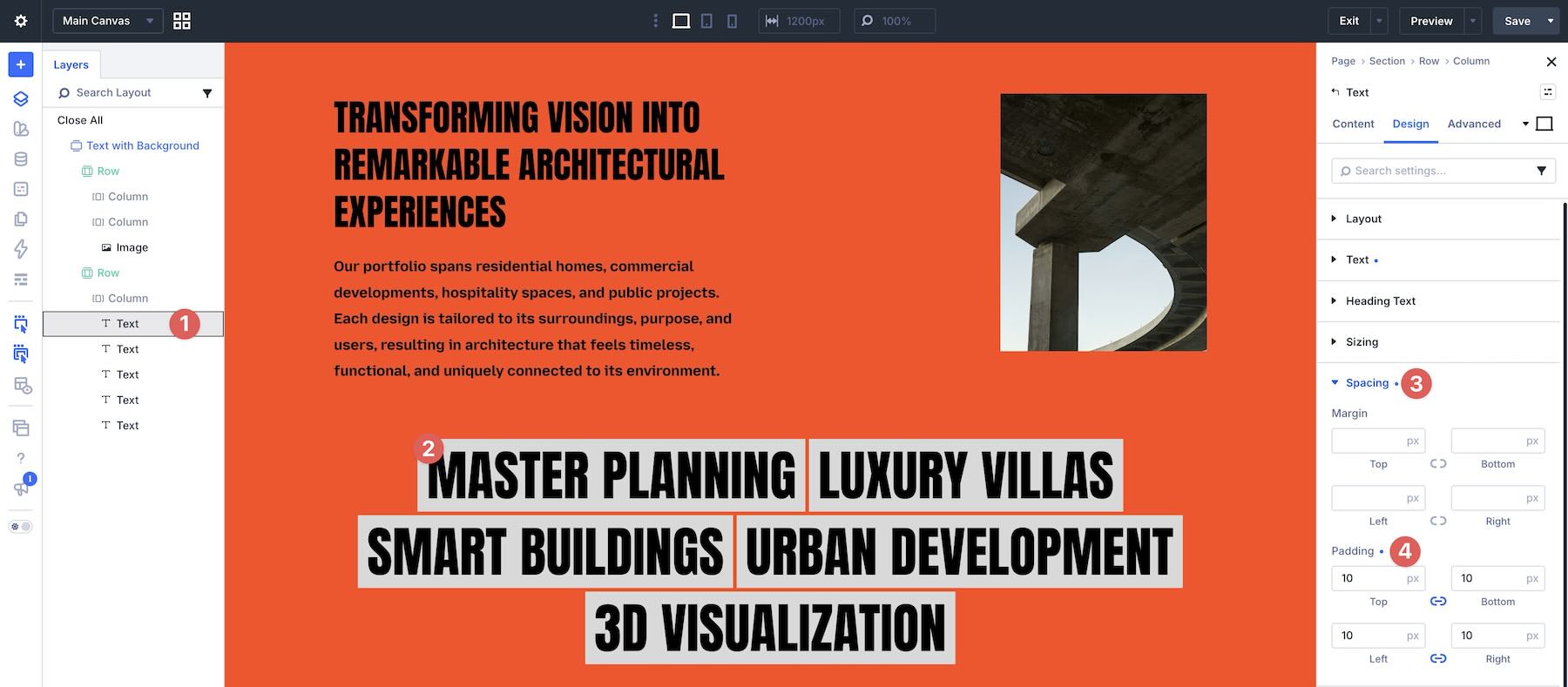
For designs with tilted text, overlapping buttons, or offset images, keep enough clearance for every word and link to remain readable. The overlap should support the focal point rather than cover essential information.
Once you’re happy with the result, save your customized section to the Divi Library for reuse on other pages.
7. Check The Design On Smaller Screens
Review the section on desktop, tablet, and phone. Large text and tightly fitted backgrounds can change noticeably when the available width becomes smaller.
Check headline wrapping, the shape of each highlight, button placement, image order, and any intentional overlaps. Reduce text sizes or spacing where needed, and simplify decorative positioning if it interferes with the message.
Preview the page outside the builder as well. Make sure the text remains readable, links are easy to select, and no element causes unwanted horizontal scrolling.
Tips For Effective Text With Background Designs
The strongest results come from a clear message and a deliberate relationship between the words and the shapes behind them.
Highlight The Most Important Words
Choose the phrase visitors should notice first. Giving every sentence the same background treatment can flatten the hierarchy, so let supporting copy use a simpler style where possible.
Write For The Shape
A short phrase suits a compact highlight. A series of short lines can create a stepped composition. Write with those shapes in mind, but keep the wording natural and easy to understand.
Avoid forcing awkward line breaks just to match the sample. Adapt the layout to your message when necessary.
Keep Contrast Clear
Check the contrast between the letters and the background directly behind them. Bright colors alone do not guarantee readability. Review smaller labels and button text as carefully as the main headline.
Give The Typography Room
Leave enough space around highlighted text for its shape to be visible. Supporting images and buttons can overlap selectively, but they should not obscure the words or make the reading order unclear.
Repeat A Few Styling Choices
Use a consistent accent color, font pairing, or spacing approach to connect the section with the rest of your website. You can preserve the design’s character while replacing the sample palette and imagery with your own.
Start Building In Divi 5 Today!
These six Text With Background Designs give you ready-styled sections for messages that deserve more visual emphasis. Import a favorite, replace the copy and imagery, and adjust the typography and colors to suit your project.
From a highlighted event headline to a graphic list of services, use the collection as a starting point for your next page in Divi 5.
The post 6 Text With Background Designs For Divi 5 (Free Download!) appeared first on Elegant Themes Blog.