Theme builders give you visual control over the parts of your site that themes normally lock down: headers, footers, blog archives, product pages, 404s, and everything in between. Instead of editing PHP files, you control it all through drag-and-drop editing.
Though I’ve never built a custom theme with PHP, I have extensively used a variety of theme builders across dozens of client projects. The state of theme builders today is impressive, as I can now do with visual builders in a drag-and-drop canvas what only developers could do a decade ago.
Every builder here taps into the same WordPress template system developers use, just without the code. Some are standalone themes, others are packaged as plugins. The best ones integrate deeply with custom fields and custom post types, which is where theme building gets powerful.
Here’s what I’ve found works best after testing the major options.
Best WordPress Theme Builders
1. Divi 5
Divi 5 is a standalone theme with a fully integrated theme builder, meaning you install one product and get everything: page building, theme building, and global design controls, all without needing a plugin or add-on. If you want a single ecosystem that handles both individual page design and sitewide template control, Divi eliminates the plugin-plus-theme juggling act that other solutions force you into.
Divi’s Template Assignment and Conditions
Divi’s theme builder uses a template system in which each template can include a header, footer, and body area. Conditions are assigned at the template level, so you define which pages, posts, categories, tags, authors, or custom post types a template applies to. You can stack multiple conditions on a single template or create separate templates for granular deployment.
The interface shows all your templates in one view, making it easy to see what’s assigned and where.
Divi’s Visual Builder Quality
Divi 5’s visual builder is a significant departure from earlier versions. The visual editor is fast, with next to no lag when adding modules or adjusting settings. You’re designing directly on the page with live content, not in a sidebar panel that updates a preview.
Responsive controls let you adjust layouts per breakpoint, and the styling options (typography, spacing, borders, backgrounds, filters) are comprehensive without feeling buried. It also has ultra-fast layout options for flex and grid displays.
If you’ve used Divi’s page builder, the theme builder works identically, so there’s no separate interface to learn.
Divi’s Dynamic Data Integration
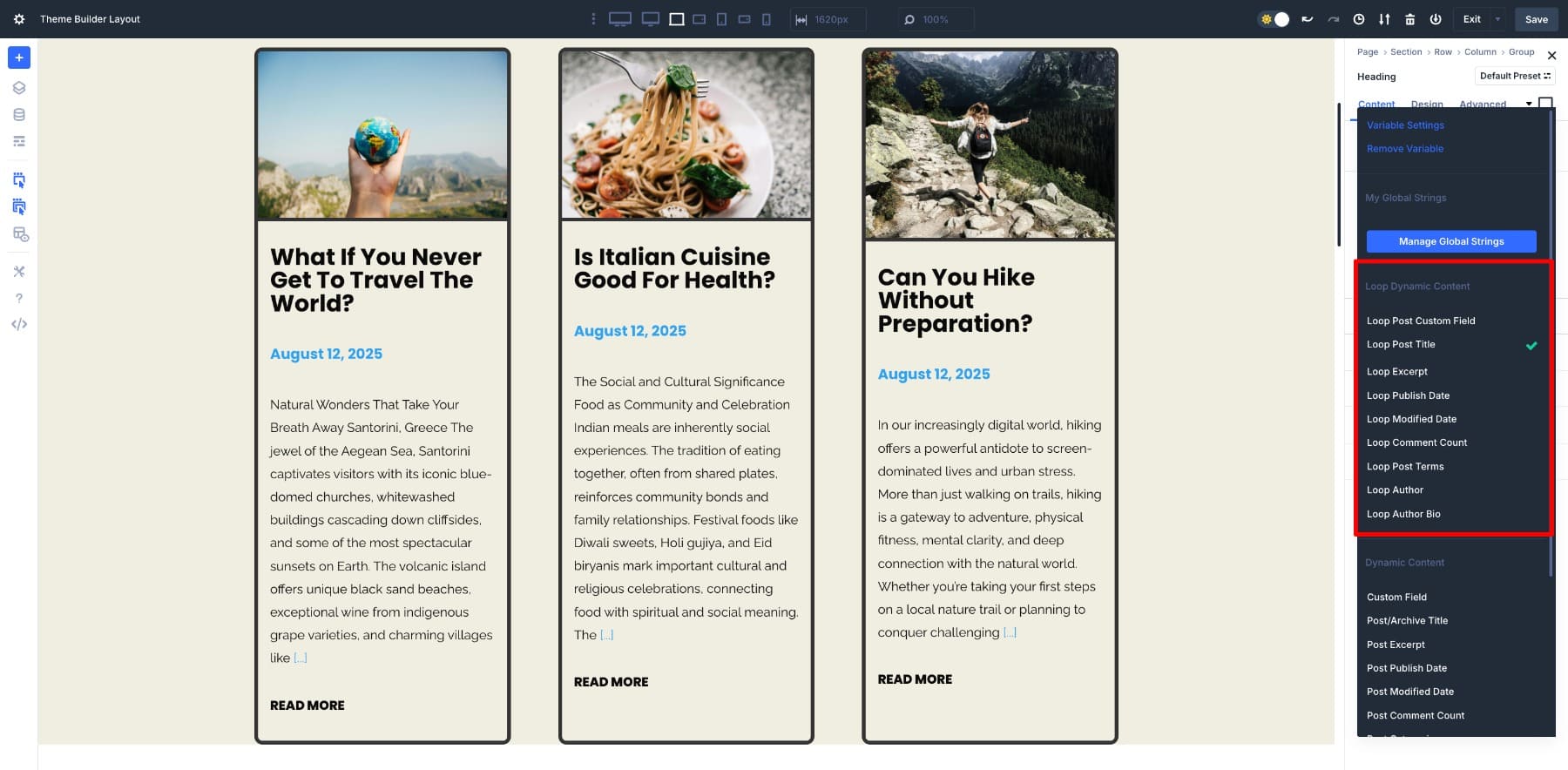
Dynamic content in Divi works through dynamic field toggles on most module settings. You can pull post titles, featured images, excerpts, author info, dates, custom fields, and taxonomy terms into any text or image field. ACF, Pods, and Toolset fields are supported natively. For WooCommerce, Divi includes dedicated product modules that pull price, add-to-cart buttons, product galleries, and related products dynamically. You’re not limited to predefined layouts. You can place WooCommerce data anywhere in your template design.
Divi’s Custom Query Loops
The Blog module and post-related modules let you filter by post type, category, tag, author, and date range. You can set custom post counts, offsets, and sort orders. For more advanced queries, you can use Divi’s built-in Loop Builder. It gives plenty of options for setting up post/product/CPT loops as needed.
Who Divi Is Best For
Agencies and freelancers who build multiple client sites will get the most value from Divi. The lifetime license with unlimited site usage means your per-project cost approaches zero over time. Business owners who want to manage their own site updates will appreciate that the visual builder works the same way for both pages and templates, so there’s only one interface to learn.
Divi’s Pricing
Divi costs $89 per year or $249 for lifetime access, both with unlimited site usage. That lifetime option is where Divi stands apart from nearly every competitor. Elementor’s comparable unlimited plan runs $399 per year with no lifetime option. Bricks offers a lifetime license at the much higher cost of $599. For anyone building more than a couple of sites, the math favors Divi quickly.
2. Elementor
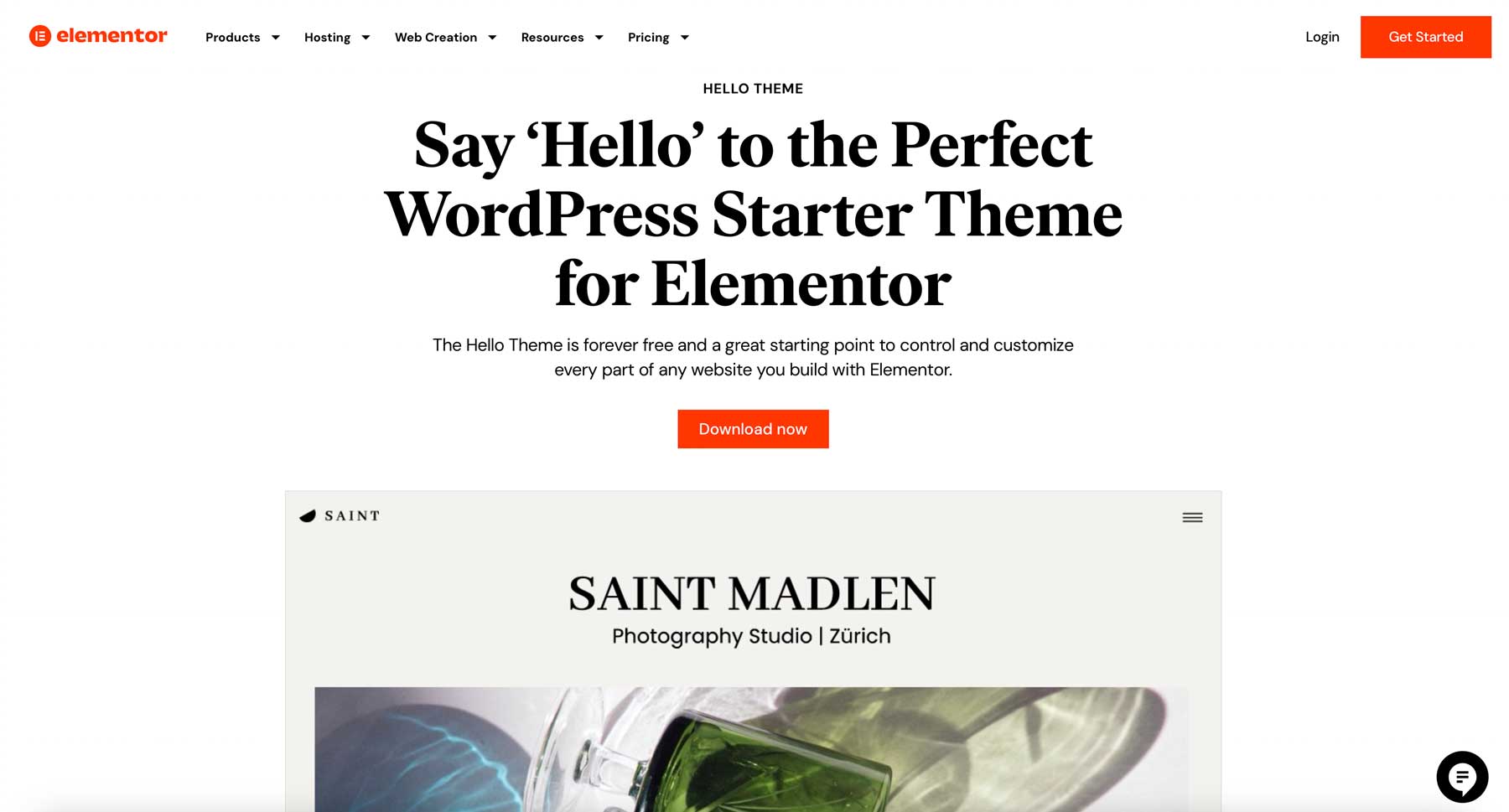
Elementor is a page builder plugin that requires a separate theme to function, which adds a layer of setup compared to all-in-one solutions. Most users pair it with the Hello theme (Elementor’s minimal theme) or a third-party theme designed for Elementor compatibility (such as Astra Pro). The theme builder is included only with Elementor Pro, so you’ll need the paid version to access template creation.
Elementor’s Template Assignment and Conditions
Elementor’s display conditions are set per template and offer solid granularity. You can target all posts, specific post types, specific categories, individual posts, author archives, search results, 404 pages, and WooCommerce templates. Conditions can be combined with AND/OR logic and include/exclude rules.
The condition interface is straightforward, though managing conditions across many templates can get cluttered since there’s no unified view of all assignments. You have to check each template individually.
Elementor’s Visual Builder Quality
Elementor’s builder is panel-based: you select an element, and settings appear in a left sidebar while the canvas updates in real time. The widget library is extensive, styling controls are deep, and responsive editing is well-implemented. The builder can feel heavy on complex pages, and some users notice slowdown when templates have many widgets.
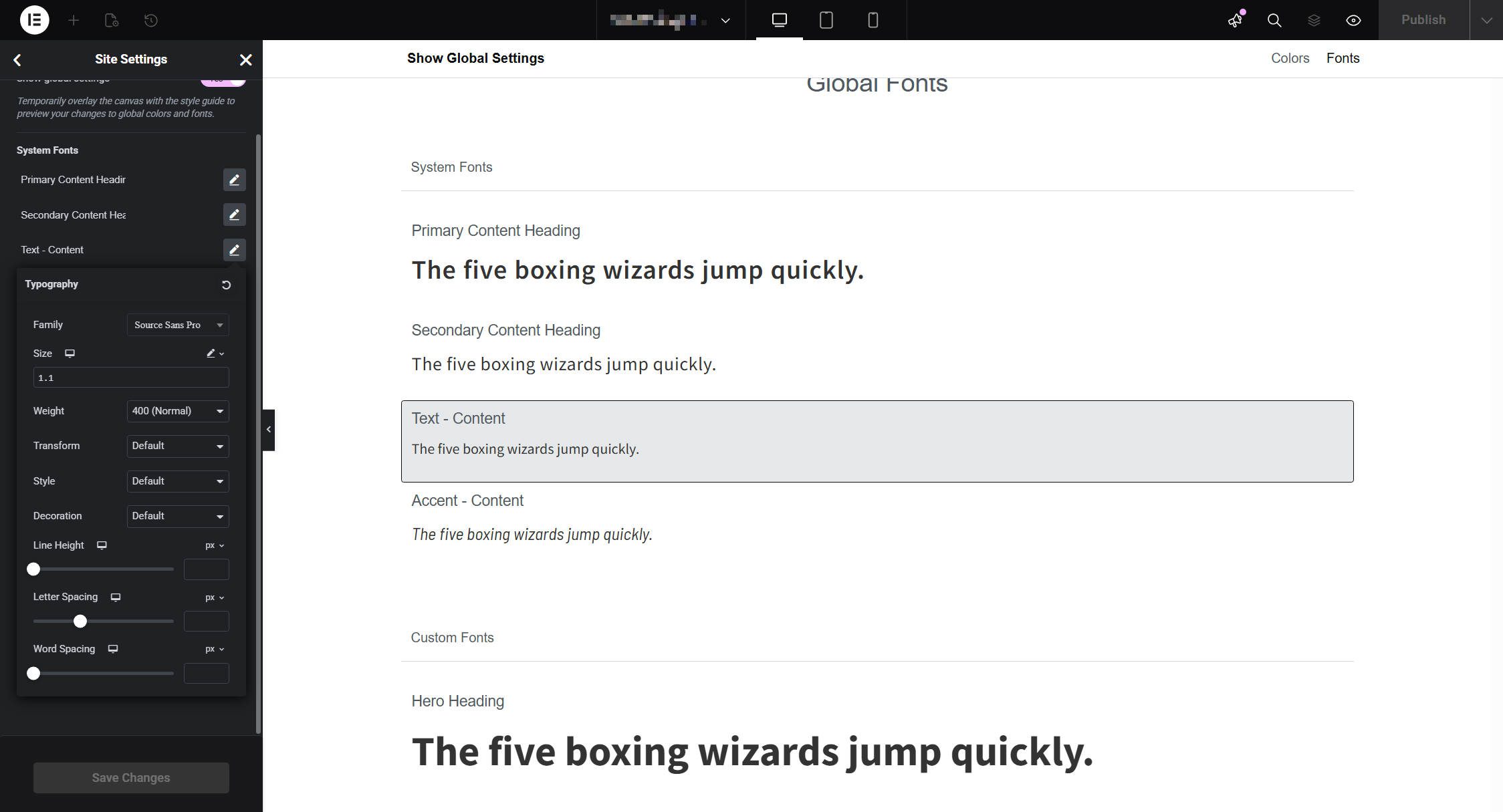
Its main weakness is its global typography and colors, which I think are behind the times. Its v4 update will dramatically change this, but it comes at a steep learning curve.
Elementor’s Dynamic Data Integration
Dynamic tags in Elementor enable you to insert post data, site information, author data, ACF fields, and WooCommerce product data into most widget settings. The implementation is mature, supporting before/after text and fallback values. WooCommerce support is strong, with dedicated product widgets and template types for shop, single product, cart, checkout, and account pages.
Many Custom Post Type and Custom Field plugins work with Elementor, making it easy to use your preferred tools.
Elementor’s Custom Query Loops
Elementor Pro’s Loop Builder lets you create custom query loops with filtering by post type, taxonomy, date, author, and custom fields. You design a loop item as a template (separate from your page). Then you add it to your page and set up the query to populate the loop. This means extra page loads and working in the template library, as well as the page where the loop goes. Pagination, load more, and infinite scroll are also available.

Who Elementor Is Best For
Designers who want maximum third-party integration options will find Elementor’s ecosystem unmatched. However, a few quality tools go a long way further than haplessly installing add-ons. Also worth considering is that Elementor v4 is on the horizon, meaning significant changes are underway. This could involve needing to relearn its visual builder when the update lands.
Elementor’s Pricing
Elementor Pro starts at $59 per year for one site (Essential plan), but that tier lacks the full theme builder and WooCommerce features. The Advanced plan, at $99 per year for three sites, includes the complete theme builder (which we are focusing on in this article). For agencies, the Expert plan costs $199 per year for 25 sites, and the Agency plan costs $399 per year for up to 1,000 sites. All plans are annual with no lifetime option.
3. SeedProd
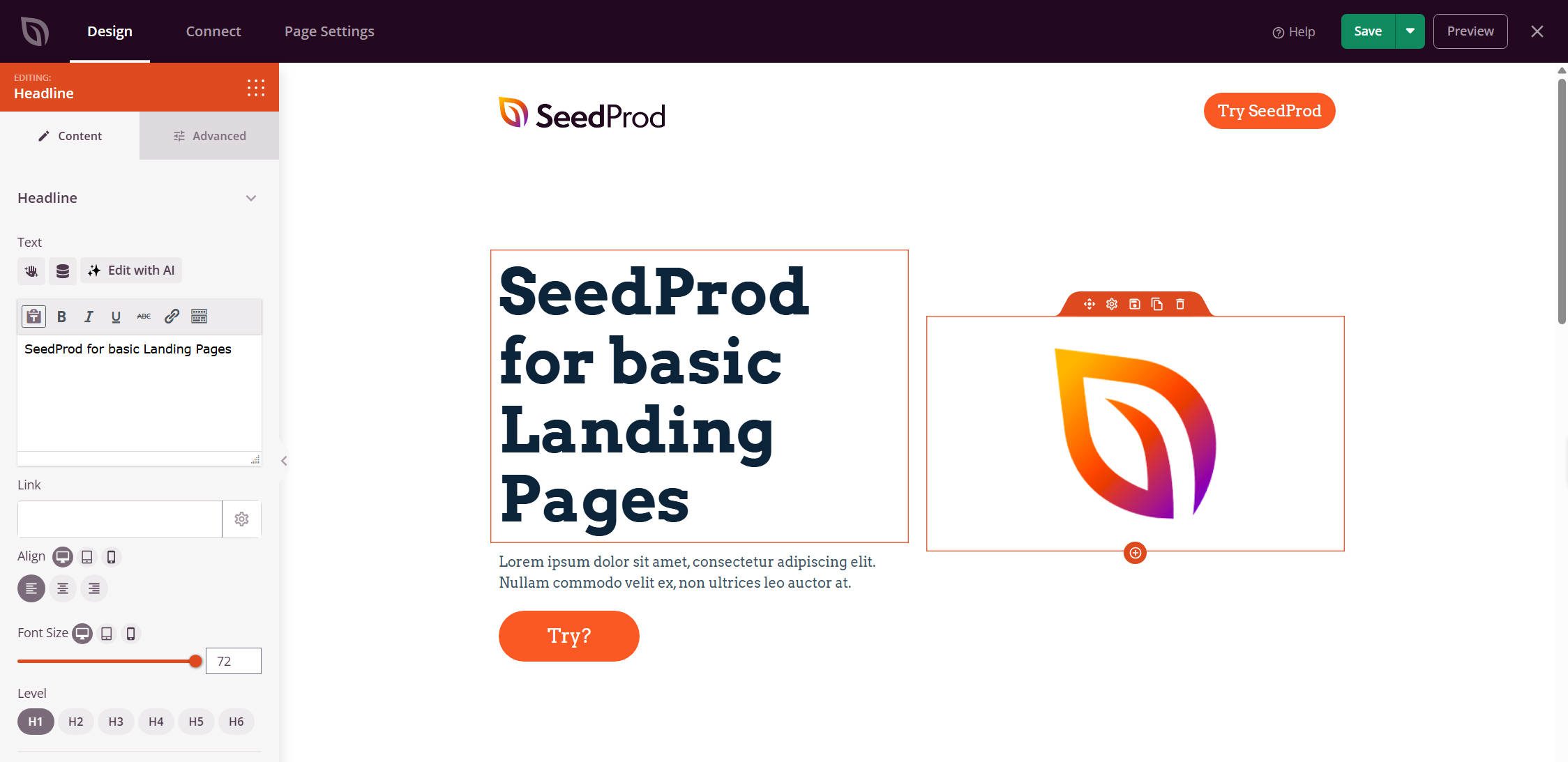
SeedProd started as a landing page and “coming soon” plugin, but has since expanded into a full theme builder. It’s a plugin that requires a theme, though SeedProd can effectively replace your theme’s templates.
SeedProd positions itself as beginner-friendly, with a lighter interface than Elementor or Divi. However, Theme Building is only available with the Pro version. It is also packed with cross-promotional upsells for their other products, such as WPForms, OptinMonster, and more.
SeedProd’s Template Assignment and Conditions
SeedProd’s theme builder includes templates for headers, footers, single posts, single pages, archives, search, 404, and WooCommerce pages. It’s styled like the WordPress post view, which is not intuitive. Condition assignment lets you choose a template type and applies globally to that type (with more granular controls available). All in all, it works, but if you have to pay for SeedProd’s theme builder, you may want to consider other options.
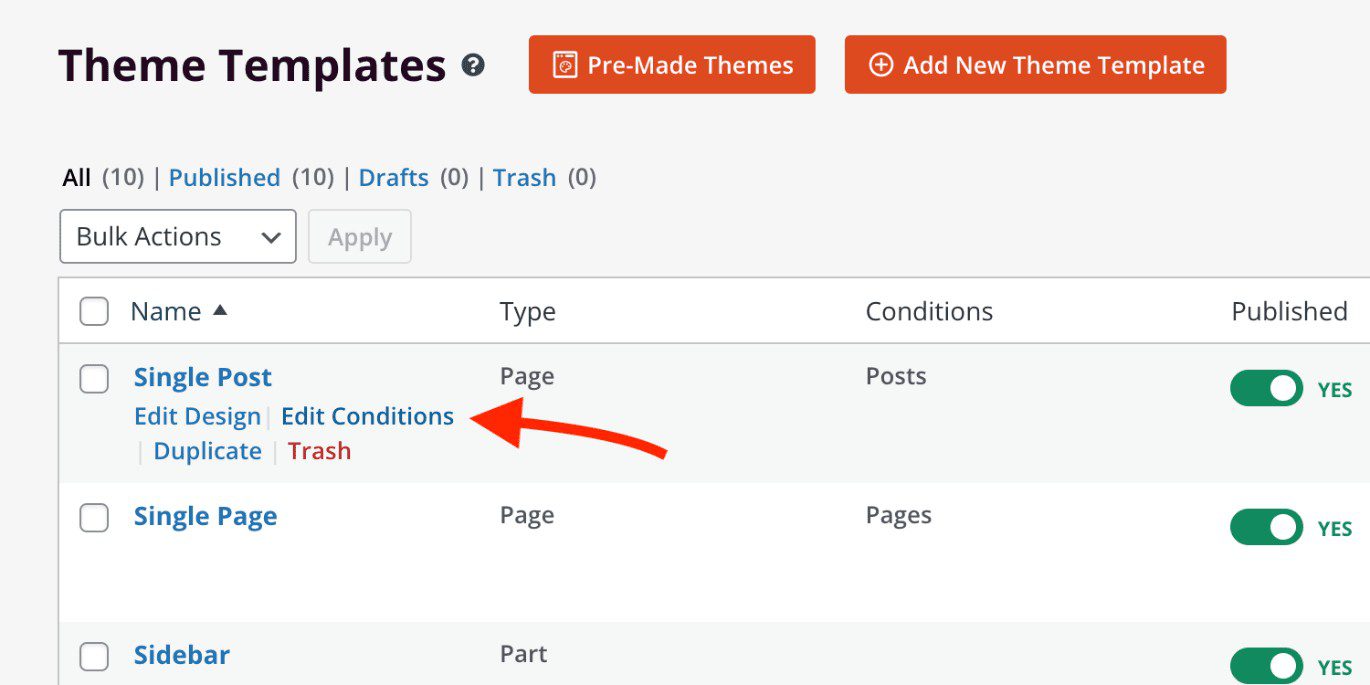
SeedProd’s Visual Builder Quality
SeedProd’s builder is lightweight and fast. This can be attributed to having stripped-down styling options. The drag-and-drop canvas is responsive, and the block library covers the essentials without overwhelming new users. If you need pixel-perfect control over every spacing value and box shadow, you may find SeedProd limiting.
SeedProd’s Dynamic Data Integration
SeedProd supports dynamic content through template tags that pull post titles, content, featured images, author info, and dates. Custom field support is available but less developed than in other theme builders. WooCommerce integration is available, but again, only with the Pro versions. The dynamic data system is functional but not as flexible for advanced use cases involving ACF repeaters or complex field relationships.
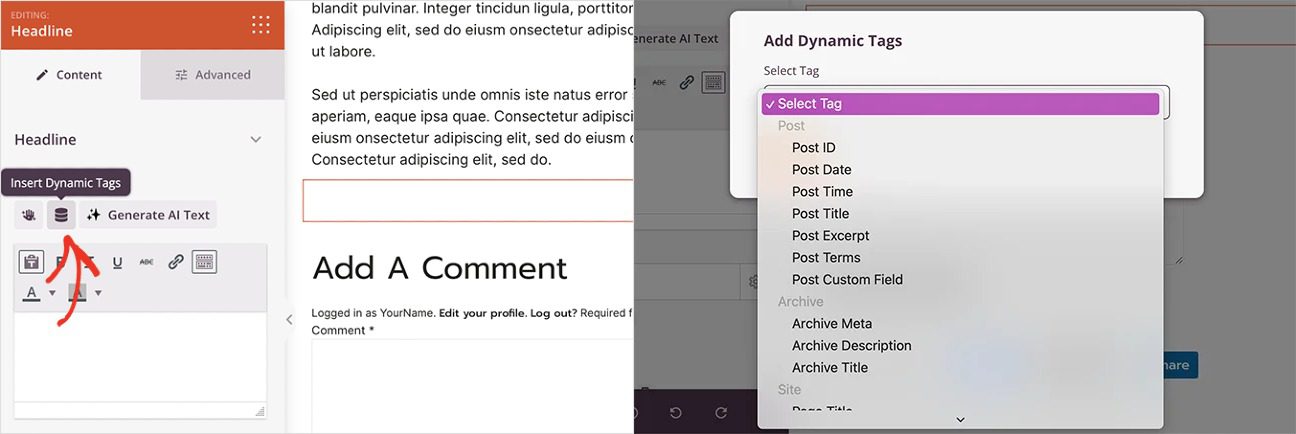
Only Available in Pro
SeedProd’s Custom Query Loops
SeedProd’s post grid blocks let you display by post type, category, and tag, but only for template pages. Advanced query options (meta queries, complex taxonomy filtering, and date ranges) are nonexistent. Again, this is more of a compromise choice for reduced complexity.
Who SeedProd Is Best For
SeedProd is for beginners who want a straightforward path to a custom theme without the complexity of full-featured builders. It also places a heavy emphasis on sales-oriented landing pages, making it best suited for marketers who primarily need to capture leads. However, in my testing, it takes all of 1 minute in SeedProd to see that nearly every advanced feature they have is in their Pro versions.
SeedProd’s Pricing
SeedProd’s Basic plan starts at $79 per year for one site, but theme builder functionality requires the Plus plan at $199 per year (3 sites). All plans are annual. They may offer a discount in the first year, but full price in subsequent renewals. For theme building specifically, you’re looking at a minimum of $199/year, which is higher than Divi’s $89 annual plan and nearly the same price as Divi’s lifetime (unlimited sites) plan.
4. Full Site Editor
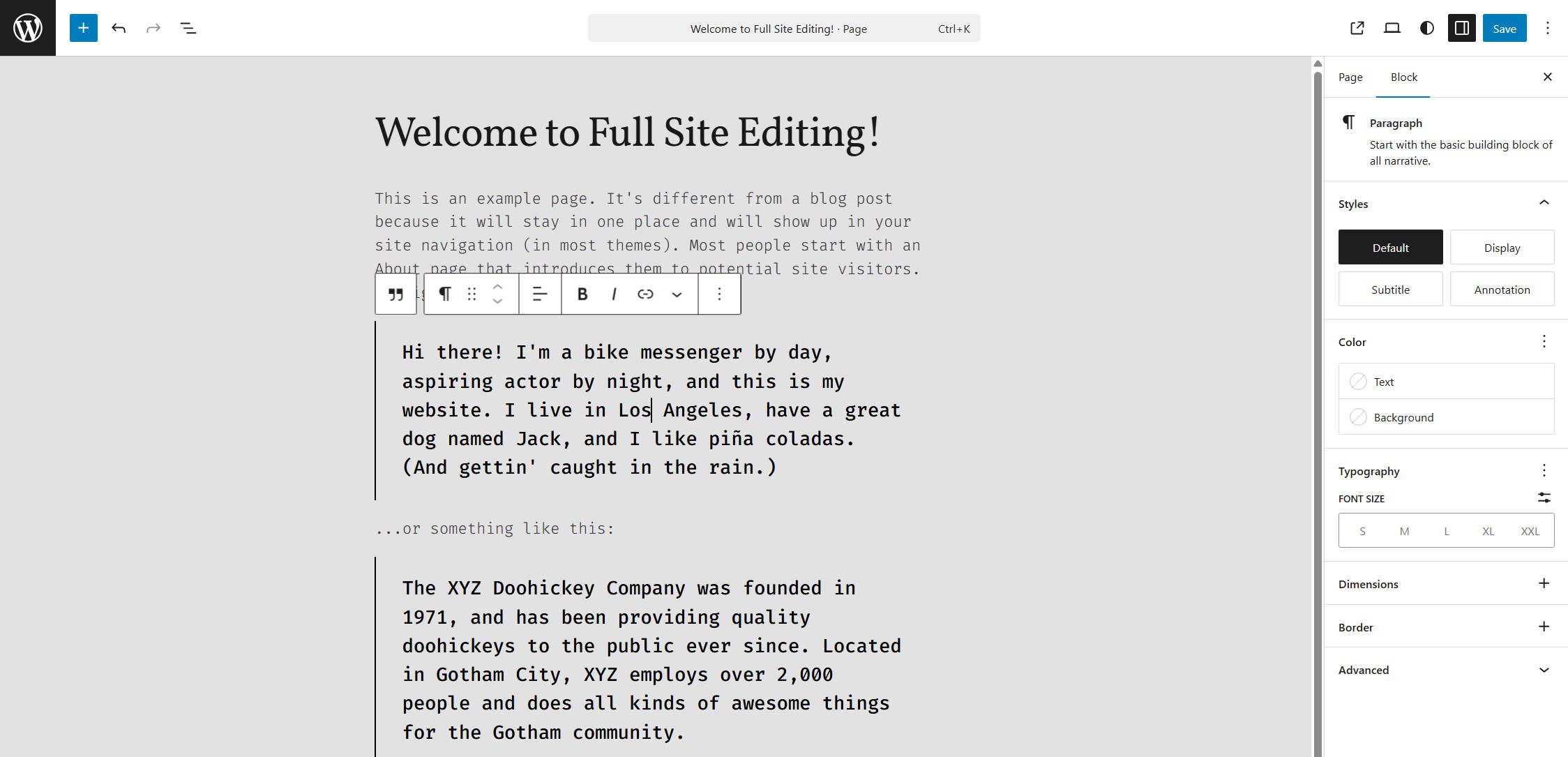
The Full Site Editor (FSE) is WordPress’s native block-based theme builder, available with any block theme. Although it is built in, you will need to use it with a theme like Twenty Twenty-Five or a premium theme. Ollie is a well-designed starter block theme that makes FSE approachable, with pre-built patterns and a nice design system. FSE is still maturing, and the editing experience has a higher learning curve than traditional page builders.
FSE’s Template Assignment and Conditions
FSE uses the WordPress template hierarchy natively. You create templates for single posts, pages, archives, categories, authors, 404, search, and more. Custom templates can be assigned to individual posts or pages through the post editor. The system is logical if you understand WordPress template hierarchy.
FSE’s Visual Builder Quality
FSE utilizes the block editor, so if you’ve created posts in WordPress, the interface will be familiar. Templates are built with blocks: header, navigation, query loop, post content, and footer. The experience is improving with each WordPress release, but it still lacks the polish of mature third-party builders.
Global styles let you set sitewide typography and colors that cascade to individual blocks. Some users find FSE intuitive (mostly WP purists and developers), while others find it disjointed compared to purpose-built theme builders.
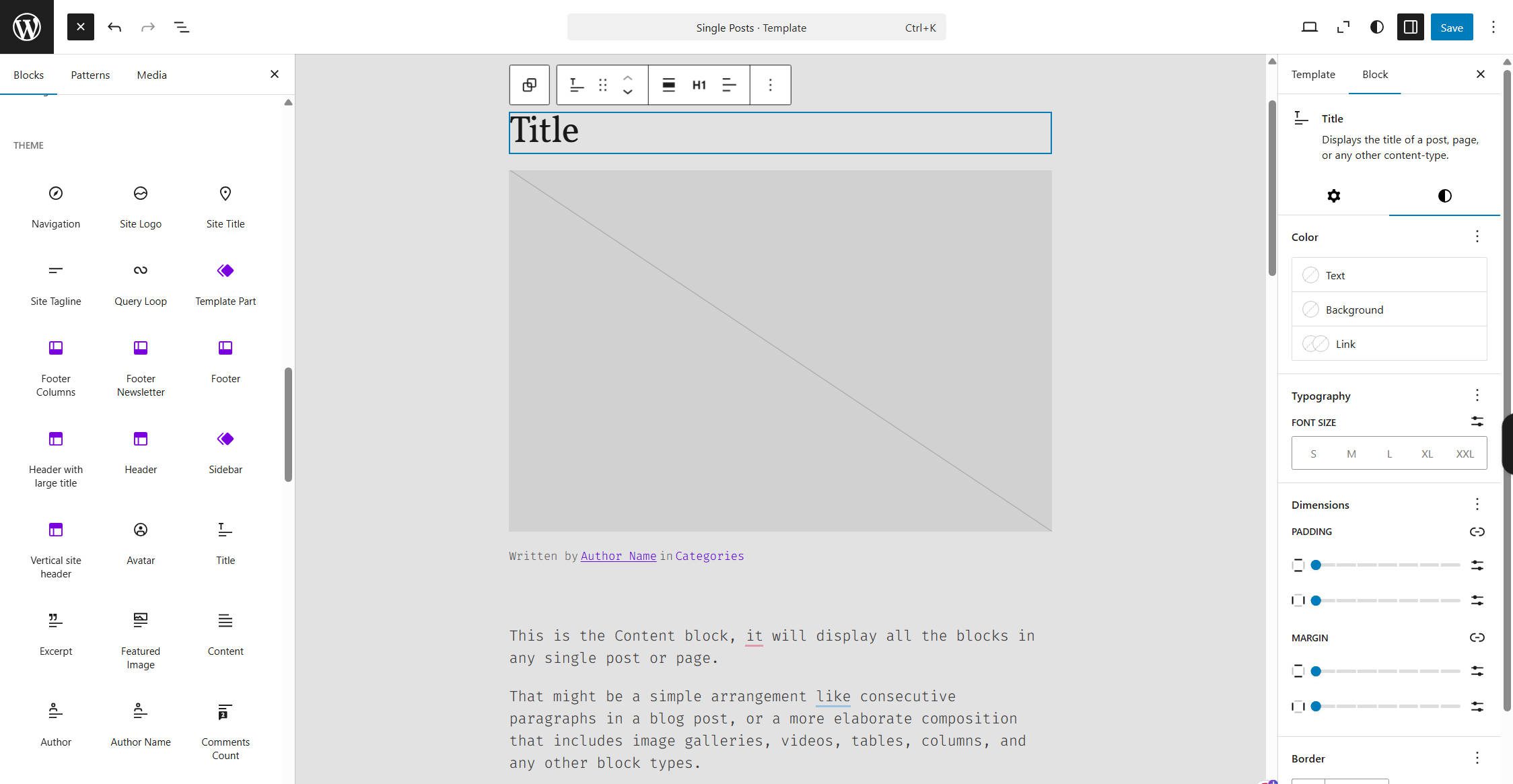
Interestingly, there are no native responsive options
FSE’s Dynamic Data Integration
Dynamic content in FSE works through core blocks like Post Title, Post Content, Post Featured Image, Post Excerpt, Post Author, and Post Date. For custom fields, you’ll need plugins like ACF that add their own blocks for field display. This means that if you have dynamic data, there must be a block for you to insert it, unlike more mature theme and page builders that allow you to insert dynamic data in nearly any text, link, or image input area.
FSE’s Custom Query Loops
The Query Loop block is FSE’s answer to custom post displays. You can filter by the current template, post type, category, tag, author, and keyword. However, there are specific blocks that can be used within a Query Loop block. This is different compared to Divi or Bricks, where any element can be turned into and used as a Loop.
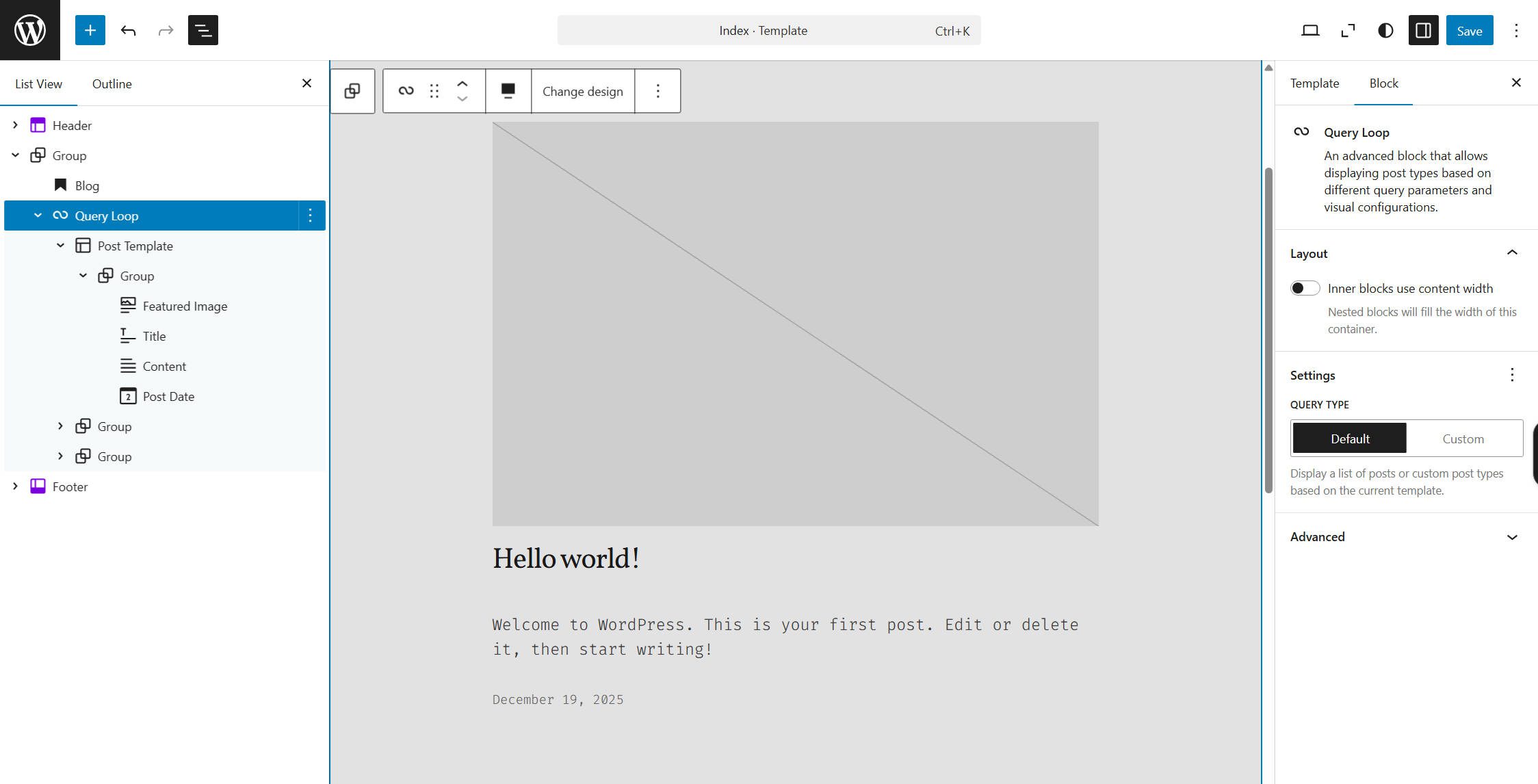
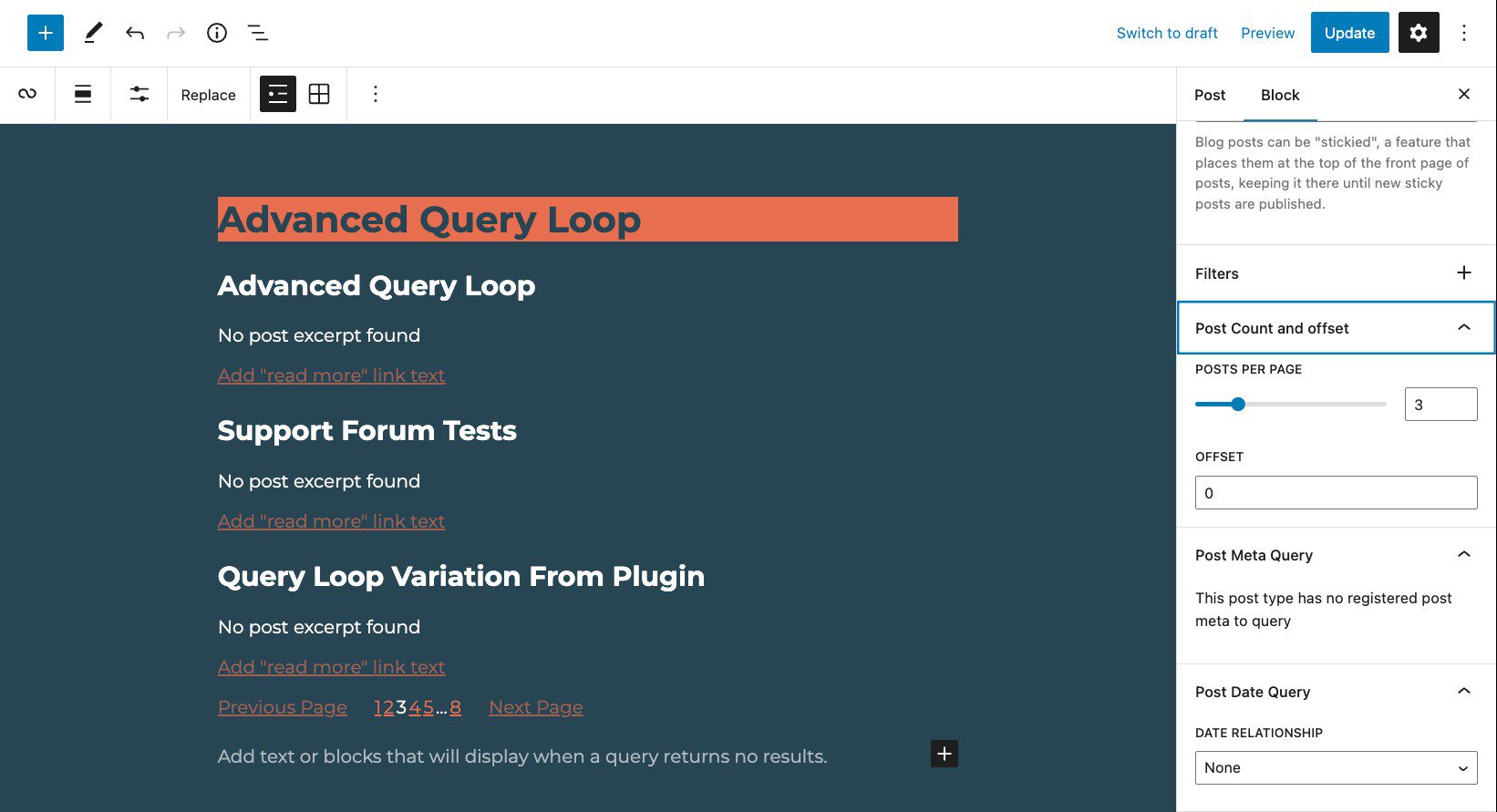
For advanced queries, you’re limited without custom code or plugins that extend Query Loop functionality (many people use the Advanced Query Loop plugin).
Who the Full Site Editor Is Best For
Developers and technically comfortable users who want to stay within core WordPress without third-party dependencies. Sites that prioritize long-term maintainability and minimal plugin counts will benefit from FSE’s native approach. However, for the average user, you will likely end up wanting a premium Block Theme, which kind of puts you in a position to consider a non-Block theme like Divi.
FSE’s Pricing
The Blocked Editor and Full Site Editing are free if using a free block theme. However, you may end up spending on plugins to fill functionality gaps (such as custom fields display, advanced queries, and WooCommerce templates), which can erode the cost advantage. The FSE also requires a compatible Block Theme, with numerous premium options that improve upon it (like Ollie Pro). For simple sites, FSE is genuinely free. For complex builds, factor in the add-ons you’ll need.
5. Bricks
Bricks is a visual site builder that functions as a theme, similar to Divi. You install Bricks, and it becomes your theme, with full theme-building capabilities. Bricks has gained traction among developers and advanced users for its clean code output, performance focus, and deep customization options.
It has a smaller user base than many other theme builders, but it is worth consideration. If you’re comfortable with a steeper learning curve and want more control over markup and queries, Bricks is worth evaluating.
Bricks’ Template Assignment and Conditions
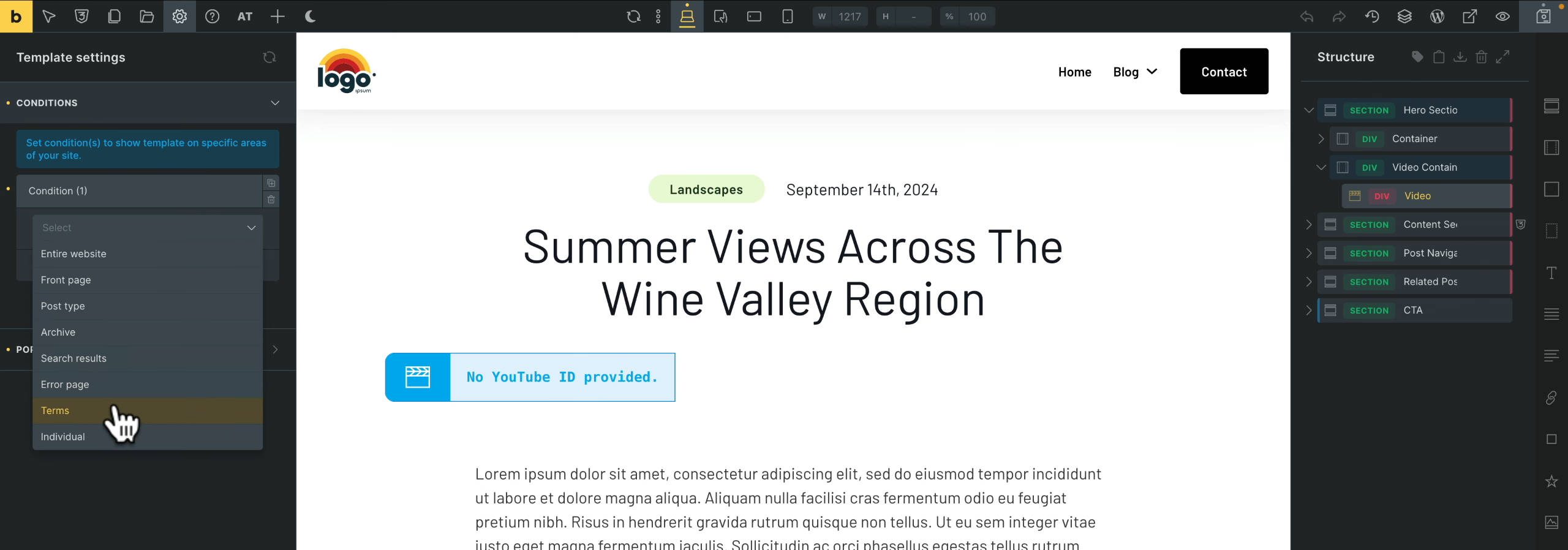
Bricks uses a template system with conditions that rival Divi’s flexibility. You can target post types, taxonomies, specific posts, archives, author pages, search results, error pages, and WooCommerce templates. Conditions support AND/OR logic, includes, and excludes.
Bricks’ Visual Builder Quality
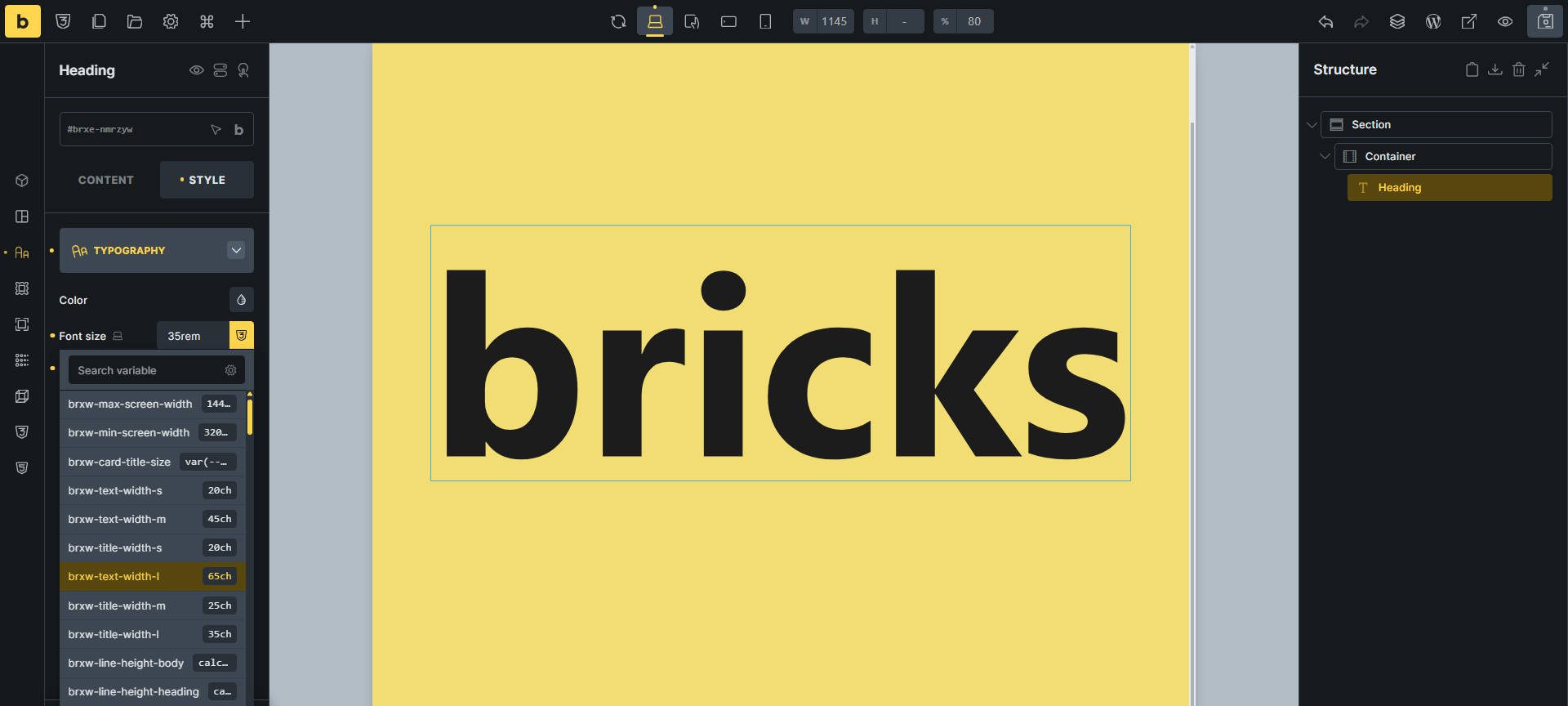
Bricks’ is fast, even on complex pages. The styling controls are extensive, including custom CSS at the element level, state styling (hover, focus), and detailed responsive breakpoint control. The interface assumes some familiarity with web development concepts, so it offers less hand-holding than SeedProd but more control than most others.
Output markup is much cleaner than Elementor, which matters for performance and custom styling. It also relies on an integrated variable system.
Bricks’ Dynamic Data Integration
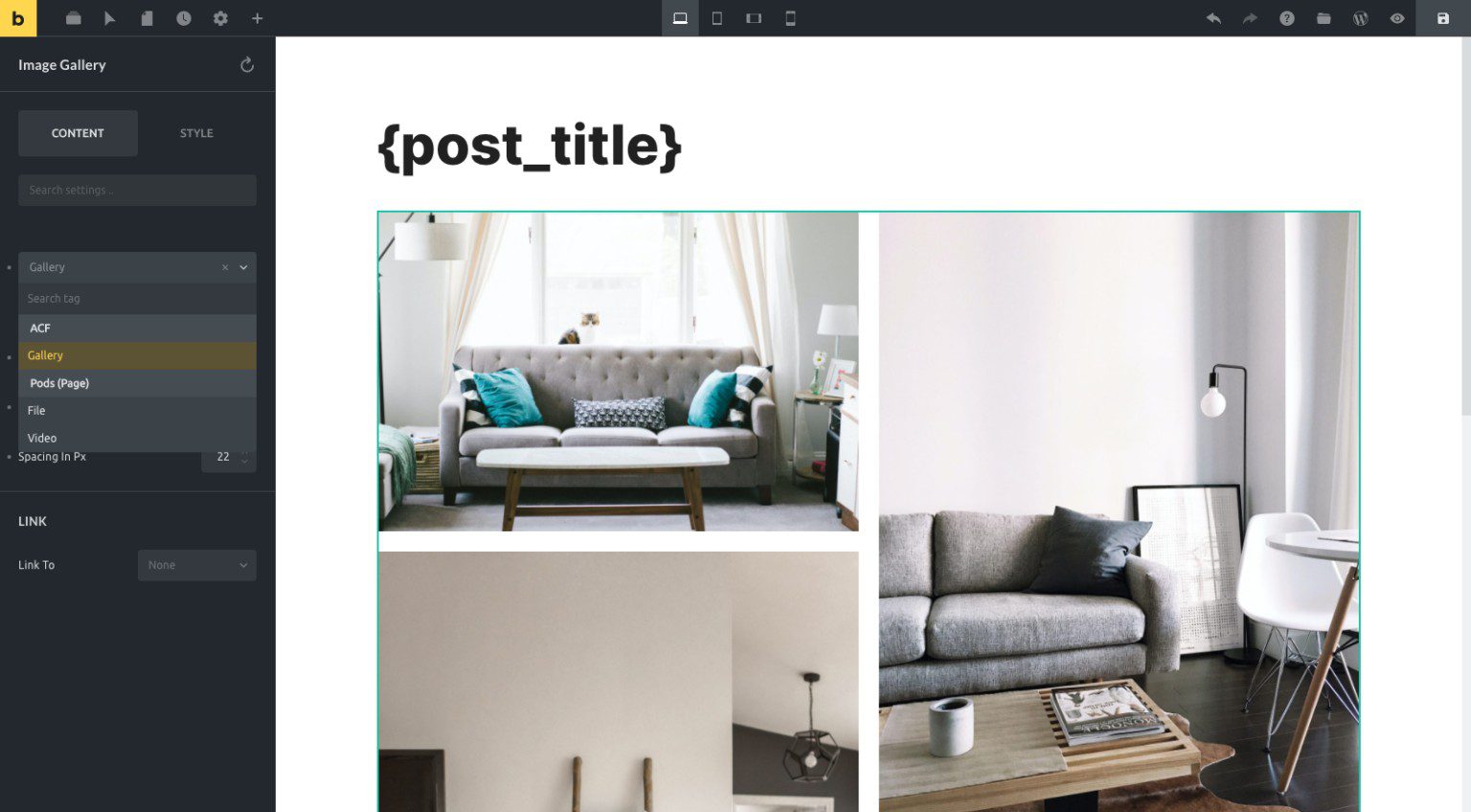
Bricks treats dynamic data as a core feature. Dynamic tags are available in most settings and pull post data, custom fields (ACF, Meta Box, Pods, Toolset, JetEngine), WooCommerce data, and user data. The implementation is flexible, with options for before/after text, fallbacks, and formatting. WooCommerce templates are fully supported with dedicated elements. If you’re building data-driven sites with CPTs and custom fields, Bricks handles it as well as any on this list.
Bricks’ Custom Query Loops
Bricks’ query builder is powerful. You can filter by post type, taxonomy, meta fields (including comparison operators), date, author, and relationship fields from ACF and JetEngine. The query loop element lets you design the item template inline. Pagination, infinite scroll, and AJAX filtering are available. For complex CPT archives or filtered directories, Bricks’ query capabilities are near the top of the market.
Who Bricks Is Best For
Developers and performance-focused agencies who care about code output quality. Bricks generates cleaner markup than most visual builders, which translates to faster page loads and easier custom CSS. Users coming from Oxygen Builder will find Bricks familiar. However, Bricks is the most complicated of the theme builders on this list, and if you value access to a site’s codebase, there are better-suited solutions such as Etch and Builderius.
Bricks’ Pricing
Bricks offers annual plans starting at $79 per year for one site, $149 per year for three sites, and $249 per year for unlimited sites. The lifetime option costs $599 for unlimited sites. Compared to Divi’s $249 lifetime for unlimited sites, Bricks’ lifetime is more than double the cost. However, Bricks’ annual unlimited plan ($249) matches Divi’s lifetime price, so the value comparison depends on how long you plan to use the builder.
Quick Pricing Comparison
Pricing structures vary widely across theme builders, especially when comparing annual subscriptions to lifetime options. Here’s how each builder stacks up for different use cases.
| Theme Builder | Starting Price | Unlimited Sites | Best Value Scenario | |
|---|---|---|---|---|
| Divi 5 | $89/year | $249 lifetime | Agencies and freelancers building 3+ sites | Visit |
| Elementor | $59/year | $399/year | Designers needing extensive third-party integrations | Visit |
| SeedProd | $79/year | $239/year | Marketers focused on landing pages and lead capture | Visit |
| Full Site Editor | Free | Free | Budget-conscious builds with minimal plugin needs | Visit |
| Bricks | $79/year | $599 lifetime | Performance-focused developers and agencies | Visit |
Making The Right Choice Of Theme Builder
Every theme builder on this list can produce a functional, custom WordPress site, from header to footer. The differences come down to how you prefer to work, what you’re willing to spend, and how much control you need.
Divi remains my go-to recommendation for most users. The lifetime license eliminates recurring costs, the visual builder is genuinely enjoyable to use, and the learning curve is manageable for non-developers. It is also the best option for designers or those working with professional designers. If you’re building client sites or managing multiple projects, the unlimited usage makes it the most cost-effective option over time.
Elementor makes sense if you’re already invested in its ecosystem or need specific third-party integrations that only work with Elementor. The annual costs add up, but the plugin library is unmatched. Its loop builder is awkward, and its templating is a little bit harder to grasp than Divi’s, but it is a popular choice nonetheless.
SeedProd fits a narrower use case: simple sites where the builder’s limitations won’t matter. If you’re building landing pages and basic business sites without complex dynamic content needs, it gets the job done without overwhelming you. In my experience, it is great at first, but website envy will lead you to wanting more over time.
The Full Site Editor is ideal for staying within core WordPress and avoiding plugin dependencies. It’s free, evolving, and future-focused, but requires more learning. Bricks targets developers and agencies valuing clean code and performance, where higher costs may be justified.
For everyone else, start with Divi. The lifetime license means you can learn it once, use it everywhere, and never worry about renewal fees eating into your project budgets.
Theme Builder FAQs
What is a WordPress theme builder?
Do I need a separate theme if I use a theme builder?
Can theme builders work with custom post types and custom fields?
Is the Full Site Editor a replacement for theme builders like Divi or Elementor?
Which theme builder is best for WooCommerce stores?
The post 5 Best WordPress Theme Builders in 2026 (Compared) appeared first on Elegant Themes Blog.