Divi 5 is officially here, and while the performance boost is huge, we know you are likely wondering what this means for your current website. Migrating existing sites can feel daunting or unreliable, but the Backward Compatibility System is designed to solve this. It checks and converts your existing content into the Divi 5 format, without disrupting your existing layout or functionality.
In this post, we’ll explain what the Backward Compatibility system is, how it works, and how to use it. By the end, you’ll have the confidence to upgrade your site and experience everything Divi 5 has to offer.
Let’s dive in.
What Is The Backward Compatibility System In Divi 5?
The Backward Compatibility System detects legacy Divi 4 content, including modules, Theme Builder templates, library items, and third-party plugins. Its job is to ensure that all these elements continue to function exactly as expected without any manual fixes.
At its core, the Backward Compatibility System is a conditional-loading system that operates on a per-page and even per-module basis. Divi 5 scans each page and loads the necessary Divi 4 PHP framework only for the elements that need it. Native Divi 5 content uses the new, modular framework for better speed and efficiency. This approach means your site gets the best of both worlds: modern performance where possible, and support for legacy elements where needed.
When a page is running in this mode, you’ll see a clear Backward Compatibility Mode Enabled notice in your Admin Bar. This provides a visual indicator that legacy elements are active on the page, giving you peace of mind that your design and functionality remain intact.
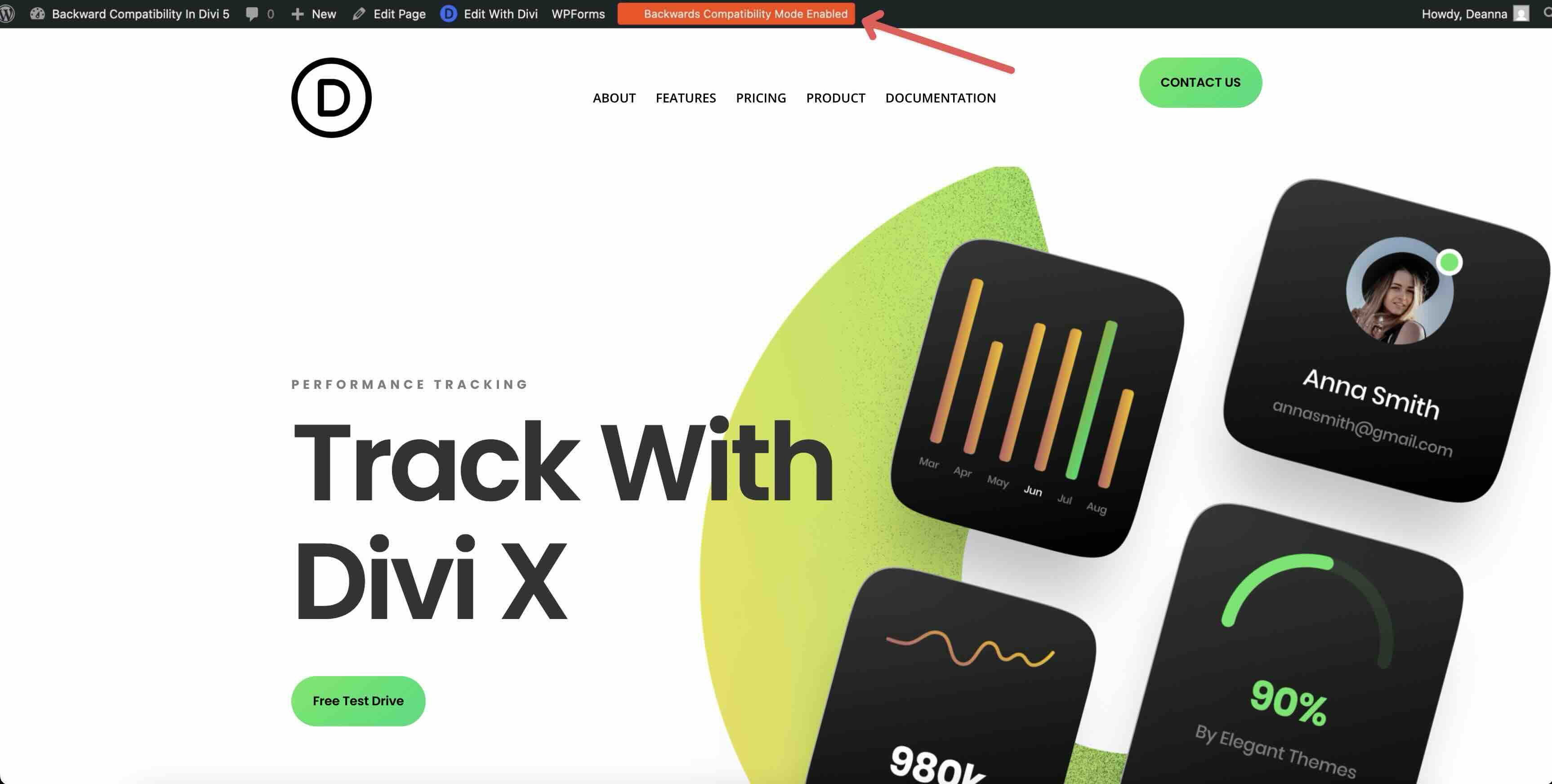
Essentially, the system acts as a temporary bridge. It provides third-party developers the necessary time to release native Divi 5 versions of their plugins while allowing you to transition your own sites at your own pace. You can start enjoying the improvements right away on new builds or existing sites, while legacy content stays perfectly supported until updated versions are released.
Key Features Of The Backward Compatibility System
The Backward Compatibility System includes several features designed to make your transition feel natural and controlled. Here’s what stands out most:
Divi 5 Migrator
The Divi 5 Migrator handles the heavy lifting of the upgrade process automatically. When you’re ready, the Migrator scans your entire site and converts all compatible elements into the native Divi 5 format with a few clicks. Anything that needs legacy support stays wrapped safely in compatibility mode. The process is quick, and you get a clear compatibility report showing exactly which items will convert fully and which will be wrapped in the Divi 4 framework.
Full Integration In The Visual Builder
Legacy modules don’t get hidden or sidelined. They appear right alongside native Divi 5 modules in the Insert Module Or Row panel, making it easy to mix old and new as you build.
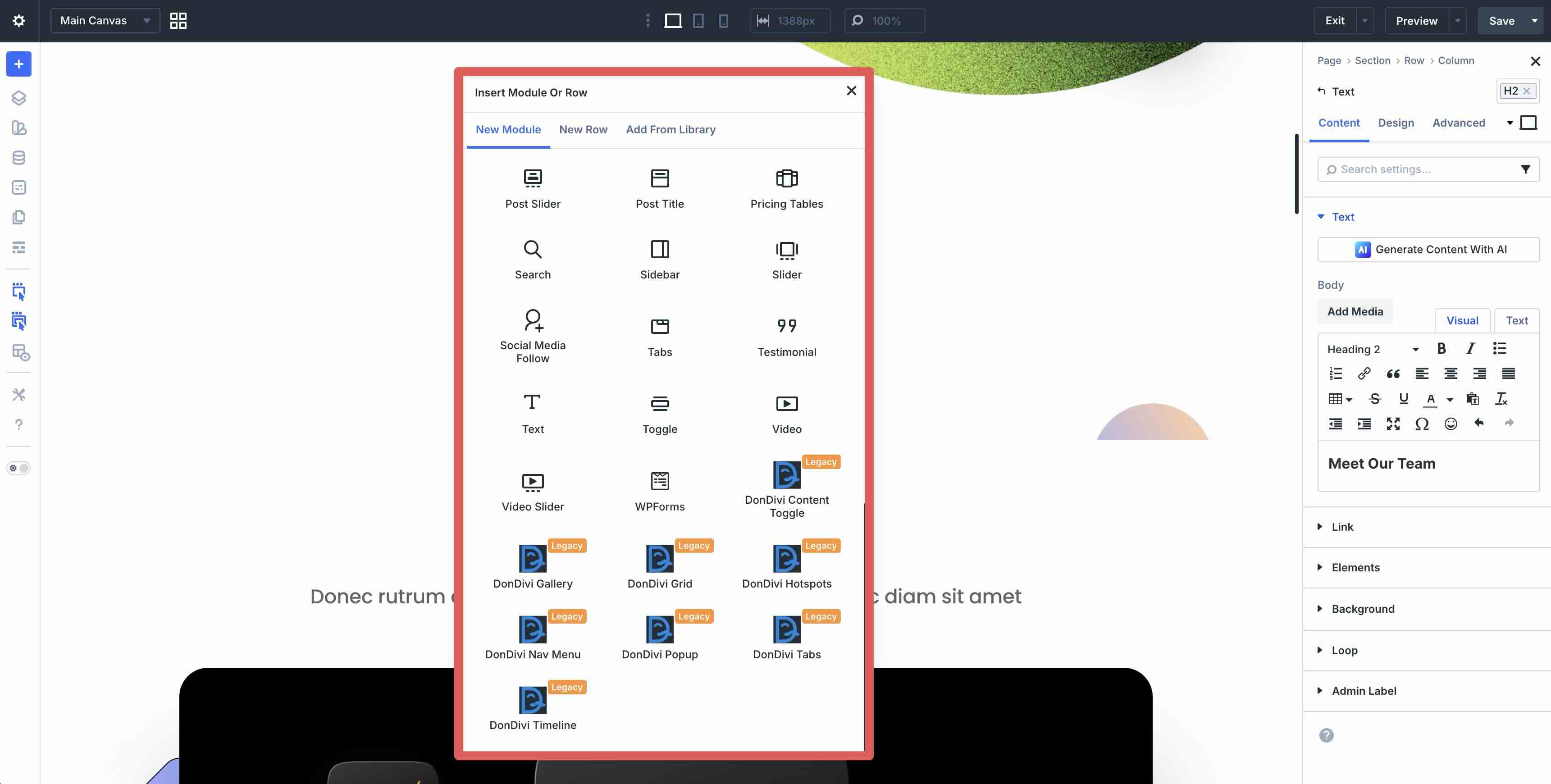
You can select, place, and edit them directly in the Visual Builder, with all your existing settings intact. Legacy (third-party) modules load the Divi 4 framework behind the scenes, so you get the same content, design, and advanced settings you’re used to. When editing a legacy module, an alert appears at the bottom of the Content tab letting you know it’s running in legacy mode, keeping things transparent without changing how you work.
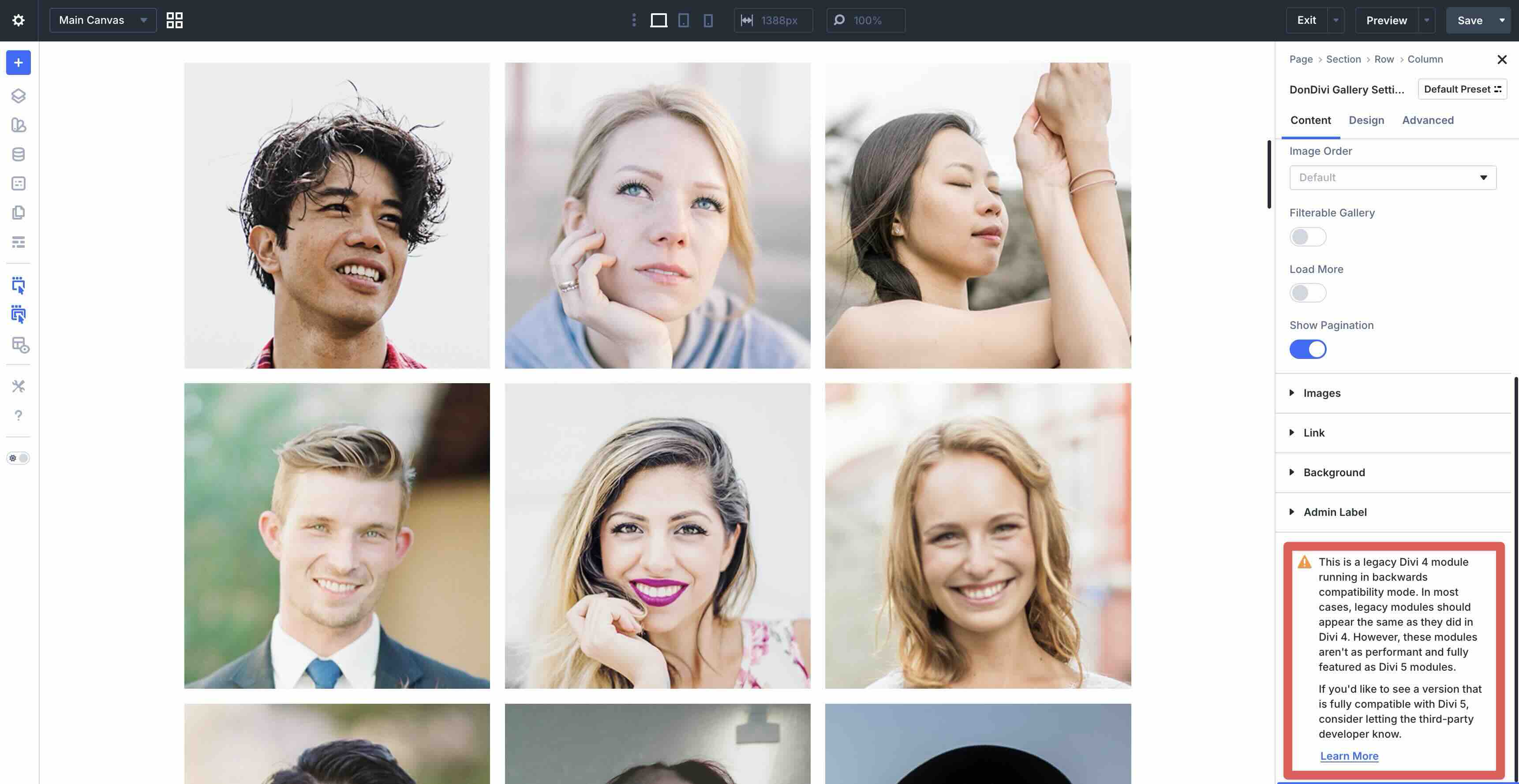
Your changes will preview as expected, though you may notice a brief AJAX reload when editing legacy modules. This occurs because Divi 5 interprets the legacy shortcodes and maps them to its new native settings panel. After you adjust a setting, this quick refresh re-renders the module using the legacy framework, ensuring your design updates are applied accurately.
This integration allows you to continue managing your existing content comfortably, while adding new Divi 5 content to your pages.
Preservation Of Designs And Functionality
Your existing layouts, custom CSS, Presets, and third-party extensions continue to look and behave exactly as they always have. There are no forced redesigns or broken design elements. Everything stays visually identical and functionality remains reliable while the system quietly handles the differences behind the scenes.
Support For Mixed Content
Pages in Divi 5 don’t require an all-or-nothing approach. You can place native Divi 5 modules (which deliver faster performance) alongside legacy modules on the same page.
This works because the Backward Compatibility System identifies legacy content on a per-module basis. If a page contains a legacy element, such as a third-party extension or an older shortcode-based module, Divi 5 wraps that specific element in the legacy framework. This ensures your design remains visually intact and fully functional, even while the rest of your site transitions to the new Divi 5 architecture.
How It Benefits Your Workflow
- Instant Builder Speed: Even on pages with legacy content, you will experience the significantly faster, more responsive Divi 5 Visual Builder interface.
- Incremental Optimization: You don’t have to rebuild your site overnight. You can keep your existing designs active and replace legacy modules with native Divi 5 versions at your own pace.
- Visual Continuity: Settings and styles are preserved during the transition. While a page with legacy content will still load the Divi 4 framework on the frontend, it acts as a bridge until you are ready to transition to a pure Divi 5 environment for maximum frontend performance.
Developer-Friendly Approach
The Backward Compatibility System gives third-party extension creators room to build native Divi 5 versions. Many developers are actively releasing Divi 5-compatible updates through the Divi Marketplace, and you can check each product’s Divi 5 compatibility status before migrating. In the meantime, legacy extensions work as intended in compatibility mode, so your favorite tools don’t break during the transition.
How To Migrate Your Website To Divi 5
Installing Divi 5 On New Websites
For brand new websites, Divi 5 requires no migration. Once activated, the site runs entirely on the native Divi 5 framework, providing the full speed and efficiency of the new architecture from day one.
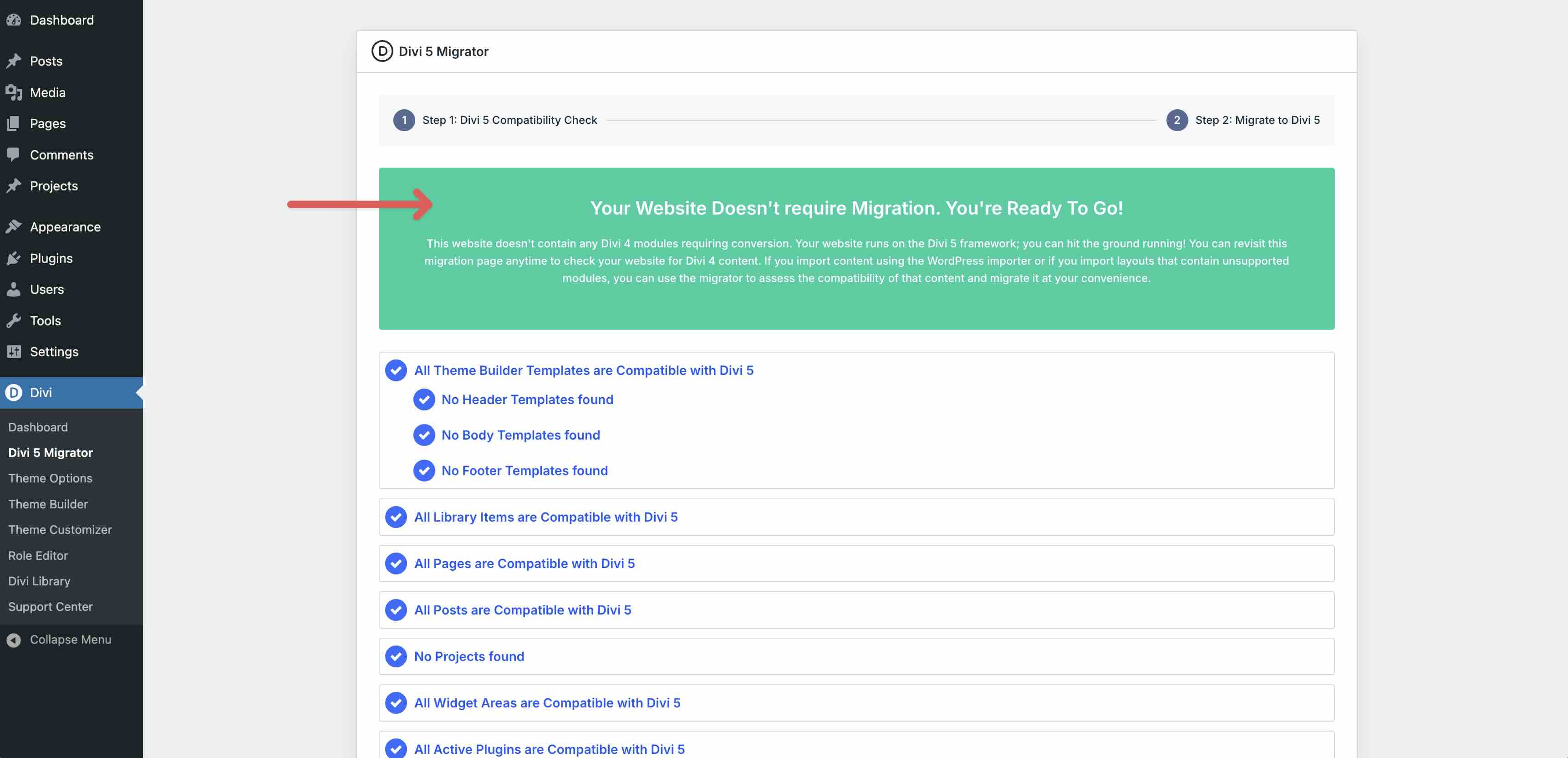
If you’re exploring Divi 5 for the first time, setting it up on a staging environment is an excellent way to get hands-on with the new interface. This allows you to get comfortable with the updated workflow and see exactly how your favorite features have evolved.
Installing Divi 5 On Existing Websites
While setting up Divi 5 is straightforward, it is important to remember that it will replace your existing Divi 4 installation. As a best practice, especially for sites with existing content, we recommend creating a full backup and testing the update on a staging site first. This gives you a safe environment to explore the new features before going live.
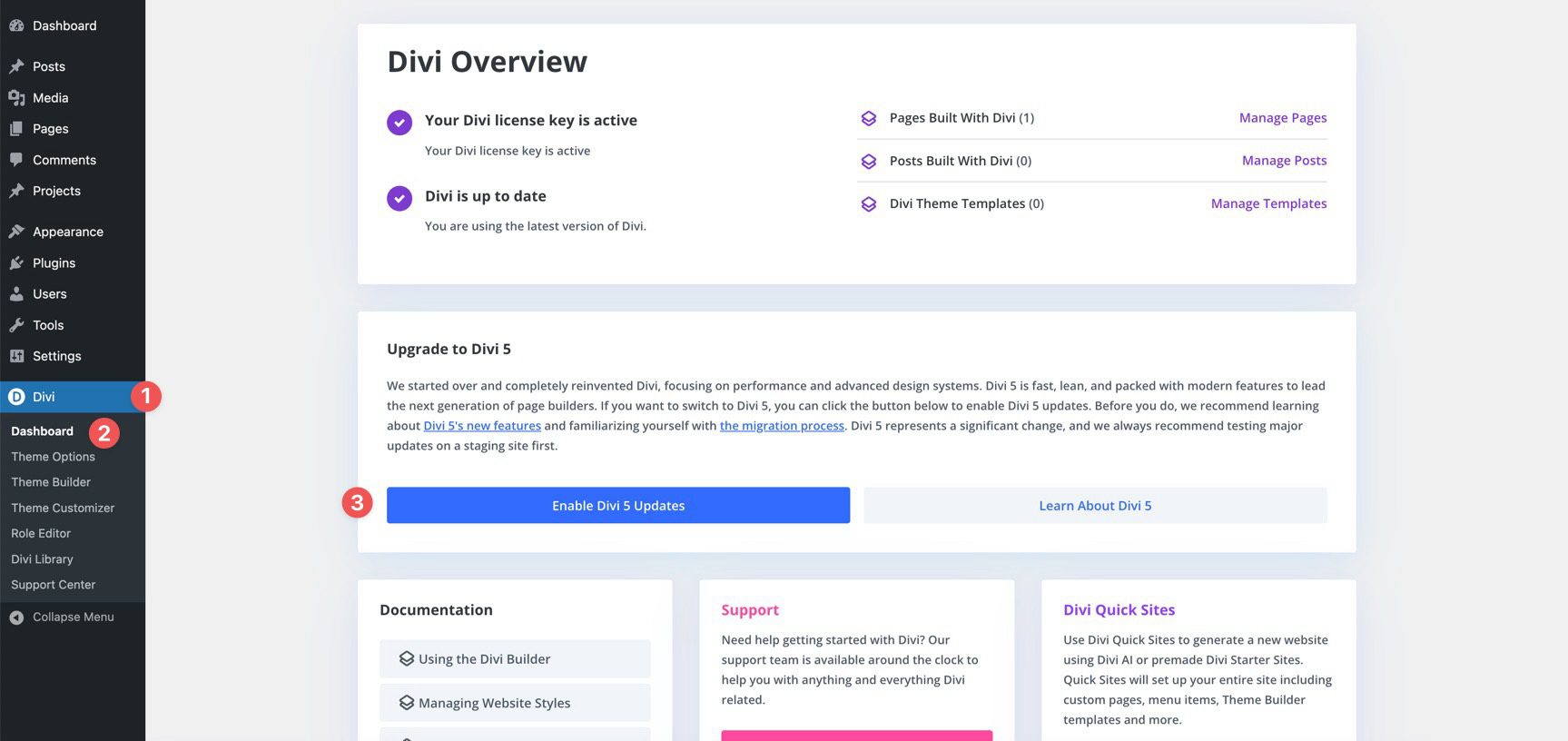
In the WordPress dashboard, head to Divi > Dashboard. You’ll see an Upgrade to Divi 5 section. Before upgrading to Divi 5, click Enable Divi 5 Updates.
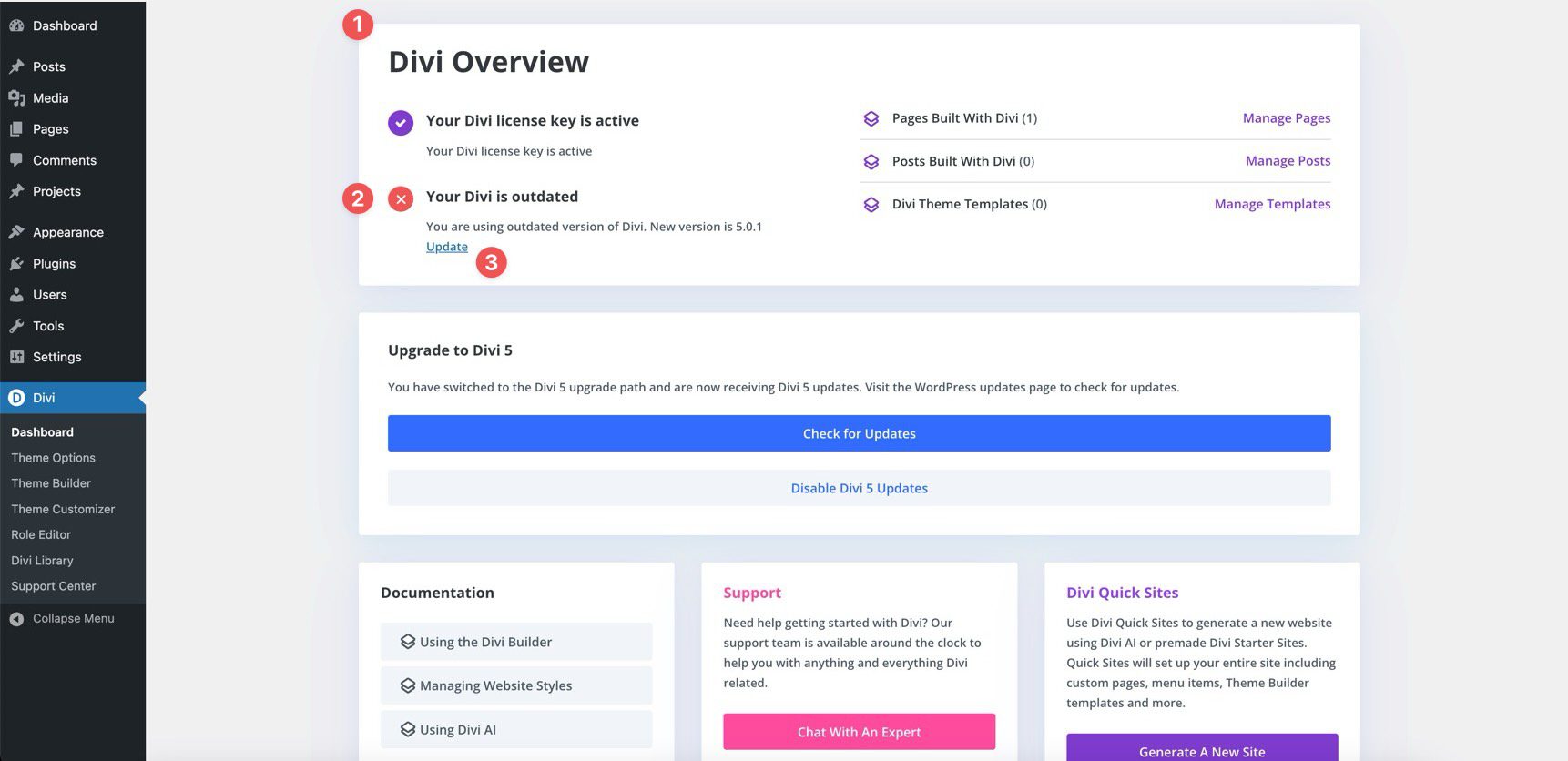
In the Divi Overview, you’ll notice an alert letting you know an update is available. Click the Update link to proceed with the update.
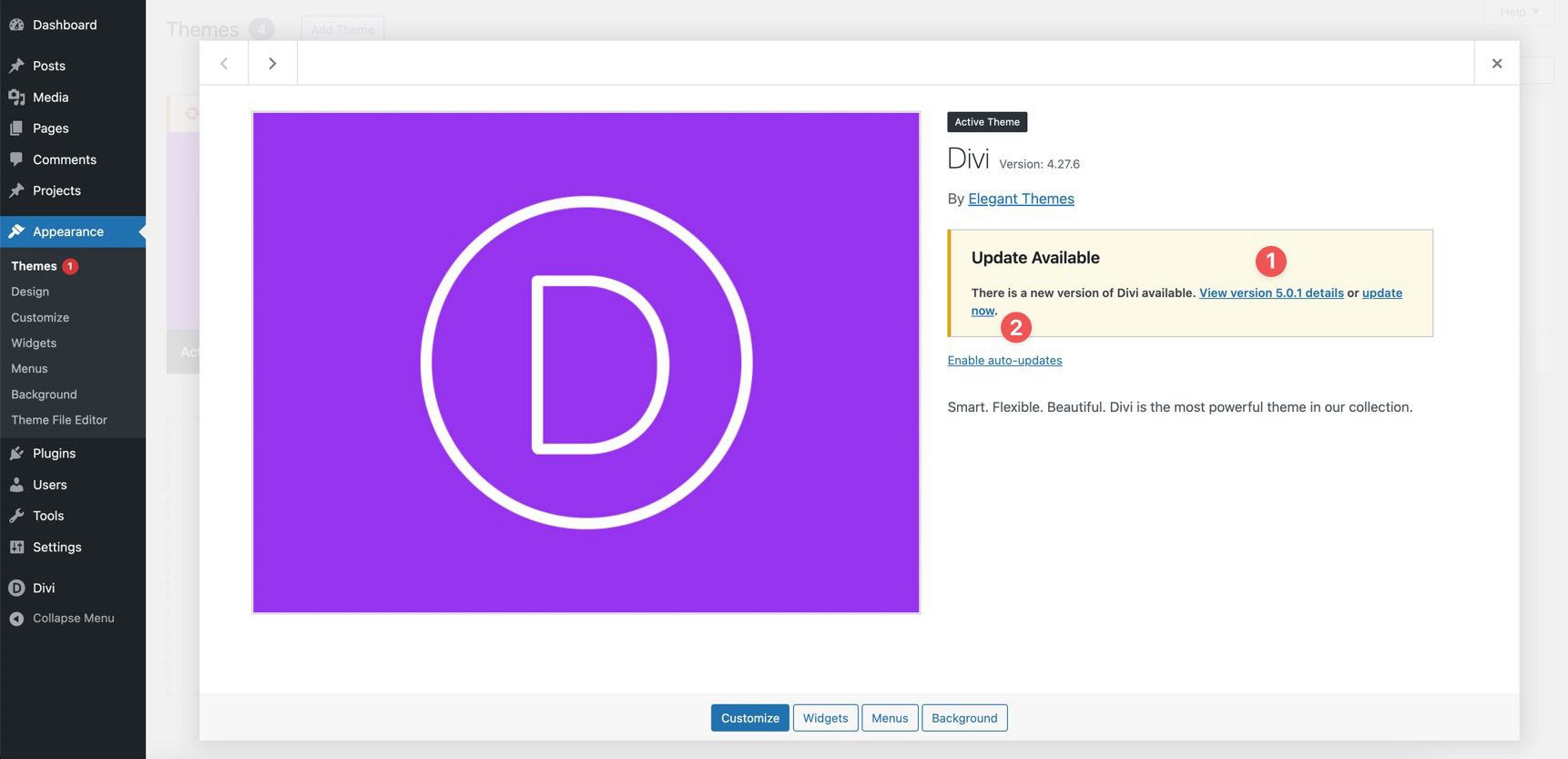
You’ll be forwarded to Appearance > Themes where you can view the latest version details or update to Divi 5. Click update now.
Important note: Once installed, it’s best practice to use the Divi 5 Migrator before adding any additional content. Don’t edit any pages, posts, or Theme Builder templates. Doing so will convert the content to the Divi 5 format with no possibility of restoring it to Divi 4’s format. Other precautions, including making a full backup of your site and updating any plugins before migration, are strongly recommended.
Using The Divi 5 Migrator
The Divi 5 Migrator is a safe, built-in tool for converting existing Divi 4 content to the new Divi 5 format. Thanks to a dedicated rollback feature, you can easily restore your content should any issues arise.
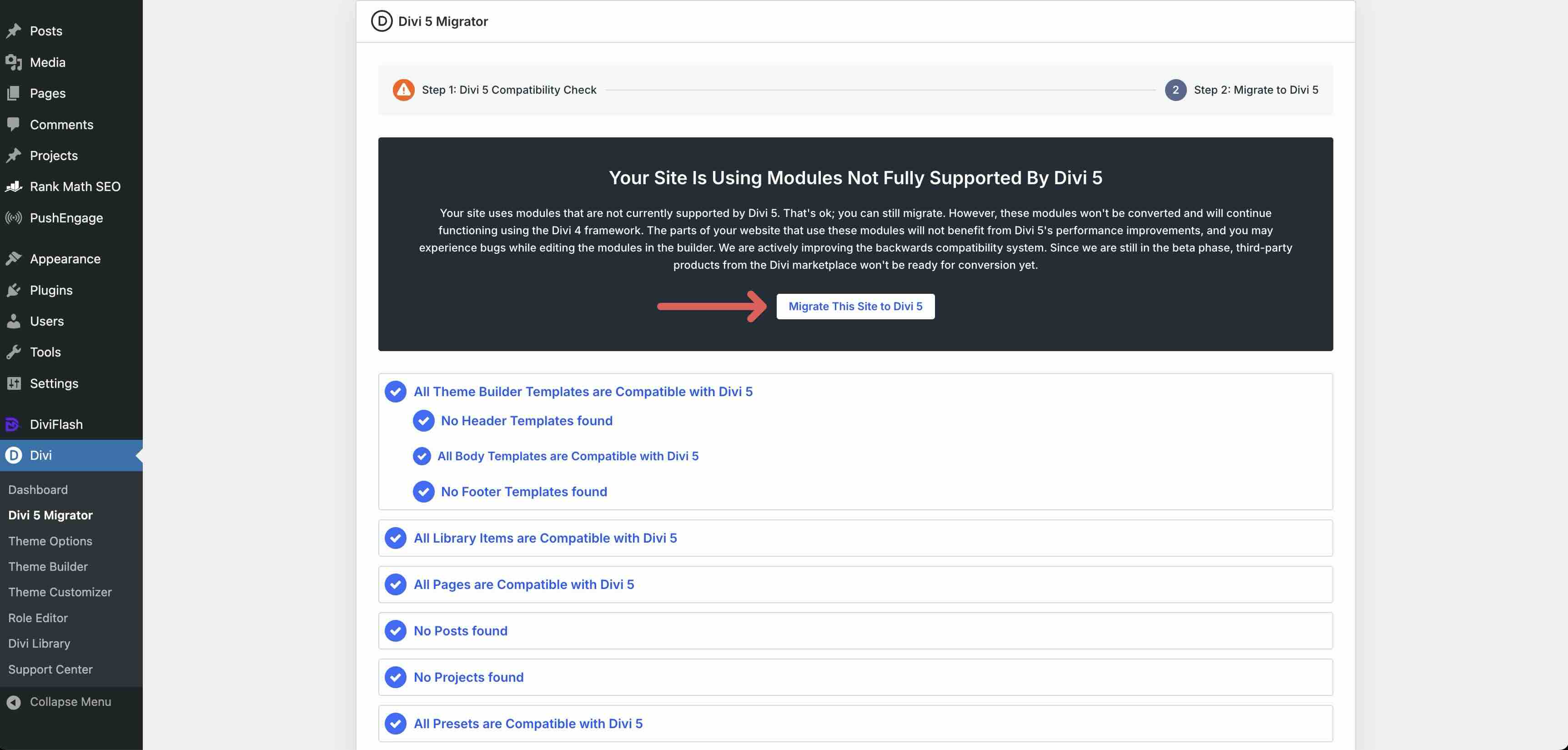
To access the Migrator, go to Divi > Divi 5 Migrator in your WordPress dashboard. The tool will automatically run a compatibility check, scanning key areas such as your pages, posts, Presets, Theme Builder templates, and third-party modules and plugins.
The Compatibility Report follows a simple system:
- Blue checkmarks indicate fully supported, native items that will convert and run with full Divi 5 performance.
- Orange warning icons flag items with unsupported modules or features that will migrate but run in Backward Compatibility mode using the Divi 4 format.
The report shows exactly what’s ready and highlights any incompatible elements so you know what to expect.
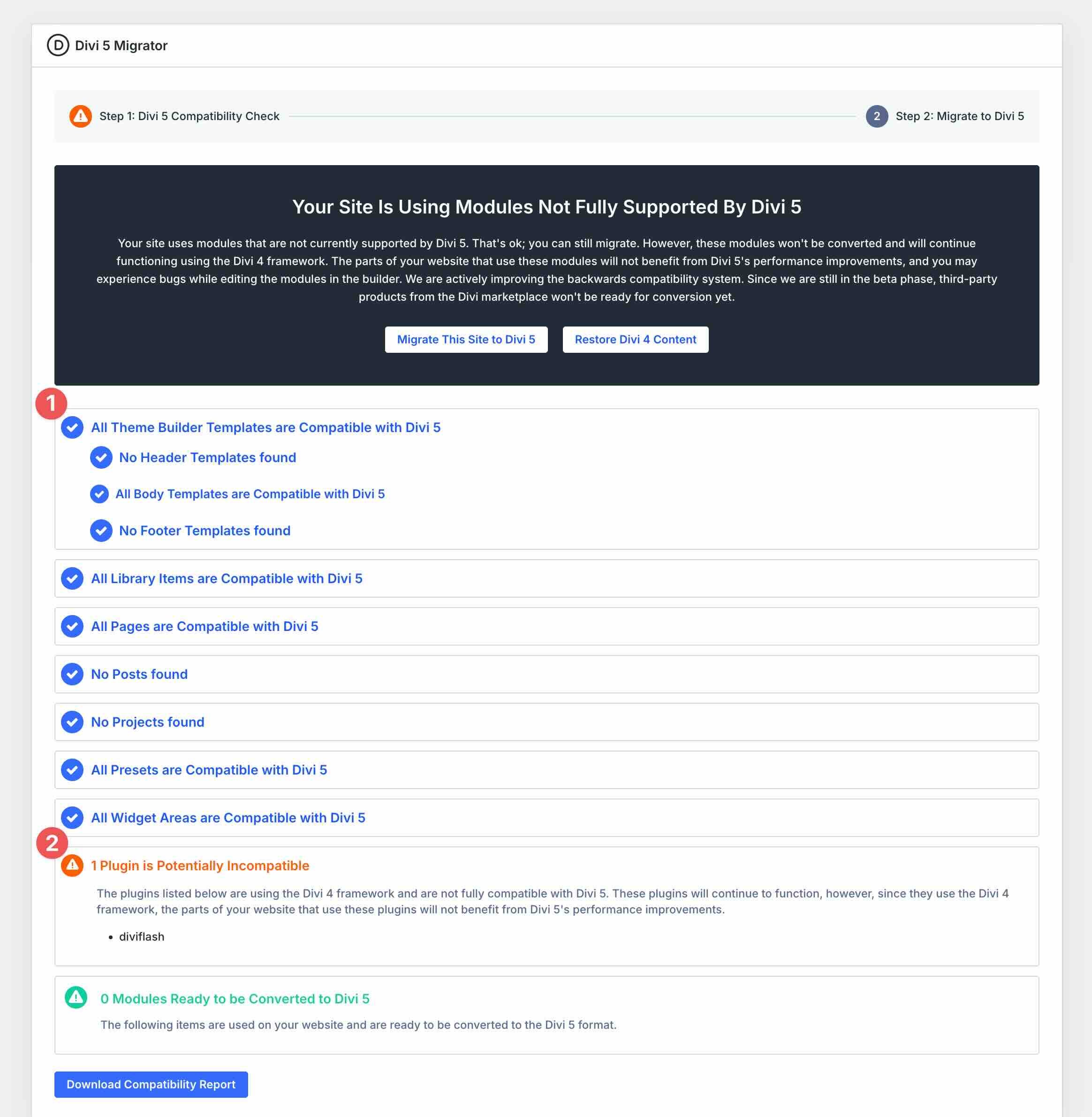
When you’re ready, click Migrate This Site to Divi 5. This process converts supported modules from Divi 4 shortcodes to Divi 5’s new format, preserving designs, content, and functionality. Unsupported modules are safely wrapped in the Divi 4 backward compatibility framework.
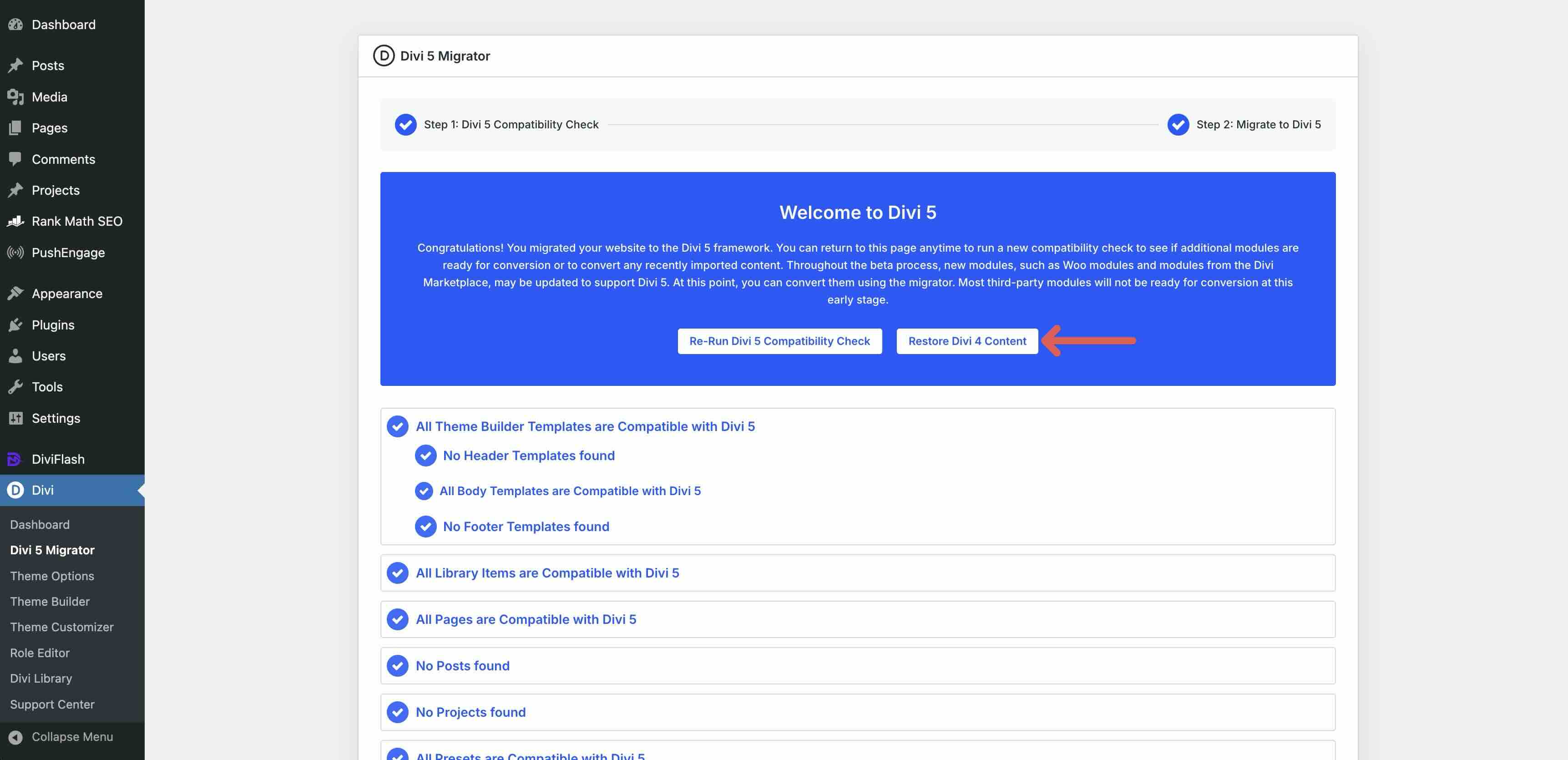
You’ll get a Welcome to Divi 5 message confirming that you’ve successfully migrated your website to Divi 5. If you encounter any issues, you can safely roll back to Divi 4 without losing your content.
Post-migration, legacy modules continue to run in compatibility mode, with the Backward Compatibility Mode Enabled notice on affected pages. The notice disappears automatically as you update or replace those elements with native Divi 5 versions.
The Role Of Backward Compatibility
The Backward Compatibility System is more than just a safety net, though. It’s the foundation that makes adopting Divi 5 practical and stress-free. It lets you step into the future without leaving your existing content behind.
Immediate Access
You can start using Divi 5 right away on new sites. Native Divi 5 content runs on the modern block-based framework, giving you faster loading, leaner code, improved responsive controls, Nested Rows, and an enhanced Visual Builder with tools like Page Manager, Preview Mode, and a more intuitive workspace. There are no compatibility notices that appear on fully native pages, and everything feels snappier from the first build.
Flexibility and Peace of Mind
There’s no pressure to redesign everything at once. Backward Compatibility ensures your existing layouts, modules, Presets, Theme Builder templates, and third-party extensions remain visually identical and fully functional. Legacy elements remain compatible in compatibility mode until you’re ready to replace them, so your workflow stays uninterrupted, and your designs remain safe.
Long-Term Advantages
As the full release of Divi 5 arrives later this month and more third-party developers release native Divi 5 versions, your site will progressively unlock Divi 5’s full potential: maximum performance, access to the latest builder features, and better alignment with modern WordPress standards. Backward compatibility acts as the reliable bridge throughout, ensuring nothing breaks during the transition.
Limitations To Consider
Divi 5’s Backward Compatibility System is built to make the transition smooth and reliable, ensuring your existing content works well while you gradually unlock the full benefits. Here are some practical things to keep in mind as you explore and adopt Divi 5.
Performance On Legacy Content
Pages or elements that include Legacy modules load the Divi 4 framework as needed to ensure they continue to work. This means server-rendering speed for those parts remains similar to Divi 4. However, you will still get some benefits; namely less JavaScript overhead because in Divi 5, we split up all scripts and only enqueue each when needed. Native Divi 5 modules and pages run on the new framework and deliver full-speed improvements right away. The result is that mixed pages perform reliably but may not achieve maximum efficiency until legacy modules are updated or replaced.
Third-Party Plugins
Many third-party modules and plugins from the Divi Marketplace work in Compatibility Mode, preserving their core functionality and appearance just as they do in Divi 4. That said, most modules will have quirks in the builder, depending on how they were developed. They don’t yet have access to Divi 5-specific features such as Flexbox layouts, the Loop Builder, Nested Modules, or other advanced tools. Developers are actively releasing native Divi 5 versions, and checking for updates in the Marketplace before or after migration helps ensure the smoothest experience.
Builder Experience For Legacy Modules
Legacy modules fully integrate with the Visual Builder. They appear alongside native ones, and you can edit them directly with all your existing settings preserved. The process is reliable and familiar, though you may notice a brief AJAX reload when changing settings. The quick refresh happens because Divi 5 interprets legacy shortcodes, generates the settings panel using its new native field types, and then re-renders the module to apply updates correctly. It’s a standard part of the compatibility bridge and doesn’t affect the outcome in most cases, but if the module is doing something fancy that is outside the scope of standard settings, it may not function perfectly.
Post-Migration Considerations
The Divi 5 Migrator handles the vast majority of conversions automatically and accurately, converting supported elements to native format while wrapping unsupported ones safely. Every native Divi module and preset should migrate perfectly, but the reality is that there are certain bugs out there we haven’t found yet. In some cases, a quick visual review after migration can confirm everything renders perfectly. The compatibility report flags potential areas upfront, making it easy to spot anything that might need attention. As always, we recommend testing on a staging site first, so you can verify and adjust with zero risk to your live site.
Make The Switch To Divi 5 Today!
Divi 5‘s Backward Compatibility System is automatic, only loading the legacy framework when needed. With clear notices showing exactly what’s running in compatibility mode, you can see your site’s status after migration.
The easiest way to start is to download the latest Divi 5 from your Elegant Themes account and install it in a fresh environment. From there, you can build new native content to feel the speed and builder improvements, or run the Divi 5 Migrator on a staging site to experience the migration process firsthand. Test thoroughly, explore the compatibility report, and use the rollback option if needed. Rest assured that everything is designed to keep your work safe.
Backward compatibility means you don’t have to choose between staying with what works and embracing what’s next. You can move forward confidently, at your own pace, knowing your sites are protected.
The post Backward Compatibility In Divi 5: What To Expect appeared first on Elegant Themes Blog.